
Troubleshooting GPS Maps
Troubleshooting Maps on your GPS
Check our Compatibility List to see if your unit is supported Compatibility List
Connecting your GPS to computer
When connecting your GPS to the computer you will need to use a USB cable.
When you plug your GPS into the computer it will put it into MASS STORAGE MODE allowing you to see the contents of the Device and the SD card inserted.
If your GPS unit is displaying an icon on the screen it usually indicates that it is connected correctly.
After a minute or so you will hear a ding or see a new drive letter show up under "This PC"
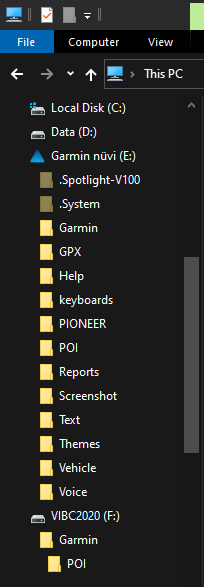
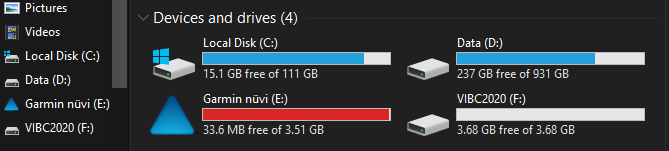
The GPS unit is not showing up when you plug it into the computer.
Some legacy Garmin outdoor handheld devices can be put into USB mass storage mode, turning the device into a card reader and allowing an inserted microSD card to be read by a computer. This card reader provides the ability to install detailed mapping to the device, in addition it provides the ability to locate active tracks that have been archived to the card. While in mass storage mode, these files can be viewed on the computer. However, there is no access to any data stored on the device itself while in this mode.
The following devices can be placed into mass storage mode:
- • Astro 220*
- • eTrex Legend Cx
- • eTrex Legend HCx
- • eTrex Venture Cx
- • eTrex Vista Cx
- • eTrex Vista HCx
- • GPSMAP 60Cx
- • GPSMAP 60CSx
- • GPSMAP 76Cx
- • GPSMAP 76CSx
- • Rino 520HCx
- • Rino 530HCx
To put these devices into mass storage mode, follow the instructions below:
- 1. Connect the device to the computer using the USB cable
- 2. Go to the Main Menu
- 3. Select Setup
- 4. Select Interface
- 5. Select USB Mass Storage Mode
Your device will now create a drive on your computer so you can access the data on your microSD card.
Maps do not show on GPS:
If the maps are not loading on the GPS and you are not getting an error message you can check the following.
- Re seat the card in the GPS
- Go to SETUP > MAP > Configure Maps/My Maps/Select Map
Different Units will have different option in the Map settings menu as shown above.
- Look for Backroadmapbooks in the map list and ensure it is set to enabled.
Adjust Map detail to the highest value under the same MAP settings
- Go to SETUP > MAP > Advanced Map Setup > Detail Level
Detail Level should be set to MOST for best results with our maps.
View the map on your GPS and zoom and pan to a new area and let the map render the detail for you.
Maps did not show in map list?
If your maps do NOT show up in the map list on your GPS you can try inserting it into the computer to view the contents of the card and verify the card is readable. The microSD card should contain a GARMIN folder with the following files and folder inside:
- POI [Folder] - contains the .gpi file that loads the points of interest write up information
- gmapsupp.img - Map data needed to view the map
- gmapsupp.unl - unlock key license to unlock the maps
- gmapsupp.gma - gma authentication license to authenticate the maps
Updated microSD cards will have a new 25 digit .gma file. example: 6UC7C710BP9KL7TMCX8S4J88.gma
Overwritten SD Card:
Did you send anything to your unit? We recommend NOT sending any type of additional MAP DATA to the card. if you tried to send other maps to our card you may have overwritten the SD Card with alternate map data or licenses.
Garmin Maps & License files use the same name gmapsupp.* so when sending additional map data to the card it may overwrite our maps with the new map set your sending.
If you have overwritten your card you can try and rebuild it if you registered it in your account.
Defective Adapter:
If your Unit requires the bigger card and if you have a faulty adapter, the SD Card won't be read by the unit. Try a different Adapter if one is handy. Otherwise purchase a new one at any Superstore, Walmart, Futureshop, Best Buy.