
Basecamp Map Installation [ PC ]
Installing and Using Backroad MapBooks on a PC
1. Prerequisites
| Item | What to do | Links |
|---|---|---|
| Garmin Basecamp | Install Basecamp to view and load maps. | Download Garmin Basecamp |
| 7‑Zip (optional) | If your OS can’t extract ZIP files, install 7‑Zip for free. | Download 7‑Zip |
| Backroad MapBooks account | Sign‑up or log in to access your map downloads. | Backroad MapBooks Login |
| MicroSD card | Insert into the PC or GPS unit to access the unlock key (.gma file). |
— |
Note – All map files are delivered as a single
.ziparchive (e.g.SECURED_BC2025_BRMB_BC2025‑Win.zip).
2. Downloading the Map Archive
-
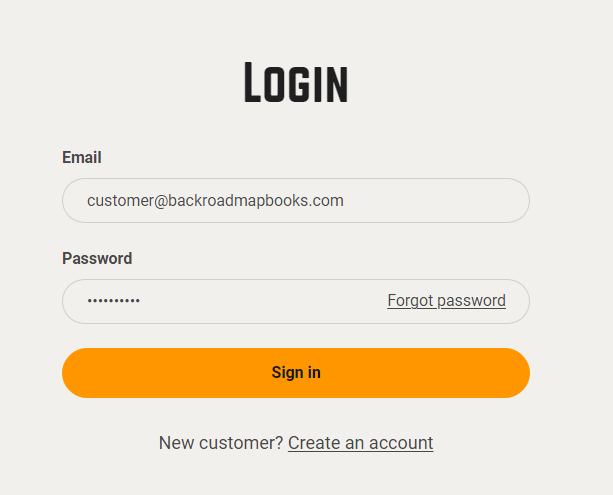
Log in
- Navigate to the Backroad MapBooks website and sign in.
- If you don’t have an account, click Create New Account and follow the prompts.
-
Navigate to “MY GPS Maps”
- Click the MY GPS Maps button on the homepage to reach the registration page.
-
Locate your product
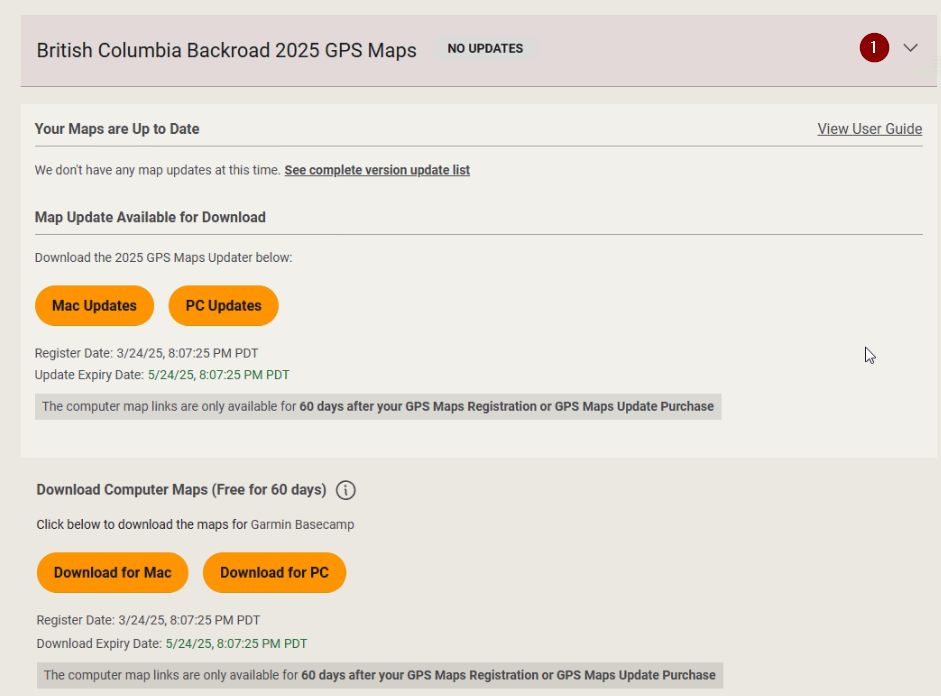
- Find the product title for your province (e.g., “BC2025”) and click the small arrow to the right of it to expand the product details.
- Find the product title for your province (e.g., “BC2025”) and click the small arrow to the right of it to expand the product details.
-
Download the ZIP
- Click the Download for PC button and choose a location to save the file (the default is usually the Downloads folder).
- The download link will point to something like:
SECURED_BC2025_BRMB_BC2025‑Win.zip.
3. Extracting the ZIP Archive
-
Locate the file
- Open the folder where you saved the archive.
-
Extract
- Windows – Right‑click → Extract All…
- If you’re using 7‑Zip, right‑click → 7‑Zip → Extract Here.
-
Verify extraction
-
After extraction you should see a folder named similar to
SECURED_BC2025_BRMB_BC2025‑Wincontaining an installer executable and a copy of the .gpi file:
BRMBBC2025_2025.exe(replaceBCwith your province code).BC2025.gpi(replaceBCwith your province code).
-
4. Installing and Unlocking maps in Basecamp.
- Insert the MicroSD card
- If you have the MicroSD card inserted into the PC or your Garmin GPS and plugged into the computer.
- The card will appear as a removable drive (e.g.,
E:).
1b. Download your .gma
- If you Downloaded the .gma file from your account.
- The file will be downloaded to "Downloads" or the location you choose.
- Launch the installer
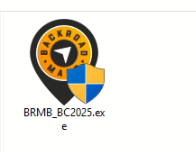
- Double‑click the executable (
BRMB####_2025.exe, where####is your province code). - A screen will appear guiding you through the installation, you can accept the default installation directory.
- A final screen will appear prompting you to provide a
.gmafile.
- Double‑click the executable (
-
Select the
.gmafile- Option A – SD File Select
- Pick your MicroSD drive from the drop‑down list.
- The installer will copy the unlock key to Basecamp automatically.
- Option B – Browse for file
- If the card isn’t shown as a drive letter, click Browse and navigate to the card or to the location where the
.gmafile was downloaded from your account.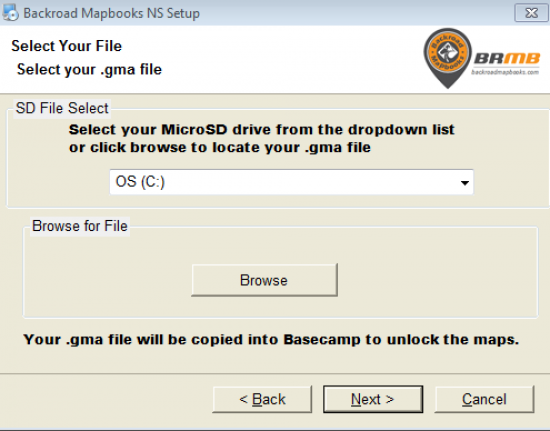
- If the card isn’t shown as a drive letter, click Browse and navigate to the card or to the location where the
- Option A – SD File Select
-
Complete the installation
- Click Next → Finish.
- Basecamp will now contain the new map data.
5. Post‑Installation
- Launch Garmin Basecamp – Verify that the new maps are visible.
- Configure Basecamp – Use the following resource for detailed configuration options:
https://brmb.support/books/4configuring-garmin-basecamp
6. Frequently Asked Questions
| Question | Answer |
|---|---|
| What if I can’t find my MicroSD as a drive? | Use the Browse for file option on the unlock screen to navigate to the card manually. |
| Can I use the map on a mobile device? | This guide is for PC only. For mobile devices see the BRMBMaps App. |
7. Contact & Further Assistance
Need More Help?
- Phone – 1-877-520-5670
- Submit Support Request – > https://backroadmapshelp.zendesk.com/hc/en-us/requests/new
We’re here to help you get your maps up and running as quickly as possible!