
Unlocking Maps in Garmin Basecamp [PC]
If you skipped the
.gmafile during the initial map installation, you can manually import it to activate the maps.
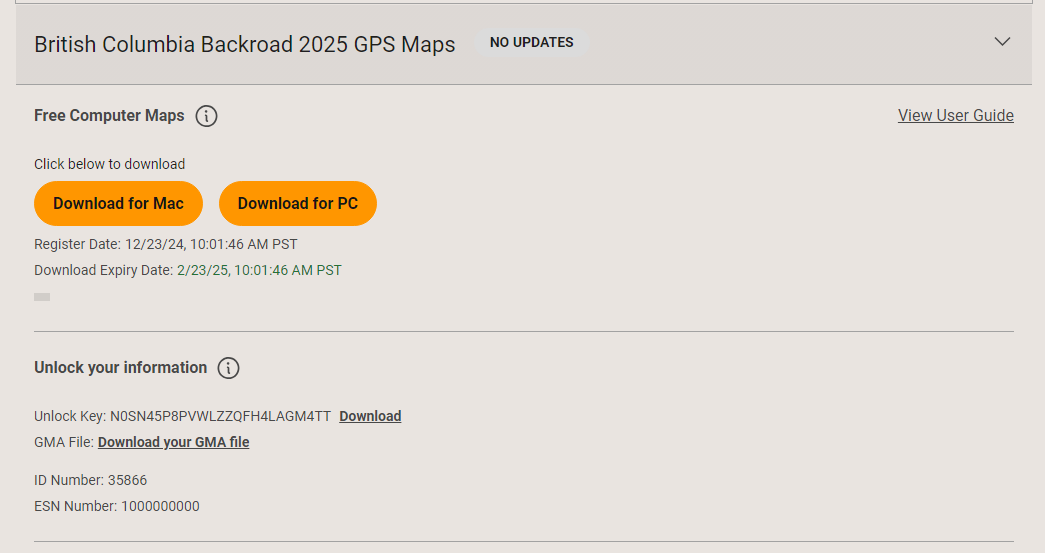
1. Download the .GMA Unlock Key
| Source | Where to Find It |
|---|---|
| From a device | Insert your microSD card → open the Garmin folder on the card → locate the .gma file (e.g., gmapsupp.gma). |
| From your account | Log in to your Backroad MapBooks portal → download the .gma file you received during purchase. |
2. Launch Basecamp
- Start Garmin Basecamp.
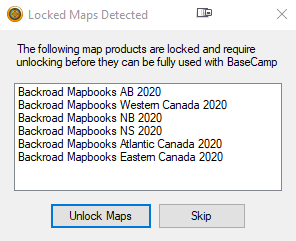
- If Basecamp detects any locked maps, a dialog will appear automatically.
- Click Unlock maps to begin the process.
- Screenshot:
If the dialog does not appear:
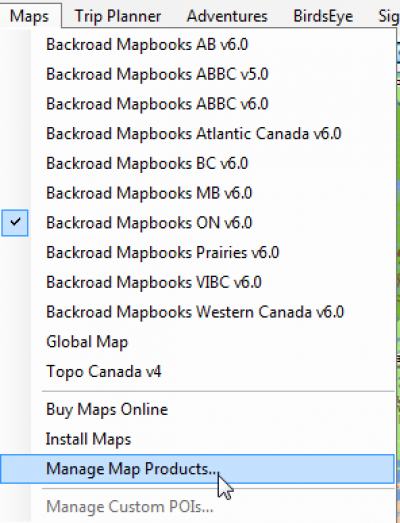
Open the Map Manager manually:
Maps→Manage Map Productsin the menu.
3. Import the .gma File
-
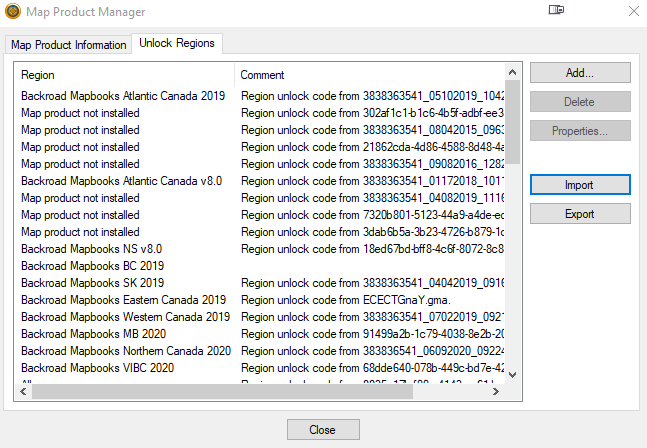
In the Map Product Manager window, click the Unlock Regions tab (top‑left).
-
Click Import.
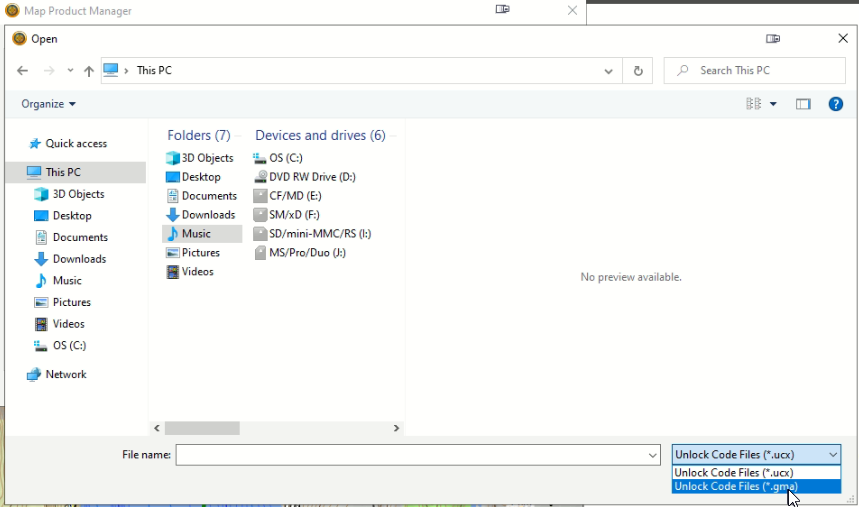
- A file‑open dialog appears.
- At the bottom right, change the filter from
.ucxto.gma.
-
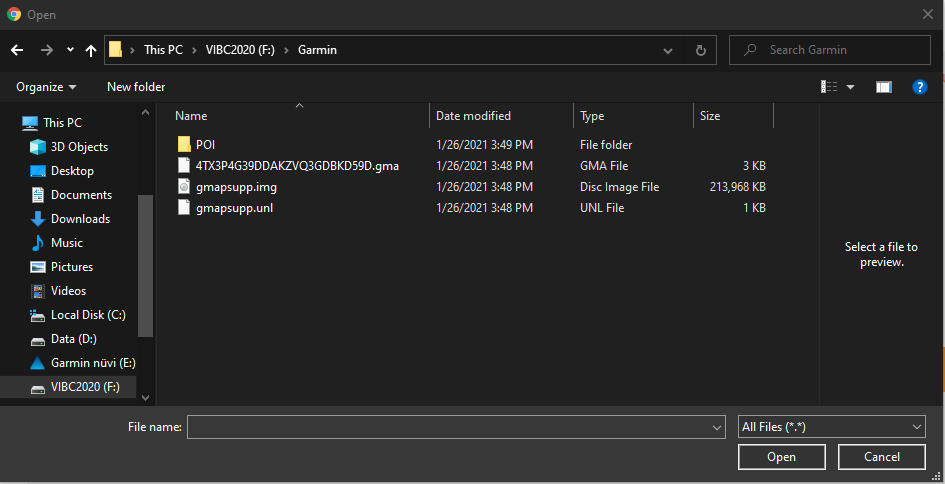
Navigate to the
.gmafile:- If you keep the key on your microSD card, browse to
E:\Garmin\(or whichever drive letter your card is assigned). - If you downloaded the key, go to the folder where you saved it.
- If you keep the key on your microSD card, browse to
-
Select the file and click Open.
-
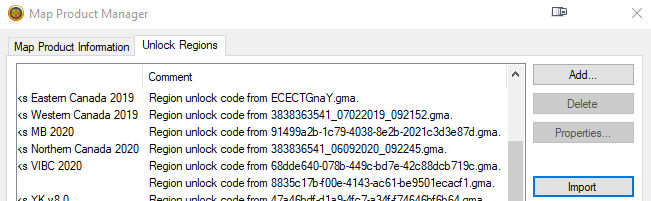
Verify success – the map entry should now show something like “Region unlock code from …” next to its name.
4. Refresh Basecamp
- Restart Garmin Basecamp.
- From the Maps menu, choose Backroadmapbooks to load the newly unlocked maps.
5. Need More Help?
- Phone – 1-877-520-5670
- Submit Support Request – > https://backroadmapshelp.zendesk.com/hc/en-us/requests/new
We’re here to help you get your maps up and running as quickly as possible!