
Installing Backroad Maps Digital
Backroad Maps DIGITAL Maps are installed directly to your GPS unit memory, your own SD card or your Garmin Smart Watch
Building and installing your maps can be done using Garmin Basecamp and Mapinstall.
Connect your GPS to your computer
To Install your Backroad Maps Digital version you need Garmin Basecamp installed on your system and your Backroad GPS maps title installed and unlocked.
Install and unlock Maps in Basecamp
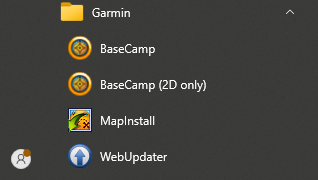
1.)Launch Garmin Mapinstall.
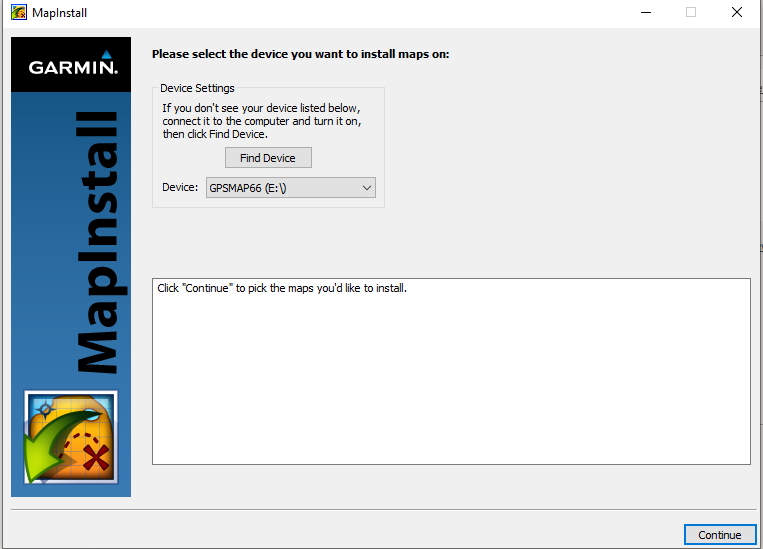
2.)Click Find Device or Select it from the drop down menu. Click continue.
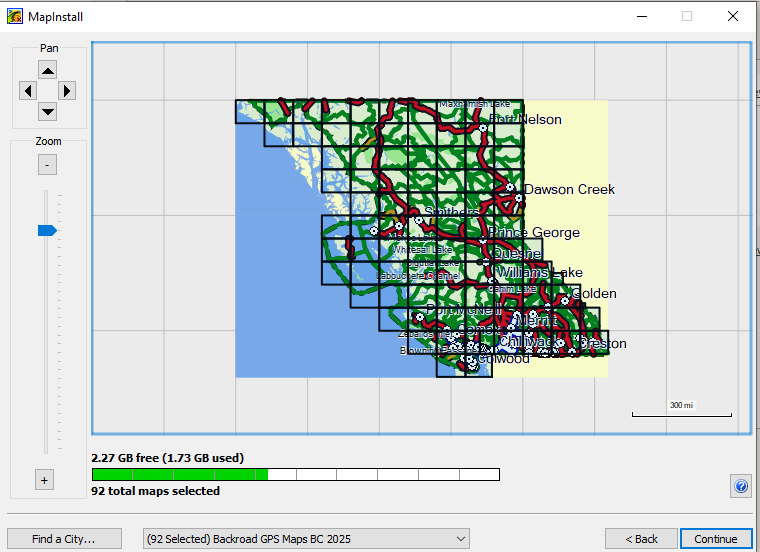
3.)Use the Left mouse button to select the grid sections of the map you want to Build.
Use the right mouse button to de select the grids
Click Continue
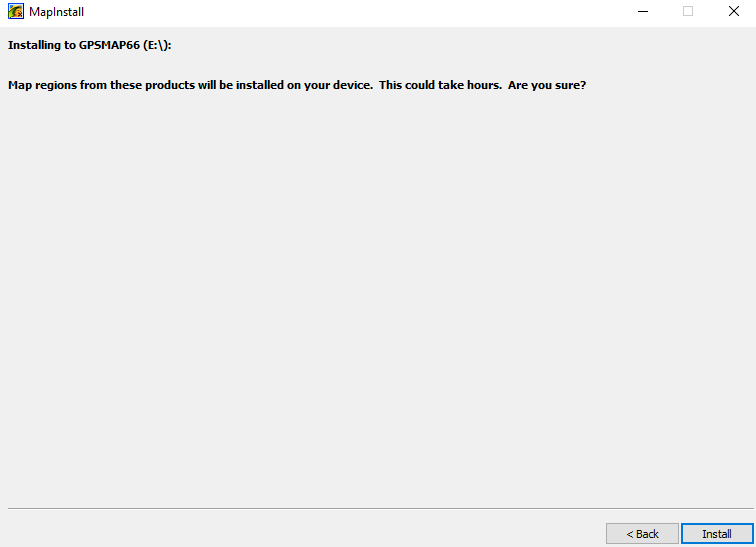
4.)You will be shown the installation location and asked to confirm the installation.
Click Install to start installing the maps.
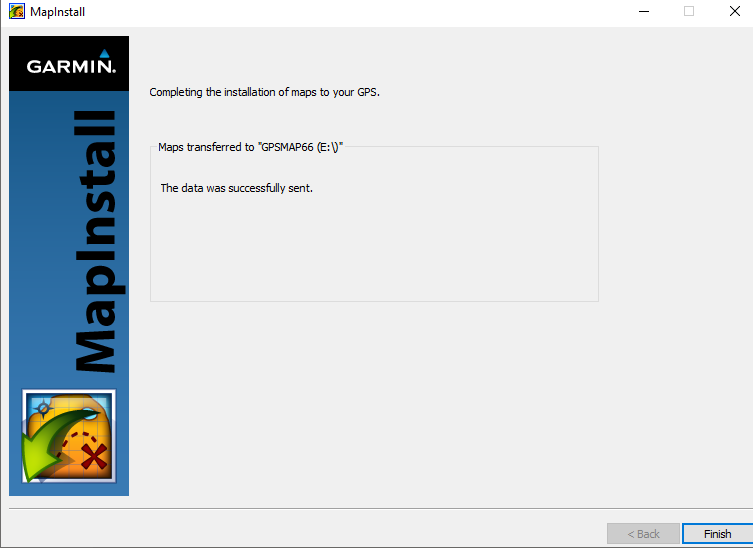
5.)Click Finish to complete the map installation.
Inside the Garmin folder on your GPS or your microSD card you will see the map data "gmapsupp.img" and your gma license file.
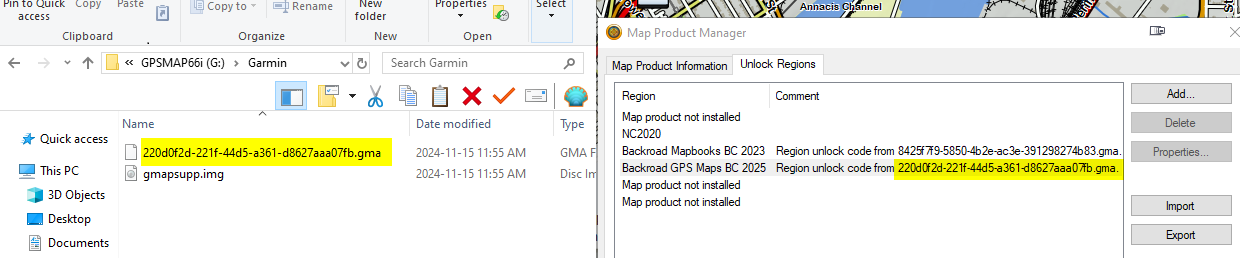
The .gma license file will match the version of the maps it was installed from in Garmin Basecamp.
You can check this in Garmin Basecamp under
Maps > Manage Map Products > Unlock Regions
Updating your POI data
The Digital maps can be installed to the internal memory of your GPS unit or your own microSD card.
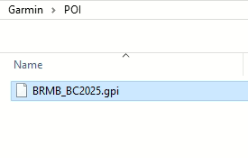
1.)If your Garmin folder does not contain a POI folder you can create one.
2.)When you downloaded the basecamp installation file it contains the updated .gpi file for your POI folder.
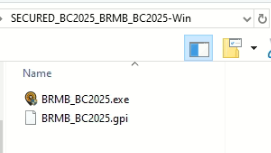
Copy the 2025.gpi file into the POI folder on your GPS or microSD card.
Disconnect and Reboot your GPS.
Verify that the maps are loaded by going to Setup menu and looking for BackroadMapbooks in the map list.