
Managing Your Subscription
BRMB Maps offers three ways to subscribe to the PRO plan:
- Web (credit‑card or PayPal)
- iOS App Store
- Google Play Store
Below is a step‑by‑step guide for canceling, upgrading, and troubleshooting each platform. Screenshots are linked to help you navigate the UI.
1. Cancel a PRO Subscription
| Platform | How to Cancel |
|---|---|
| Website | 1. Log in at https://brmbmaps.com. 2. Click your username in the top‑right corner → User Dashboard. 3. Select Settings > Your Plan. 4. Click Cancel Automatic Payment. |
| iOS App Store | 1. Open App Store. 2. Tap your profile picture in the top‑right. 3. Select Subscriptions. 4. Find BRMB Maps and tap Cancel Subscription. |
| Google Play Store | 1. Open Google Play Store. 2. Tap the profile icon (top‑right). 3. Go to Payments & subscriptions > Subscriptions. 4. Select BRMB Maps and tap Cancel Subscription. |
Note: If you subscribed via the web, the cancellation will stop future charges but you can still use the PRO features until the current billing period ends.
2. Resolve Subscription Issues
- Google Play – Fix subscription issues
- Apple iTunes – Fix subscription issues
- BRMBMaps.com - Contact support with your email or username for the app..
3. Request a Refund
| Store | Refund Process |
|---|---|
| Apple iTunes Store | https://support.apple.com/en-ca/HT204084 – “How do I request a refund for an App Store purchase?” |
| Google Play | https://support.google.com/googleplay/answer/2479637?hl=en&sjid=8517244894522933406-NA – “How do I request a refund for a subscription?” |
| BRMBMaps.com | Contact support with your email billing statement or PRO purchase history. |
If you’re part of a Family Sharing plan on iOS, the subscription can only be cancelled by the Family Member who owns the Apple ID.
3. Locate the Receipt to Cancel a Subscription
- Search your email inbox for the phrase “receipt from Apple.”
- Open the receipt and verify the Apple ID used for the purchase.
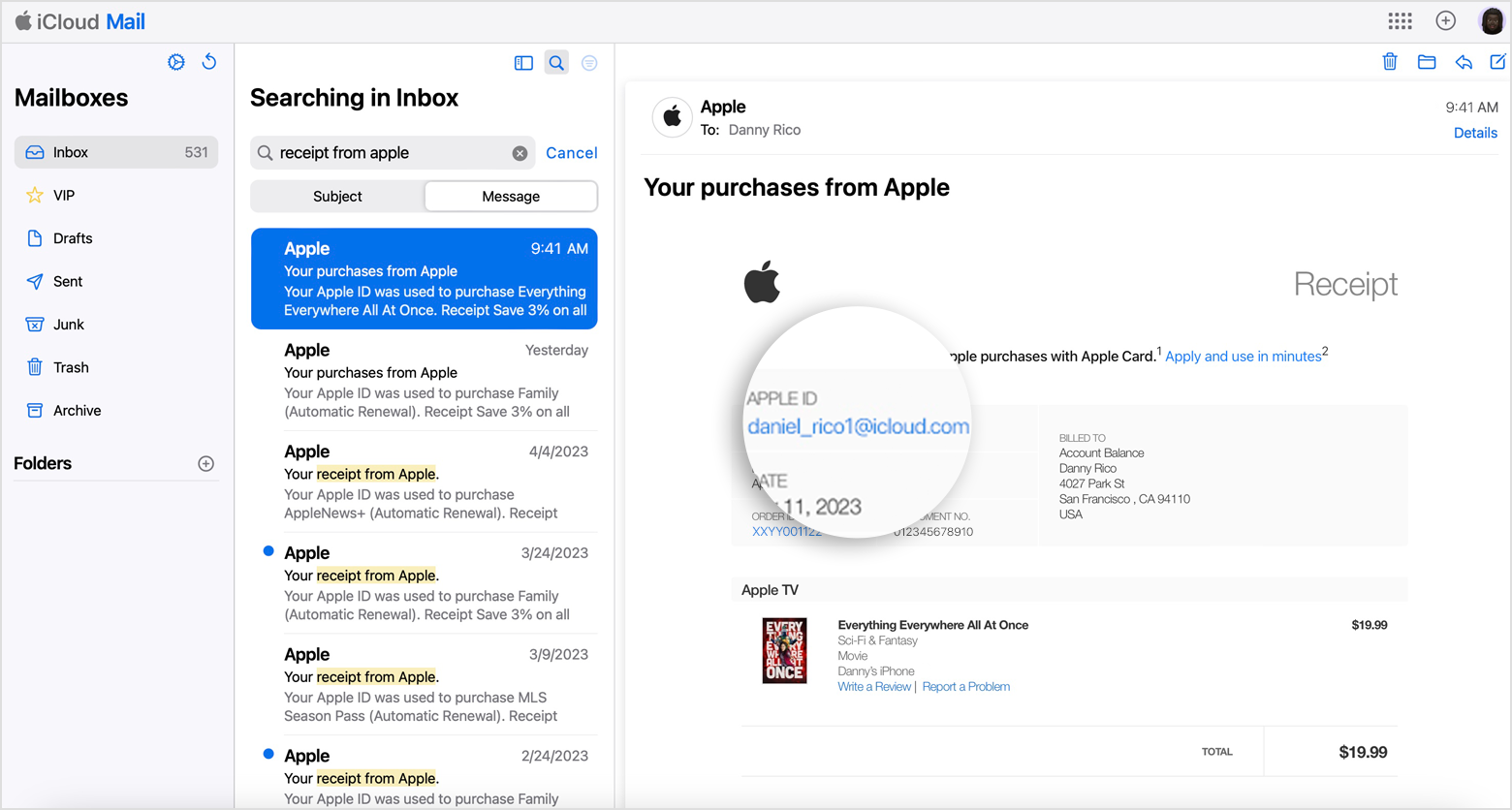
Family‑Shared Subscription – If the receipt shows another family member’s Apple ID, that member must cancel the subscription.
Multiple Apple IDs – Sign in with the Apple ID that appears on the receipt and cancel from the App Store.
3. Upgrade from Free to PRO
On the BRMB Maps Website
- Open User Dashboard – click your username → User Dashboard.
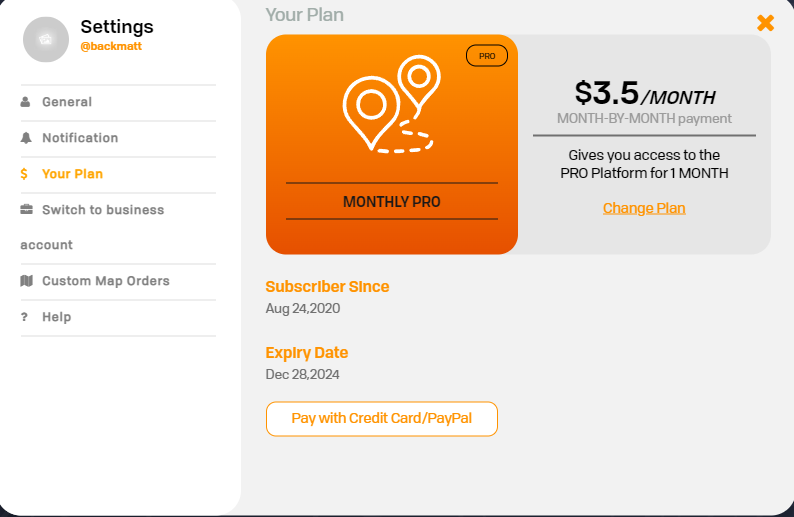
- Click the Settings button (top‑right).
- On the left sidebar choose Your Plan.
- Click Upgrade to Pro or Change Plan to switch to a different plan.
Tip: The upgrade takes effect immediately and you’ll be charged for the new billing cycle.
3. Technical Resources
| Resource | Description |
|---|---|
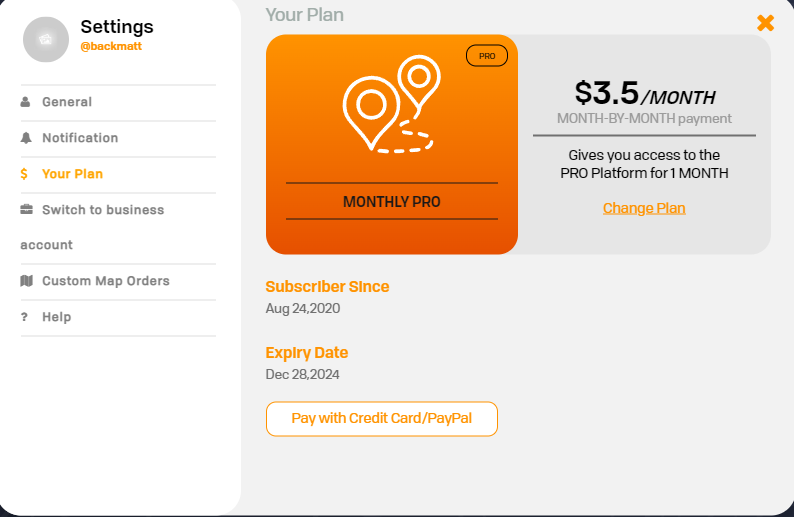 |
Web‑based user dashboard (Settings → Your Plan). |
4. Quick Reference
| Action | Platform | Link |
|---|---|---|
| Cancel PRO (website) | Website | https://brmbmaps.com |
| Cancel iOS subscription | iOS App Store | https://support.apple.com/en-ca/HT202039 |
| Cancel Google subscription | Google Play | https://support.google.com/googleplay/answer/9818348 |
| Refund (iOS) | iTunes | https://support.apple.com/en-ca/HT204084 |
| Refund (Google) | Google Play | https://support.google.com/googleplay/answer/2479637?hl=en&sjid=8517244894522933406-NA |
Pro tip: Keep a copy of your subscription receipt (email or app‑store screenshot) handy; it’s the quickest way to identify which Apple ID or Google ID is managing the subscription.