
Unlocking Maps in Basecamp for MAC
Unlocking BackroadMaps in Garmin Basecamp for macOS
Goal – Import the
.gmaunlock key so your BackroadMaps are activated in Basecamp on a Mac.
Prerequisites –
- Garmin Basecamp and Map Manager installed on your Mac.
- A
.gmafile either downloaded from your Backroad Maps account or located on the microSD card in theGarminfolder.
1. Locate the .gma Unlock Key
| Source | Where to Find It |
|---|---|
| Your account | Log in to the Backroad Maps portal → My Unlock Keys → download the file (usually named YourUnlockKey.gma). |
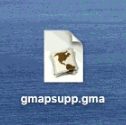
| microSD card | Inside the microSD card → Garmin folder → file gmapsupp.gma (if the card hasn’t been updated) or YourUnlockKey.gma (if the card has been updated). |
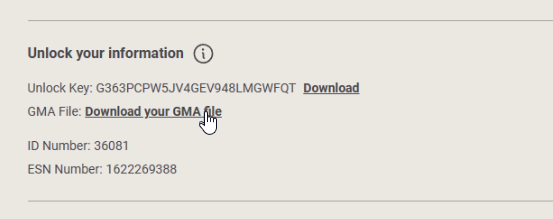
The file is always named
.gma– the name will differ based on the card’s update status.
2. Open Map Manager
-
Navigate to the folder containing the
.gmafile. -
Double‑click the
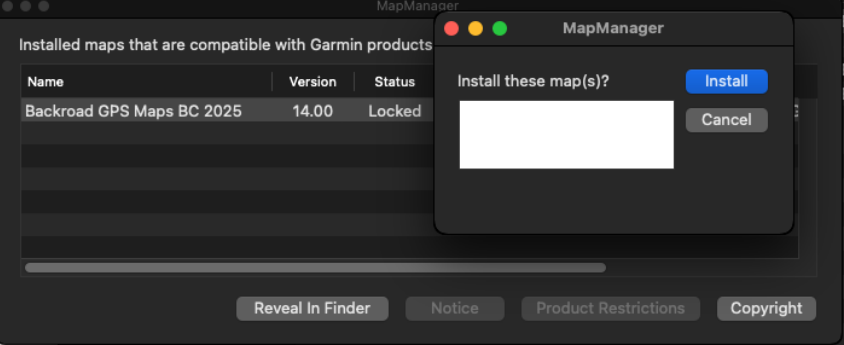
.gmafile.A “Map Manager” window appears, asking whether you’d like to install the maps.
-
Click
INSTALLto start the unlocking process.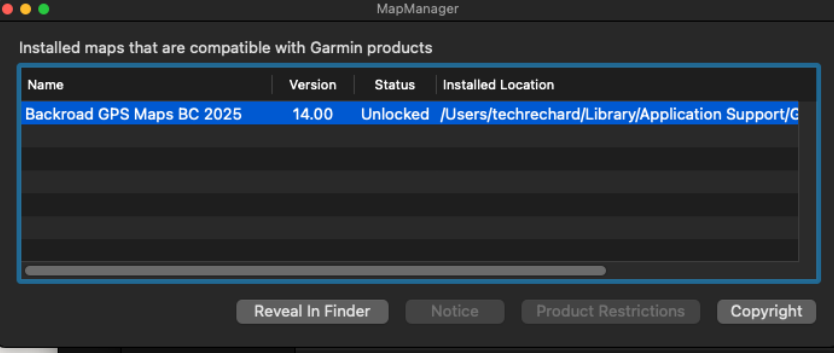
3. Verify Successful Unlock
Once installation completes:
- Open Garmin Basecamp.
- Go to Maps → Manage Map Products.
- The relevant BackroadMap entry should now display “Region unlock code from …” next to its name, indicating it is unlocked.
4. Troubleshooting
| Issue | Likely Cause | Fix |
|---|---|---|
Map Manager doesn’t open when double‑clicking .gma |
File not recognized | Verify the Map Manager application is installed. |
| Security block (“This application cannot be opened”) | macOS Gatekeeper | Use System Settings → Security & Privacy → General to allow the file, then retry. |
5. Need More Help?
- Phone – 1-877-520-5670
- Submit Support Request – > https://backroadmapshelp.zendesk.com/hc/en-us/requests/new
We’re here to help you get your maps up and running as quickly as possible!