
Basecamp Map Installation [ MAC ]
Installing and Unlocking Backroad MapBooks on macOS
1. Prerequisites
| Item | What to do | Link |
|---|---|---|
| Garmin Basecamp | Install Basecamp to view and load maps. | https://www8.garmin.com/support/download_details.jsp?id=4449 |
| Backroad MapBooks account | Sign‑up or log in to access map downloads. | https://www.backroadmapbooks.com/brmb-products/customer/account/login/ |
Tip – Keep the ZIP file in your Downloads folder for quick access.
2. Downloading the Map Archive for macOS
-
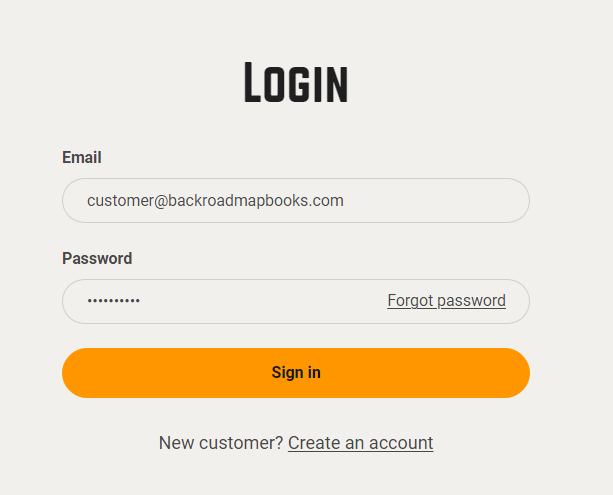
Log into the Backroad MapBooks website
- Open the URL above and sign in.
- If you have no account, click Create New Account and follow the prompts.
-
Navigate to “MY GPS Maps”
- Click the MY GPS Maps button to open the registration page.
-
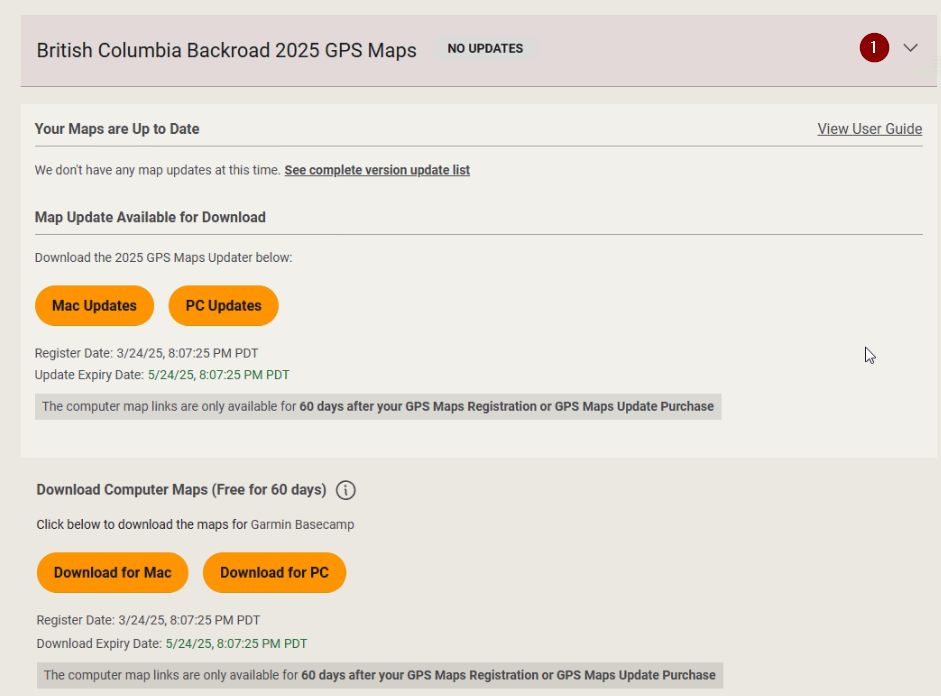
Locate your product
- Find the row for your province (e.g., BC2025).
- Click the small arrow to the right of the product title to expand its details.
-
Download the macOS ZIP
- Click the Download for MAC button.
- Choose a location to save it (default is the Downloads folder).
-
Download the .gma unlock file
- Scroll down to the Unlock Information section and click the link to download your
.gmafile.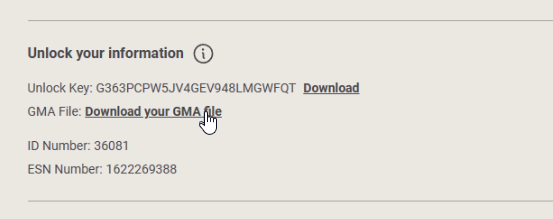
- Scroll down to the Unlock Information section and click the link to download your
3. Installing the Maps
-
Open the downloaded ZIP
- Navigate to where you saved the file.
- If it hasn't already extracted, double‑click the ZIP to unpack it (you should see a folder named
SECURED_BC2025_BRMB_BC2025-Mac).
-
Mount the DMG
- Inside that folder you’ll find a
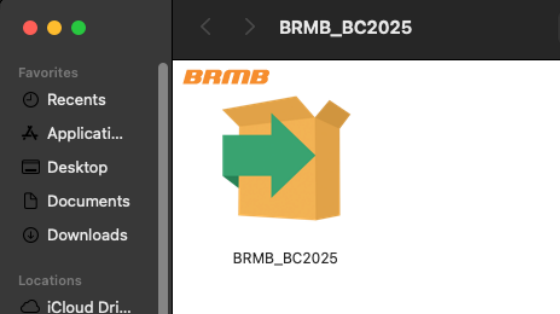
.dmgfile (e.g.,BRMB_BC2025.dmg). - Double‑click the DMG to mount it.
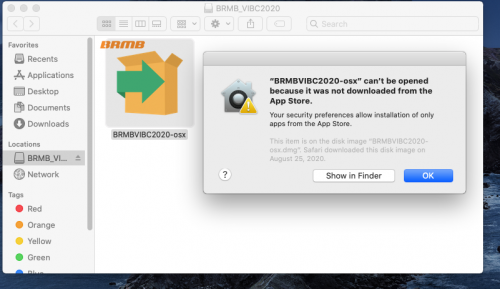
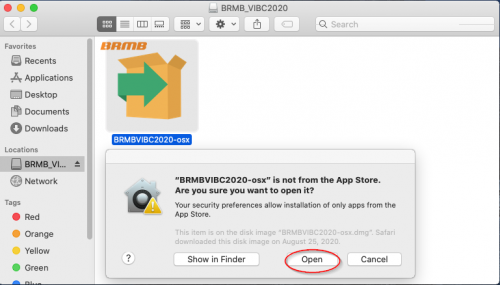
- If you get a “Not from the App Store” warning, click OK and then Open the installer.
- Inside that folder you’ll find a
-
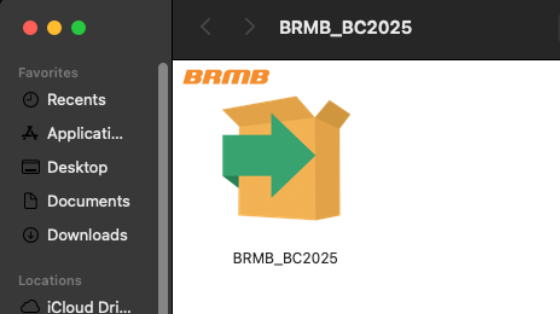
Run the installer
- Double‑click the installer icon that appears inside the mounted volume.
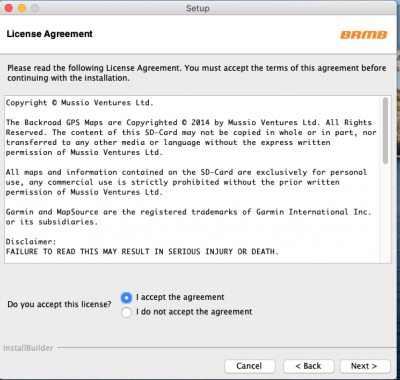
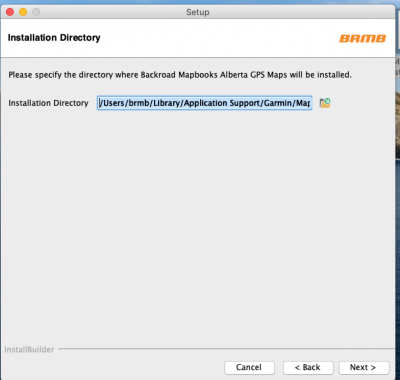
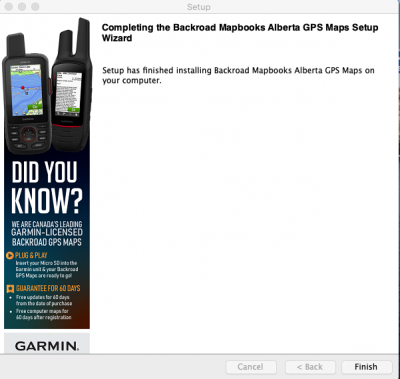
- Follow the on‑screen prompts (accept the license, choose an installation directory, and finish).
-
Allow apps from unidentified developers (if needed)
- Open System Preferences → Security & Privacy → General.
- If “Allow apps downloaded from: Anywhere” is not present, click Open Anyway after launching the installer.
- For detailed steps, see Apple’s guide: https://support.apple.com/en-ca/guide/mac-help/mh40616/mac.
-
Follow the installation steps
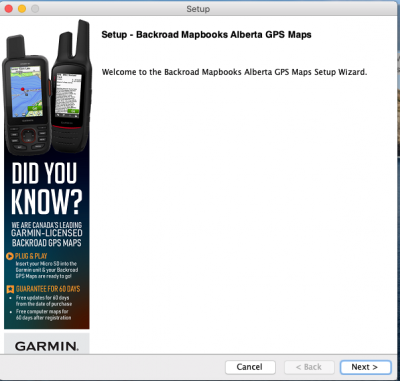
- The installer will show a welcome screen, license agreement, and a final confirmation screen.
- Once finished, you’ll be ready to unlock the maps.
-
Complete the installation
-
Follow the on‑screen prompts (welcome, license, install location).
-
Typical screens:
-
4. Unlocking the Maps in Garmin Basecamp (macOS)
After the installation above, follow the unlocking instructions at:
https://brmb.support/books/3mac-gps-support/page/unlocking-maps-in-basecamp-for-mac
(This page walks you through importing the .gma file into Basecamp and unlocking the content.)
5. Troubleshooting
| Problem | Fix |
|---|---|
| Installer won’t launch – “This app cannot be opened because it is from an unidentified developer.” | 1. Open the installer once. 2. Close it. 3. Go to System Preferences → Security & Privacy → General and click Open Anyway. |
6. Need More Help?
- Phone – 1-877-520-5670
- Submit Support Request – > https://backroadmapshelp.zendesk.com/hc/en-us/requests/new
We’re here to help you get your maps up and running as quickly as possible!