Basecamp Map Installation [ MAC ]

Installing and UsingUnlocking Backroad MapBooks on a PCmacOS


1. Prerequisites

7‑Zip (optional) If your OS can’t extract ZIP files, install 7‑Zip for free. Download 7‑Ziphttps://www8.garmin.com/support/download_details.jsp?id=4449 Backroad MapBooks account Sign‑up or log in to access your map downloads. Backroad MapBooks Loginhttps://www.backroadmapbooks.com/brmb-products/customer/account/login/ MicroSD card Insert into the PC or GPS unit to access the unlock key (.gma file).

NoteTipAllKeep mapthe filesZIP arefile deliveredin asyour aDownloads singlefolder .zipfor archivequick (e.g. SECURED_BC2025_BRMB_BC2025‑Win.zip).access.


2. Downloading the Map Archive for macOS

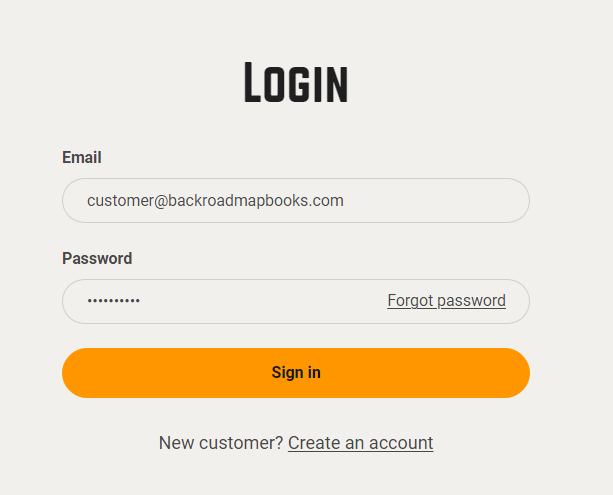
  1. Log in

    • Navigate tointo the Backroad MapBooks website
      • Open the URL above and sign in.
      • If you don’t have anno account, click Create New Account and follow the prompts. Login screen
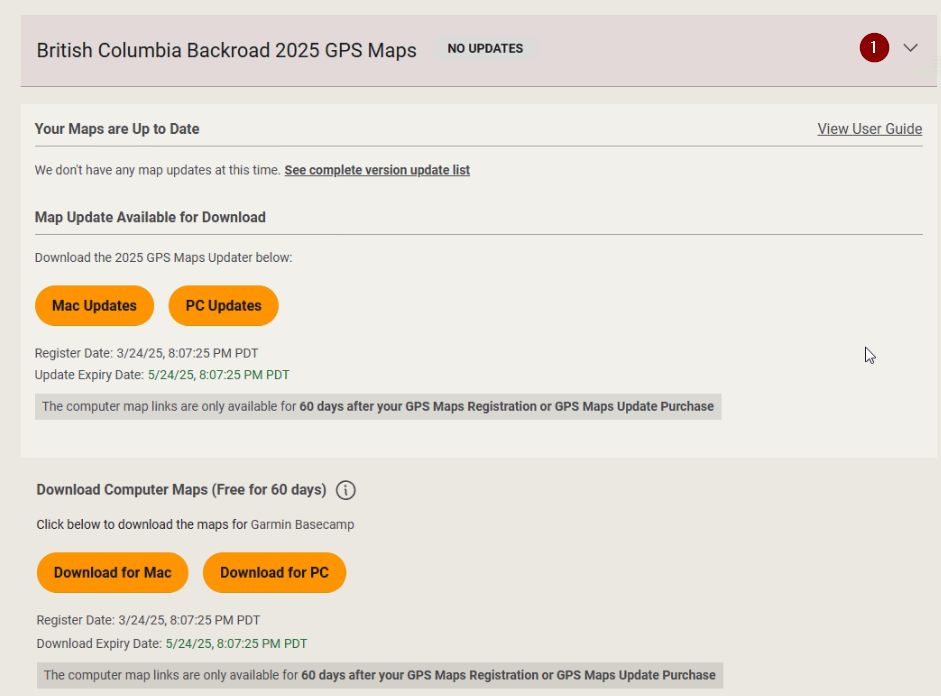
      • Navigate to “MY GPS Maps”

        • Click the MY GPS Maps button on the homepage to reachopen the registration page.
      • Locate your product

        • Find the product titlerow for your province (e.g., “BC2025”BC2025).
        and click
      • Click the small arrow to the right of itthe product title to expand the productits details.
        Product row
      • Download the macOS ZIP

        • Click the Download for PCMAC buttonbutton.
        and choose
      • Choose a location to save the fileit (the default is usually the Downloads folder).
      The

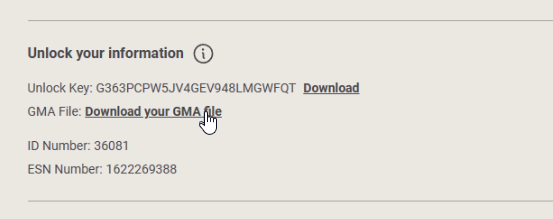
      Download the .gma unlock file

        Scroll down to the Unlock Information section and click the link to download linkyour will.gma pointfile. to something like: SECURED_BC2025_BRMB_BC2025‑Win.zip.Unlock file

        3. ExtractingInstalling the ZIP ArchiveMaps

        1. LocateOpen the filedownloaded ZIP

          • OpenNavigate the folderto where you saved the archive.

        Extract

          Windows – Right‑click → Extract All…file. If you’reit usinghasn't 7‑Zip,already right‑extracted, double‑click the 7‑ZipZIP to Extractunpack Here.it

          Verify extraction

            After extraction (you should see a folder named similar to SECURED_BC2025_BRMB_BC2025‑Win containing an installer executable and a copy of the .gpi file:
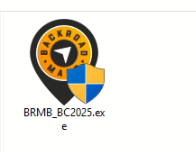
            BRMBBC2025_2025.exe (replace BC with your province code). BC2025.gpi (replace BC with your province code).

            4. Installing and Unlocking maps in Basecamp.

              Insert the MicroSD card
                If you have the MicroSD card inserted into the PC or your Garmin GPS and plugged into the computer. The card will appear as a removable drive (e.g., E:SECURED_BC2025_BRMB_BC2025-Mac).

                1b.Mount Downloadthe your .gmaDMG

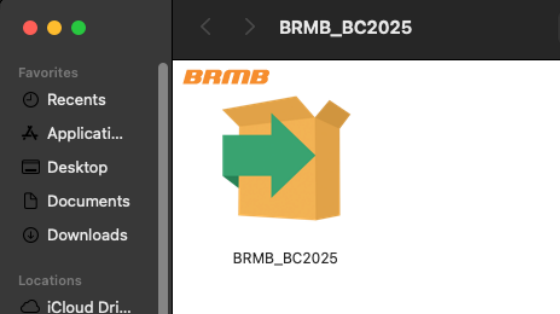
                • Inside that folder you’ll find a .dmg file (e.g., BRMB_BC2025.dmg).
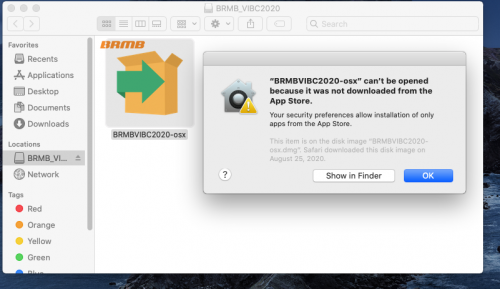
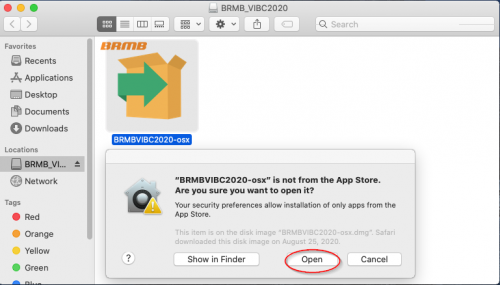
                Double‑click the DMG to mount it. If you Downloadedget a “Not from the .gmaApp fileStore” fromwarning, yourclick account.OK Theand filethen will be downloaded to "Downloads" orOpen the location you choose.installer.

                  LaunchRun the installer

                  • Double‑click the executableinstaller (BRMB####_2025.exe,icon wherethat ####appears isinside yourthe provincemounted code).volume.
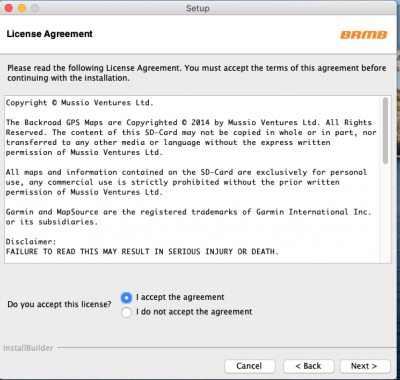
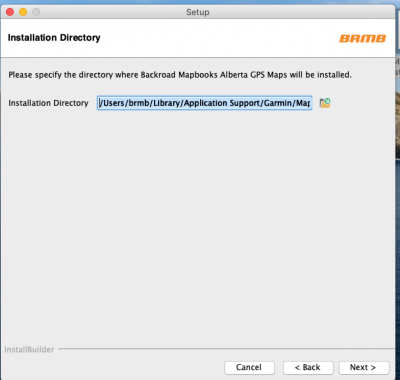
                  • A screen will appear guiding you throughFollow the installation,on‑screen youprompts can (accept the defaultlicense, choose an installation directory.
                  directory, Aand finalfinish). screen will appear prompting you to provide a .gma file.DMG folder

                  UpdaterAllow apps from unidentified developers (if needed)

                      Open System Preferences → Security & Privacy → General. If “Allow apps downloaded from: Anywhere” is not present, click Open Anyway after launching the installer. For detailed steps, see Apple’s guide: https://support.apple.com/en-ca/guide/mac-help/mh40616/mac. Security dialog
                      Security dialog – 2

                      SelectFollow the .gmainstallation filesteps

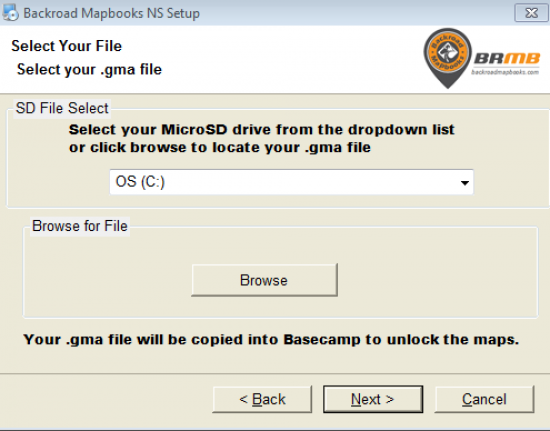
                        Option A – SD File Select
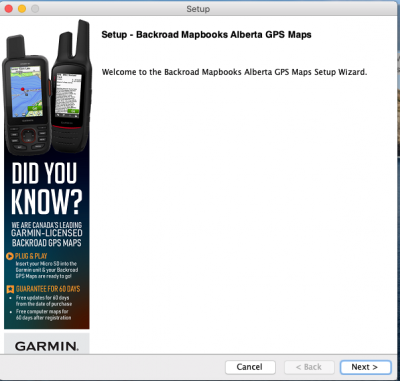
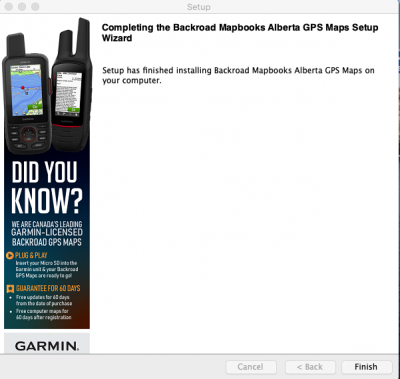
                          Pick your MicroSD drive from the drop‑down list. The installer will copyshow a welcome screen, license agreement, and a final confirmation screen. Once finished, you’ll be ready to unlock the unlock key to Basecamp automatically. Option B – Browse for file
                            If the card isn’t shown as a drive letter, click Browse and navigate to the card or to the location where the .gma file was downloaded from your account. Select GMA maps.

                            Complete the installation

                            • Click Next

                              Follow the Finishon‑screen prompts (welcome, license, install location).

                            • Basecamp will

                              Typical nowscreens:

                              contain

                              Welcome
                              theLicense
                              newInstall directory
                              mapFinish

                              data.


                            5.4. Post‑Installation

                              Launch Garmin Basecamp – Verify that the new maps are visible fromUnlocking the Maps menu.in ConfigureGarmin Basecamp (macOS) Use

                              After the followinginstallation resourceabove, forfollow detailedthe configurationunlocking options:
                              instructions at:

                              https://brmb.support/books/4configuring-garmin-basecamp3mac-gps-support/page/unlocking-maps-in-basecamp-for-mac

                              (This page walks you through importing the .gma file into Basecamp and unlocking the content.)


                              6.5. Frequently Asked QuestionsTroubleshooting

                              QuestionProblem AnswerFix
                              WhatInstaller if I can’won’t findlaunch my MicroSD“This asapp acannot drive?be opened because it is from an unidentified developer.” Use1. Open the Browseinstaller foronce. file
                              option2. onClose theit. unlock
                              screen3. Go to navigateSystem toPreferences the .gmaSecurity manually.
                              & Privacy CanGeneral Iand use the map on a mobile device? This guide is for PC only. For mobile devices see theclick BRMBMapsOpen AppAnyway.

                              7.6. Contact & Further Assistance

                              Need More Help?

                              We’re here to help you get your maps up and running as quickly as possible!