Basecamp Map Installation [ MAC ]

To

Installing and Using Backroad MapBooks on a PC


1. Prerequisites

Item What to do Links Garmin Basecamp Install Basecamp to view and useload themaps. computer maps you will needDownload Garmin Basecamp installed on 7‑Zip (optional) If your computer.OS can’t

Garminextract BasecampZIP Download

files,

install

Downloading computer maps7‑Zip for free.

Download 7‑Zip Backroad MapBooks account Sign‑up or log in to access your map downloads. Backroad MapBooks Login MicroSD card Insert into the PC
 or GPS unit to access the unlock key (.gma file).

1.Note Go– All map files are delivered as a single .zip archive (e.g. SECURED_BC2025_BRMB_BC2025‑Win.zip).


2. Downloading the Map Archive

    Log in

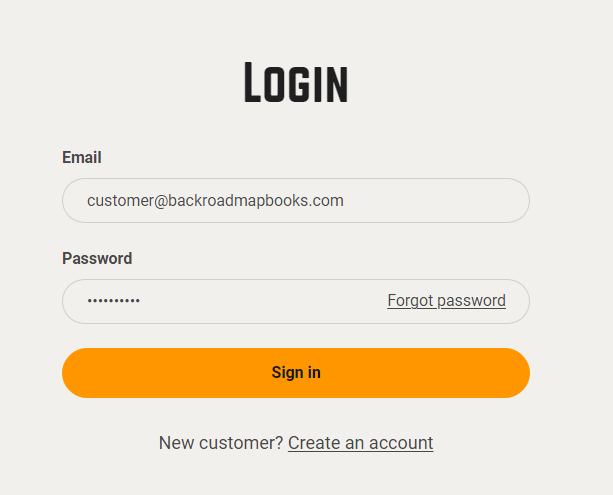
      Navigate to the ourBackroad MapBooks website atand Backroadmapbookssign

      Login.

      into your account on our website, create a new account ifIf you don'don’t have one.an account, click Create New Account and follow the prompts. Login screen

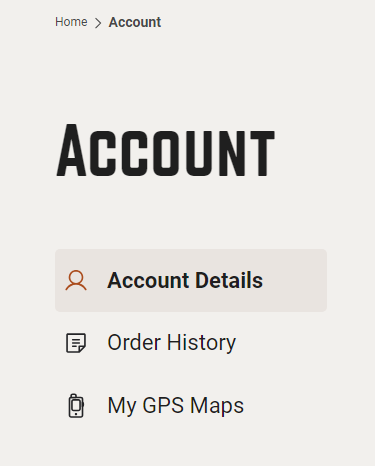
      Navigate to “MY GPS Maps”

      2024-11-26 16_20_05-Account – Backroad Maps - Opera.png

      2.Click Clickthe MY GPS Maps button on the "MY GPS Maps" buttonhomepage to go toreach the registration page.

      Locate your product
      2024-11-26 16_20_45-Account – Backroad Maps - Opera.png

      3. ClickFind the product title for your province (e.g., “BC2025”) and click the small arrow listed to the right of your product titleit to expand the product information.
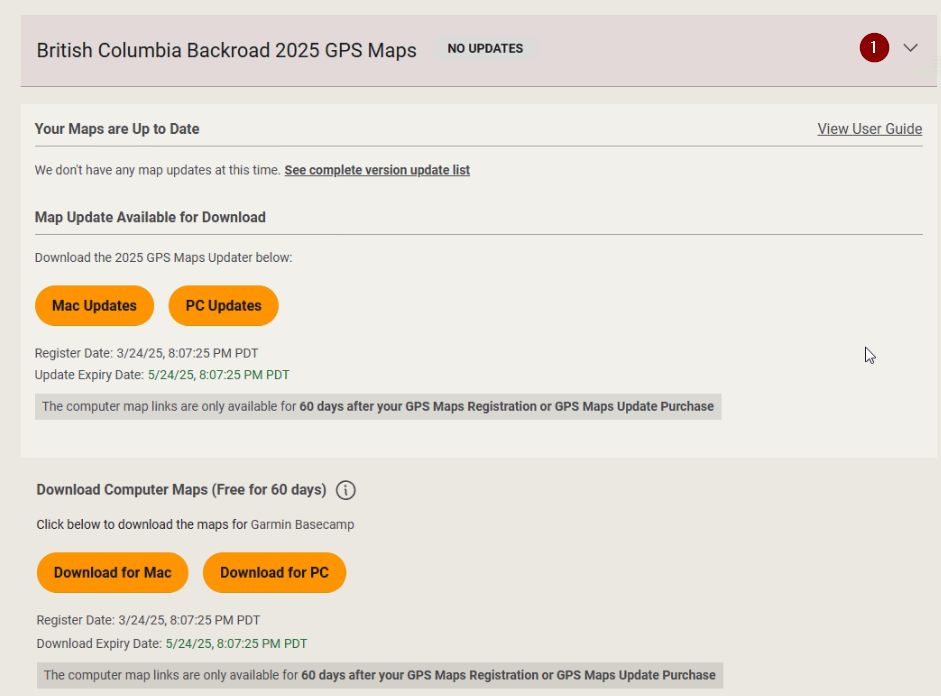
      details.
      Product row

      Download the ZIP

      download2.png

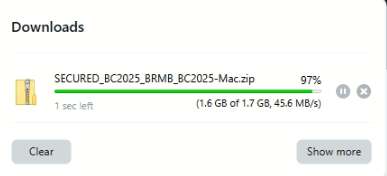
      4. Click the Download for MACPC button and choose a location to save the file (the default is usually the Downloads folder).zip

      fileThe download link will point to yoursomething computer.like: SECURED_BC2025_BRMB_BC2025‑Win.zip.

      3. Extracting the ZIP Archive

        Locate the file
          Open the folder where you saved the archive.

          macdown.pngExtract

            Windows – Right‑click → Extract All… If you’re using 7‑Zip, right‑click → 7‑Zip → Extract Here.

            5.ScrollVerify downextraction

              After extraction you should see a folder named similar to yourSECURED_BC2025_BRMB_BC2025‑Win Unlockcontaining Informationan installer executable and clicka tocopy downloadof the .gpi file:
              BRMBBC2025_2025.exe (replace BC with your province code). BC2025.gpi (replace BC with your province code).

              4. Installing and Unlocking maps in Basecamp.

                Insert the MicroSD card
                  If you have the MicroSD card inserted into the PC or your Garmin GPS and plugged into the computer. The card will appear as a removable drive (e.g., E:).

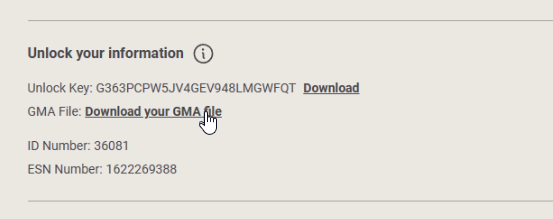
                  1b. Download your .gma file

                  macgms.png

                  If

                  Installingyou Downloaded the maps

                  .gma file from your account. The file will be downloaded to "Downloads" or the location you choose.
                    Launch the installer
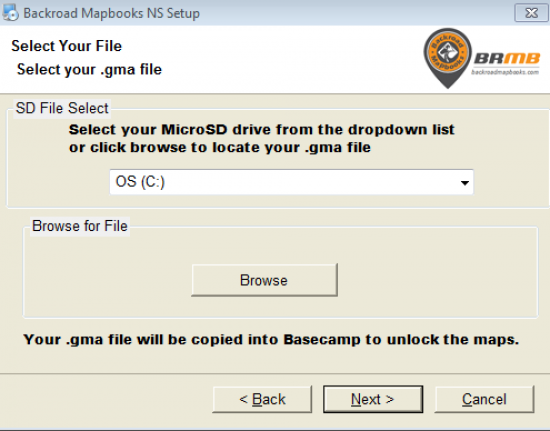
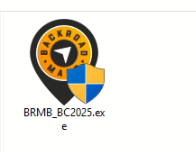
                      Double‑click the executable (BRMB####_2025.exe, where #### is your province code). A screen will appear guiding you through the installation, you can accept the default installation directory. A final screen will appear prompting you to provide a .gma file.

                      NavigateUpdater
                        Select the .gma file

                          Option A – SD File Select
                            Pick your MicroSD drive from the drop‑down list. The installer will copy the unlock key to Basecamp automatically. Option B – Browse for file
                              If the card isn’t shown as a drive letter, click Browse and navigate to the card or to the location you savedwhere the .zipgma archive.file Defaultwas locationdownloaded isfrom your account. Select GMA

                              Complete the Downloads folder.installation

                              The

                              • Click Next → Finish.zip
                              fileBasecamp maywill havenow extracted automatically into a folder withcontain the samenew namemap asdata.

                              5. Post‑Installation

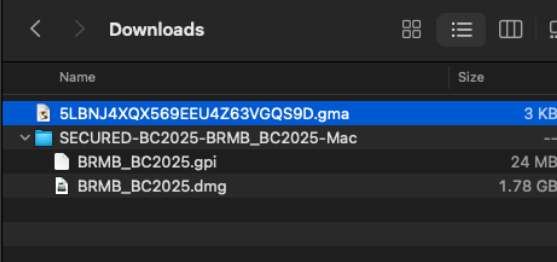
                                Launch Garmin Basecamp – Verify that the .zipnew archive.maps example:are SECURED_BC2025_BRMB_BC2025-Mac

                                The folder will contain a .dmg file and a .gpi file for your province and version.
                                MacDigital12.png

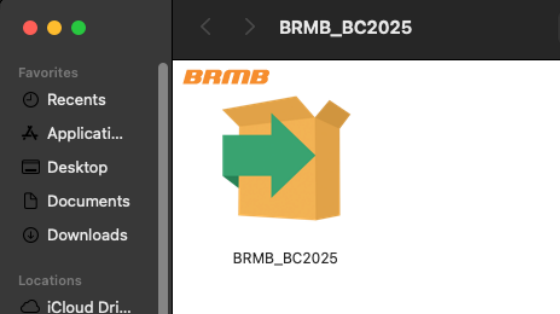
                                1. Double click the .dmg file to launch the installer.

                                2. Double click the installer logo to start the installation.
                                MacDigital4.png

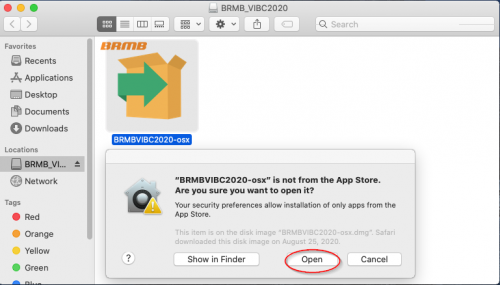
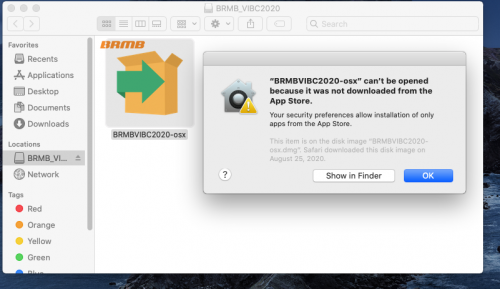
                                If you receive a prompt about the app cannot be loaded because it is notvisible from the appMaps store,menu.

                                ClickConfigure OKBasecamp and try launching it again, it should give you an option to "OPEN"Use the app.following

                                Youresource mayfor needdetailed toconfiguration Allow Apps from unidentified developers in Security Settings:options:
                                https://support.apple.com/en-ca/guide/mac-help/mh40616/macbrmb.support/books/4configuring-garmin-basecamp
                                mac-sec1.png


                                6.

                                Frequently

                                mac-sec3.png

                                Asked

                                3.Questions Follow

                                Question Answer What if I can’t find my MicroSD as a drive? Use the Browse for file option on Screenthe promptsunlock screen to complete the Map installation.

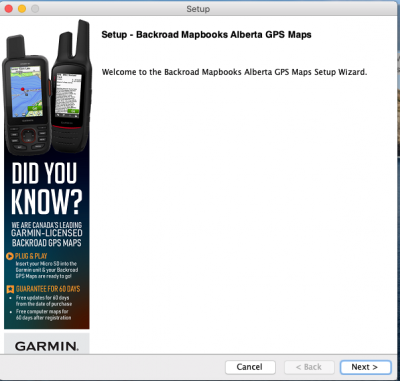
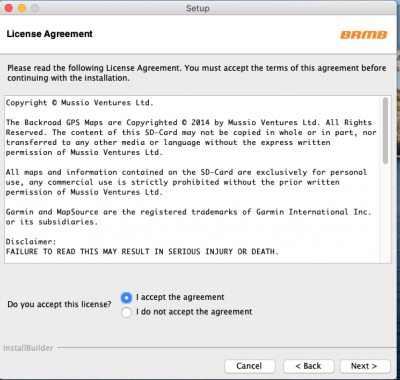
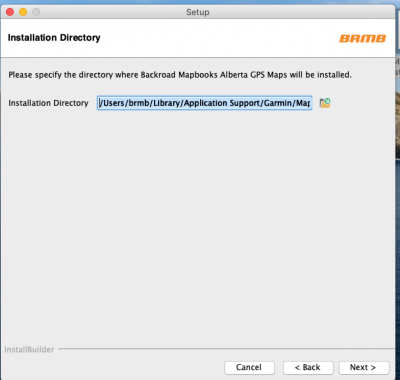
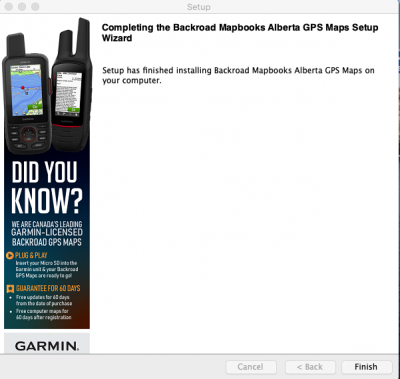
                                welcome.pnglicense.png

                                install_dir.pngfinal.png

                                You can now continuenavigate to the Unlock.gma stepsmanually.

                                Can I use the map on a mobile device? This guide is for PC only. For mobile devices see the BRMBMaps App.

                                7. Contact & Further Assistance

                                Need More Help?

                                  Phone – 1-877-520-5670 Submit Support Request – > https://backroadmapshelp.zendesk.com/hc/en-us/requests/new

                                  We’re here to unlockhelp theyou maps.

                                  get

                                  Unlockingyour maps inup basecampand forrunning macas quickly as possible!