
Unlocking Maps in Basecamp for MAC
Unlock
Unlocking Backroadmaps in Basecamp for MAC
To unlock the computer version of the mapsBackroadMaps in Garmin Basecamp youfor willmacOS
need
toGoal
import– Import the.gmafile.unlock key so your BackroadMaps are activated in Basecamp on a Mac.
YourPrerequisites –Garmin Basecamp 8 (or later) installed on your Mac. A
.gmafilecaneitherbedownloadedfound infrom youruserBackroad Maps accountandoralsolocated on the microSDcard'scard in theGarminfolder.
1. Locate the .gma Unlock Key
YourUnlockKey.gma).
microSD card
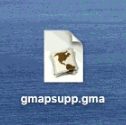
Inside the microSD card → Garmin folder → file gmapsupp.gma (if the card YourUnlockKey.gma (if the card has been 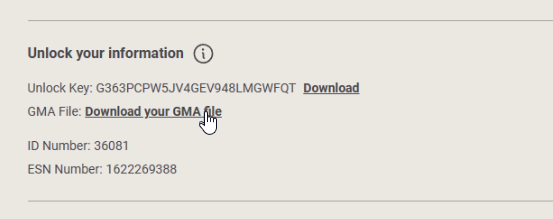
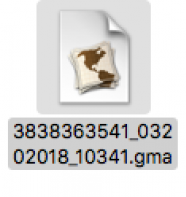
The file is always named
.gma– the.gma filename willbediffernamedbased[YouronUnlocktheKeycard’s].gmaupdate status.
2. Open Map Manager
1. Navigate to the locationfolder ofcontaining yourthe .gma filefile.
Double‑click onthe it.gma to open Map Manager.file.
A “Map Manager” window will openappears, asking ifwhether youyou’d wantlike to install maps,the click INSTALLmaps.
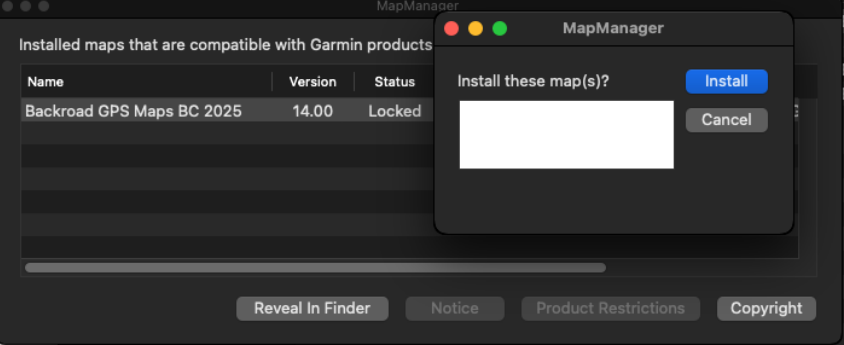
Click INSTALL to start the unlocking process.
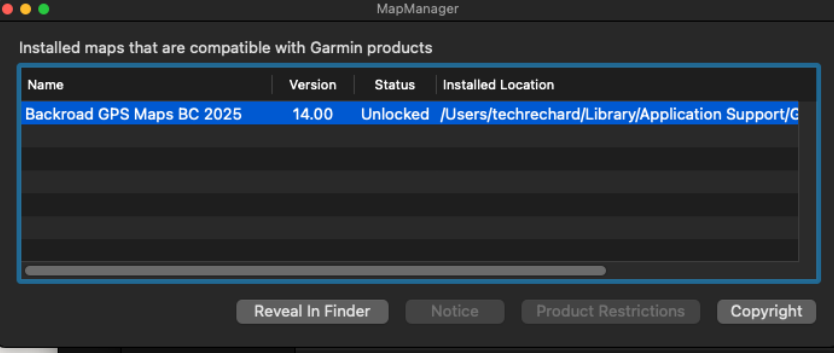
3. Verify Successful Unlock
Once installation completes:
4. Troubleshooting
.gma
File not recognized
Verify the Map Manager application is installed.
Security block (“This application cannot be opened”)
macOS Gatekeeper
Use System Settings → Security & Privacy → General to allow the file, then retry.
5. Need More Help?
We’re here to help you get your maps up and running as quickly as possible!