Basecamp Map Installation [ MAC ]
To view and use the computer maps you will need Garmin Basecamp installed on your computer.
Downloading computer maps for MAC
1. Go to the our website at Backroadmapbooks
Log into your account on our website, create a new account if you don't have one.

2. Click on the "MY BRMB GPS ACCOUNT" button to go to the registration page.

3. Click the "Open Download" text listed to the right of your product. You may also see "Updates Available" if there are updates available.
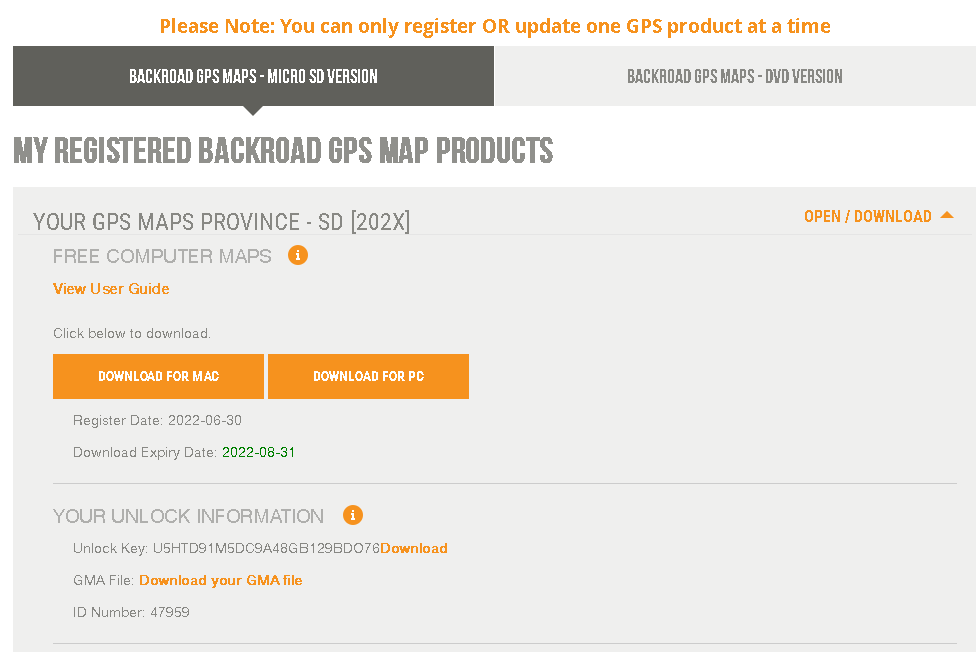
4. Click the Download for MAC button and save the .zip file to your computer.
Installing the maps
The .zip file may have extracted automatically into a folder with the same name as the .zip archive. example: BRMB_VIBC2022-Mac
If the .zip archive did not extract the data you may have to manually extract it.
The folder will contain a .dmg file and a .gpi file for your province and version.
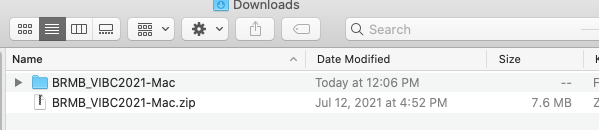

1. Double click the .dmg file to launch the installer.
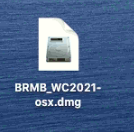
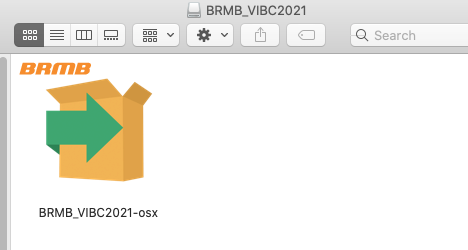
2. Double click the installer logo to start the installation.
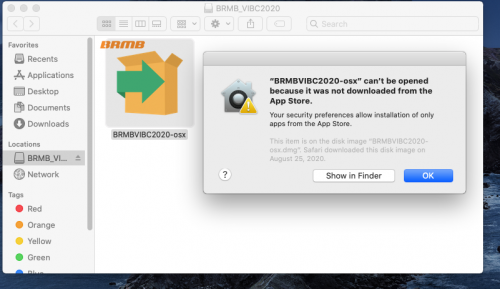
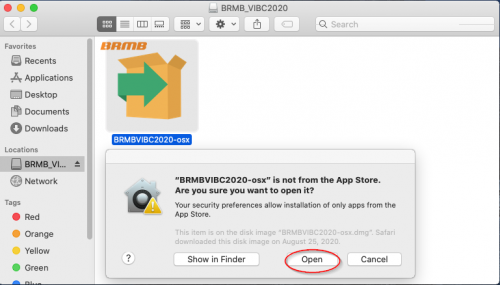
If you receive a prompt about the app cannot be loaded because it is not from the app store, Click OK and try launching it again, it should give you an option to "OPEN" the app.
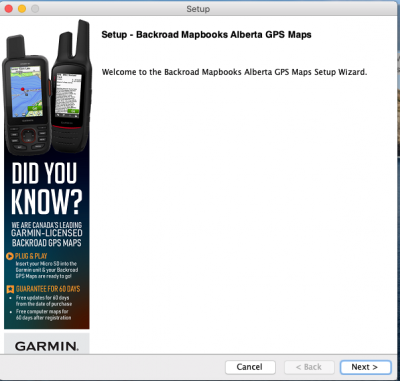
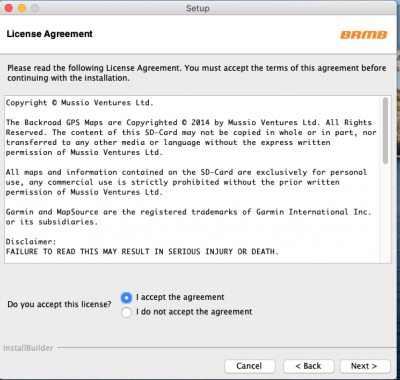
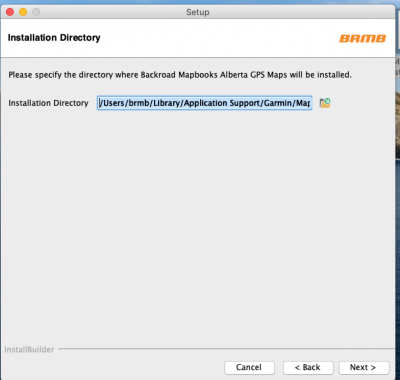
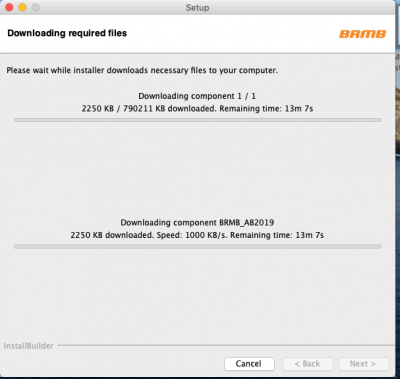
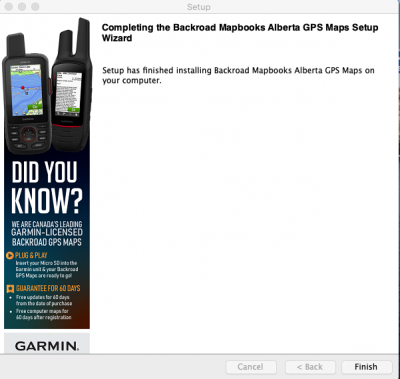
3. Follow the on Screen prompts to complete the Map installation.