3.MAC GPS Support
- Registering your GPS Maps [MAC]
- Installing Maps for Garmin Basecamp [ MAC ]
- Updating Maps [MAC]
- Installing Backroad GPS Maps Digital [MAC]
- Troubleshooting [MAC]
Registering your GPS Maps [MAC]
How to register your GPS maps MicroSD
Technical guide – Backroad Map Books
1. Why Register Your MicroSD?
| Feature | Description |
|---|---|
| Computer‑based map downloads | Access to the latest Computer Maps for macOS & Windows. |
| Secure license storage | Keeps your gmapsupp.unl and gmapsupp.gma files safe in your account. |
| Discounted updates | Receive future map releases at a reduced price. |
| Priority technical support | Faster response for any Garmin‑map‑related issue. |
Free Updates – After registration you can download map updates for 60 days at no charge.
If you bought an older version from a retailer, you may upgrade to the latest map release within that 60‑day window.
Important:
• A card that has already been registered cannot be registered again.
• If your card is “used” or already updated, the registration will fail.
2. Prerequisites
| Step | Action | Notes |
|---|---|---|
| 1 | Insert the MicroSD card | • If your computer has an SD‑card slot, insert the card directly. • If not, plug the card into your Garmin GPS and connect the GPS to your computer via USB. |
| 2 | Log in to Backroad Map Books | URL: https://backroadmapbooks.com/account/login Create an account if you do not already have one. |
| 3 | Locate the license files | The required files (gmapsupp.unl and gmapsupp.gma) are in the Garmin folder on your MicroSD. |
3. Registration Workflow
All steps are performed on the My GPS Maps registration page.
3.1 Navigate to the Registration Page
-
After login, click the “MY GPS MAPS” button (top‑right).
-
On the resulting page, select “Register SD”.

3.2 Upload the Unlock Code & GMA File
| Field | File | How to select |
|---|---|---|
Unlock Code (gmapsupp.unl) |
gmapsupp.unl |
Use the Choose File button to pick this file from the Garmin folder. |
Gma File (gmapsupp.gma) |
gmapsupp.gma |
Use the Choose File button for the second field. |
Tip:
Double‑check that the files you pick are exactly the.unland.gmafiles from the Garmin folder. Any mismatch will trigger an error.
3.3 Submit
-
Once both files appear in the form, click SUBMIT.
-
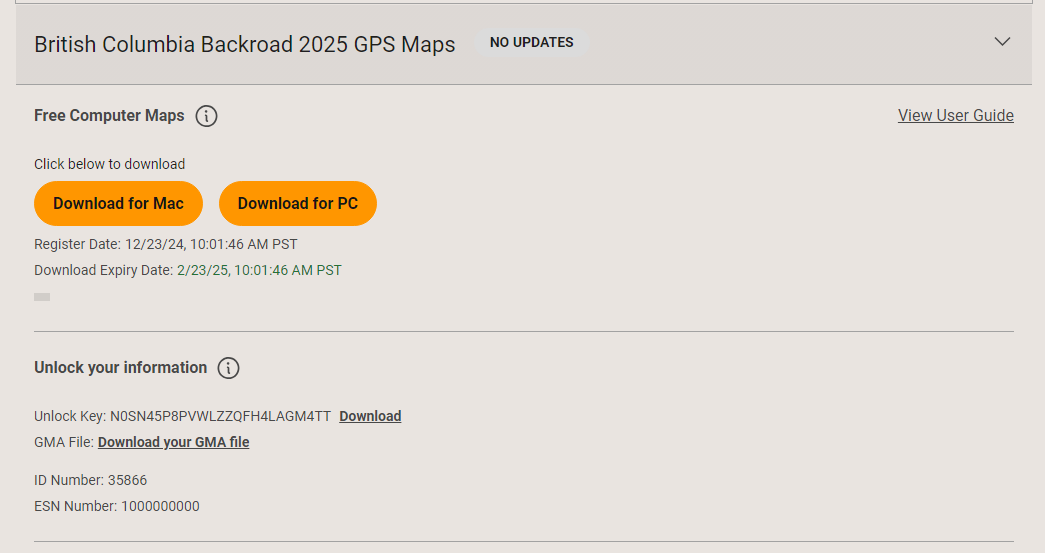
A green confirmation box will appear, and your product will be listed under “My Products”.

Result: The MicroSD card is now registered to your Backroad Map Books account.
4. Post‑Registration
- Access the “Computer Maps” – Log in, go to “My Products” and download the latest PC‑compatible maps.
- Update within 60 days – Download updates for free.
- Backup your files – Although the unlock codes are stored in the cloud, keep local copies of the
.unland.gmafiles on your computer for future reference.
4. Common Error Messages & Fixes
| Error | Cause | Remedy |
|---|---|---|
| “No ESN data found with unlockCode” | ESN (Electronic Serial Number) missing or corrupted. | Contact Backroad Map Books support (email: gps<at>backroadmapbooks.com). |
| “Invalid File Uploaded” | Wrong file type chosen (e.g., a .zip instead of .gma or .unl). |
Re‑select the exact .gma and .unl files from the Garmin folder. |
| “This card has already been registered” | Card was previously registered on another account or already updated. | Not recoverable – you must purchase a new card or contact support for advice. |
5. Quick Reference
| Action | Shortcut |
|---|---|
| Log in | Ctrl+L (Chrome) |
| Open registration | MY GPS MAPS → Register SD |
| File picker | gmapsupp.unl → Choose File; gmapsupp.gma → Choose File |
| Submit | SUBMIT button |
Prepared by the Backroad Map Books Technical Support Team
Registering your GPS Maps Digital
1. Overview
This guide explains how to register your digital map access code so you can:
- Download computer‑compatible maps for macOS or Windows.
- Store a secure copy of your Garmin license/unlock files.
- Receive future updates at a discounted price.
- Access priority technical support.
NOTE: After registration, you receive free map updates for 60 days.
Older versions purchased from a retailer can be upgraded to the latest maps within that 60‑day window.
2. Registration Benefits
| Benefit | Description |
|---|---|
| Computer‑based map downloads | Get the latest map files for macOS and Windows. |
| Secure license storage | Your Garmin license/unlock files are safely stored in the cloud. |
| Discounted future updates | Pay less for subsequent map releases. |
Free Updates:
You can download map updates free of charge for 60 days after the first registration of the MicroSD card.
3. Update & Upgrade Policy
| Item | Policy |
|---|---|
| First‑time registration | 60‑day free update period begins on the day you click Submit. |
| Subsequent upgrades | If you purchased a previous map edition from a retailer, you may upgrade to the newest edition within 60 days of the first registration. |
| After 60 days | Updates become paid and must be purchased through the Backroad Map Books website. |
4. Important Warnings
⚠️ Unit ID & Access Code
The 10‑digit UnitID is required for digital‑map registration. It can be found under Settings → About on your GPS device.
3. Prerequisites
| Item | Requirement | How to Obtain |
|---|---|---|
|
MicroSD Card (Optional) |
If you choose to use a microSD card (not the physical memory). | Insert into a GPS or computer with an SD reader. |
| ACCESS CODE | A unique alphanumeric code printed on the MicroSD packaging. | Look for the “ACCESS CODE” sticker on the card’s label. |
| UnitID | A 10‑digit number that identifies your Garmin GPS. | Open the GPS → Settings → About (or Device Info) to view the UnitID. |
| Internet Connection | Required to submit the registration form and download computer maps. | Any reliable broadband or Wi‑Fi connection. |
4. Step‑by‑Step Registration
The following steps assume you have already plugged in your GPS so it is available and ready.
4.1 Log In to the Backroad Map Books Portal
- Open a web browser and navigate to
https://backrockodmapbooks.com - Click Sign In (top‑right) and enter your account credentials.

4.2 Navigate to the Digital Map Registration Page
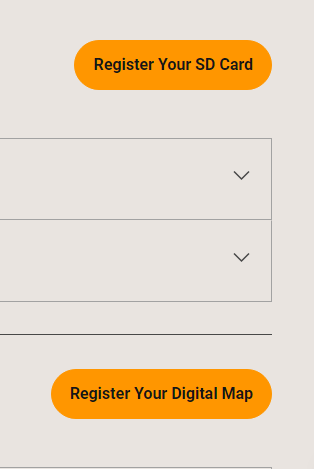
- Once logged in, click My Account → Digital Maps → Register Your Digital Map.
4.3 Enter the Registration Data
| Field | Input | Example |
|---|---|---|
| Access Code | The code printed on the MicroSD card label. | BCBC-7r3325caa-8cec-483d-97db-059d88f78f29 |
| UnitID | 10‑digit GPS unit identifier. | 1234567890 |
The UnitID can be found under Settings → About on your GPS.
Access Code: BCBC-7r3325caa-8cec-483d-97db-059d88f78f29
UnitID: 1234567890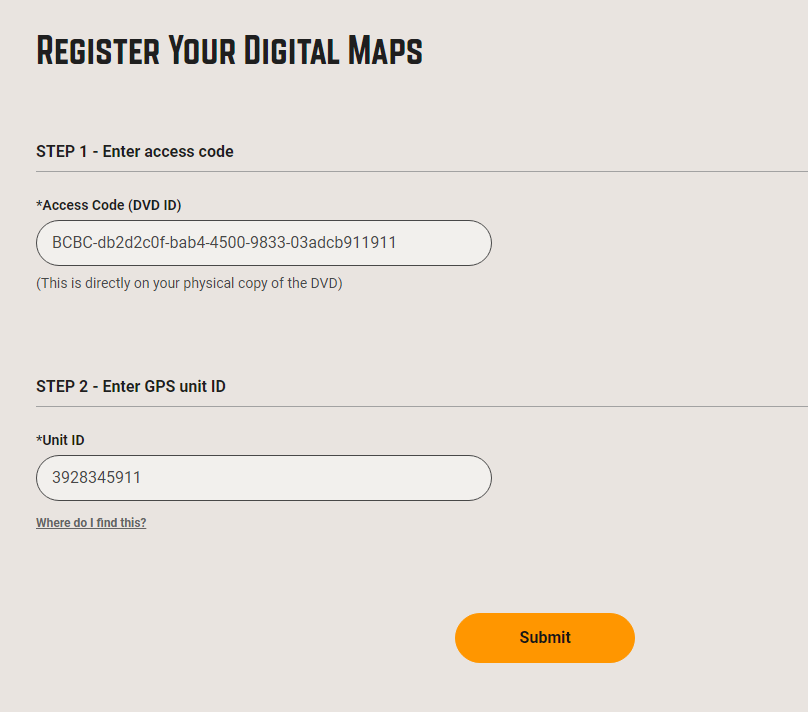
4.4 Submit the Form
- Review the values you entered.
- Click SUBMIT.
- If registration succeeds, a green success message will appear and the new product will be listed under your account.

5. After Registration
- Your digital maps are now registered and available for download.
- The new product appears in the My Gps Maps section of your account.
- You can immediately start downloading the computer‑ready map files.
6. Post‑Registration Tasks
-
Download the computer‑map files:
- From your account, click Download next to the registered product.
- Choose macOS or Windows as required.
- Follow the on‑screen prompts to install.
-
Backup your license files:
- You can also download a copy of your Garmin license/unlock files from the portal for local backup.
-
Schedule future updates:
- Within the 60‑day free window, simply click Get Updates in the portal.
7. Troubleshooting
| Symptom | Likely Cause | Fix |
|---|---|---|
| Registration fails with “Invalid Access Code” | Wrong Access Code or UnitID entered | Re‑check the GPS UnitID. |
| Registration fails with “UnitID already registered” | The same UnitID was registered previously | Contact support; you may have a duplicate product or need to unlink the old registration. |
| Unable to download updates after 60 days | The free update window has expired | Purchase the latest map edition through the portal. |
| Green success box never appears | Browser security block (e.g., pop‑up blocker) | Disable pop‑up blockers or try a different browser. |
8. FAQ
Q1. Can I use the Digital maps on multiple GPS devices?
A1. No – the registration is tied to your GPS UnitID, You can only load the maps on the registered GPS.
Q2. Do I need to install the Digital maps to a MicroSD card ?
A2. No, the Digital maps allow you to install the maps on the internal memory or your own microSD card.
9. Contact & Support
| Channel | Availability | Notes |
|---|---|---|
| Mon‑Fri 9:00‑17:00 PST | gps<at>backroadmapbooks.com | |
| Phone | Mon‑Fri 9:00‑17:00 PST | (877)-520-5670 |
For urgent issues, reference the UnitID and Access Code in your support request.
Installing Maps for Garmin Basecamp [ MAC ]
Basecamp Map Installation [ MAC ]
Installing and Unlocking Backroad MapBooks on macOS
1. Prerequisites
| Item | What to do | Link |
|---|---|---|
| Garmin Basecamp | Install Basecamp to view and load maps. | https://www8.garmin.com/support/download_details.jsp?id=4449 |
| Backroad MapBooks account | Sign‑up or log in to access map downloads. | https://www.backroadmapbooks.com/brmb-products/customer/account/login/ |
Tip – Keep the ZIP file in your Downloads folder for quick access.
2. Downloading the Map Archive for macOS
-
Log into the Backroad MapBooks website
- Open the URL above and sign in.
- If you have no account, click Create New Account and follow the prompts.
-
Navigate to “MY GPS Maps”
- Click the MY GPS Maps button to open the registration page.
-
Locate your product
- Find the row for your province (e.g., BC2025).
- Click the small arrow to the right of the product title to expand its details.

-
Download the macOS ZIP
- Click the Download for MAC button.
- Choose a location to save it (default is the Downloads folder).
-
Download the .gma unlock file
- Scroll down to the Unlock Information section and click the link to download your
.gmafile.
- Scroll down to the Unlock Information section and click the link to download your
3. Installing the Maps
-
Open the downloaded ZIP
- Navigate to where you saved the file.
- If it hasn't already extracted, double‑click the ZIP to unpack it (you should see a folder named
SECURED_BC2025_BRMB_BC2025-Mac).
-
Mount the DMG
- Inside that folder you’ll find a
.dmgfile (e.g.,BRMB_BC2025.dmg). - Double‑click the DMG to mount it.
- If you get a “Not from the App Store” warning, click OK and then Open the installer.
- Inside that folder you’ll find a
-
Run the installer
- Double‑click the installer icon that appears inside the mounted volume.
- Follow the on‑screen prompts (accept the license, choose an installation directory, and finish).

-
Allow apps from unidentified developers (if needed)
- Open System Preferences → Security & Privacy → General.
- If “Allow apps downloaded from: Anywhere” is not present, click Open Anyway after launching the installer.
- For detailed steps, see Apple’s guide: https://support.apple.com/en-ca/guide/mac-help/mh40616/mac.


-
Follow the installation steps
- The installer will show a welcome screen, license agreement, and a final confirmation screen.
- Once finished, you’ll be ready to unlock the maps.
-
Complete the installation
-
Follow the on‑screen prompts (welcome, license, install location).
-
Typical screens:


-
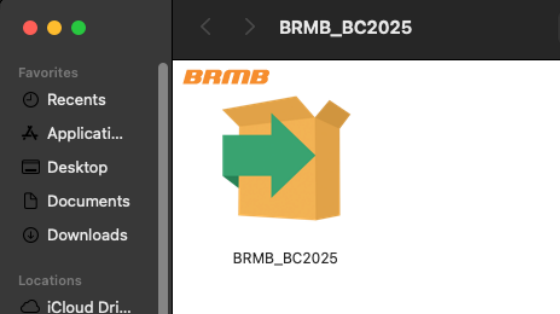
4. Unlocking the Maps in Garmin Basecamp (macOS)
After the installation above, follow the unlocking instructions at:
https://brmb.support/books/3mac-gps-support/page/unlocking-maps-in-basecamp-for-mac
(This page walks you through importing the .gma file into Basecamp and unlocking the content.)
5. Troubleshooting
| Problem | Fix |
|---|---|
| Installer won’t launch – “This app cannot be opened because it is from an unidentified developer.” | 1. Open the installer once. 2. Close it. 3. Go to System Preferences → Security & Privacy → General and click Open Anyway. |
6. Need More Help?
- Phone – 1-877-520-5670
- Submit Support Request – > https://backroadmapshelp.zendesk.com/hc/en-us/requests/new
We’re here to help you get your maps up and running as quickly as possible!
Unlocking Maps in Basecamp for MAC
Unlocking BackroadMaps in Garmin Basecamp for macOS
Goal – Import the
.gmaunlock key so your BackroadMaps are activated in Basecamp on a Mac.
Prerequisites –
- Garmin Basecamp and Map Manager installed on your Mac.
- A
.gmafile either downloaded from your Backroad Maps account or located on the microSD card in theGarminfolder.
1. Locate the .gma Unlock Key
| Source | Where to Find It |
|---|---|
| Your account | Log in to the Backroad Maps portal → My Unlock Keys → download the file (usually named YourUnlockKey.gma). |
| microSD card | Inside the microSD card → Garmin folder → file gmapsupp.gma (if the card hasn’t been updated) or YourUnlockKey.gma (if the card has been updated). |
The file is always named
.gma– the name will differ based on the card’s update status.

2. Open Map Manager
-
Navigate to the folder containing the
.gmafile. -
Double‑click the
.gmafile.A “Map Manager” window appears, asking whether you’d like to install the maps.

-
Click
INSTALLto start the unlocking process.
3. Verify Successful Unlock
Once installation completes:
- Open Garmin Basecamp.
- Go to Maps → Manage Map Products.
- The relevant BackroadMap entry should now display “Region unlock code from …” next to its name, indicating it is unlocked.
4. Troubleshooting
| Issue | Likely Cause | Fix |
|---|---|---|
Map Manager doesn’t open when double‑clicking .gma |
File not recognized | Verify the Map Manager application is installed. |
| Security block (“This application cannot be opened”) | macOS Gatekeeper | Use System Settings → Security & Privacy → General to allow the file, then retry. |
5. Need More Help?
- Phone – 1-877-520-5670
- Submit Support Request – > https://backroadmapshelp.zendesk.com/hc/en-us/requests/new
We’re here to help you get your maps up and running as quickly as possible!
Updating Maps [MAC]
Map Updates
Map updates are released each year and older versions become discontinued.
To update your card it must be registered in your account. Updates are shown under your existing registered product.
Updates are available FREE for 60 days after registration. Not Registered Yet? Register Here
Connecting your GPS
Some units may need to be placed into:
Mass storage mode - Viewing Files Using USB Mass Storage Mode
MTP mode
Spanner Mode - Garmin Spanner Mode on an Outdoor Product
These settings can be changed on your unit before you plug it into your computer.
This will give you a drive for the Garmin unit and one for our microSD card.
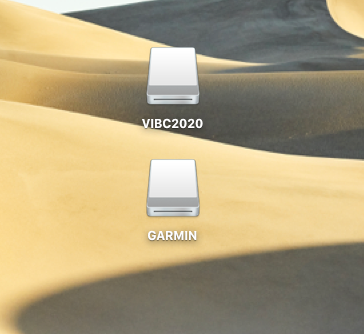
Updating Maps
1. Go to the our website at Backroadmapbooks
Log into your account on our website, create a new account if you don't have one.
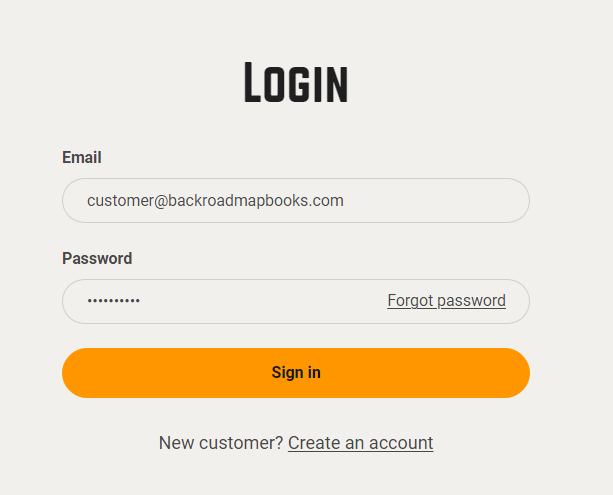
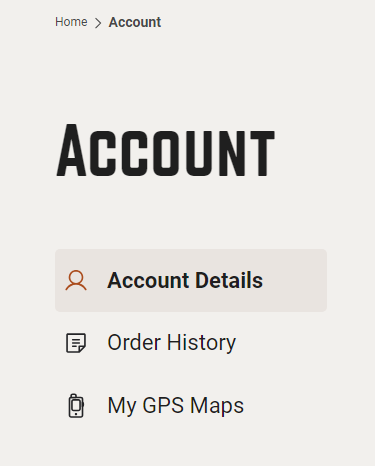
2. Click on the "MY GPS Maps" button to go to the registration page.
4.) Click the down arrow to expand the product information,
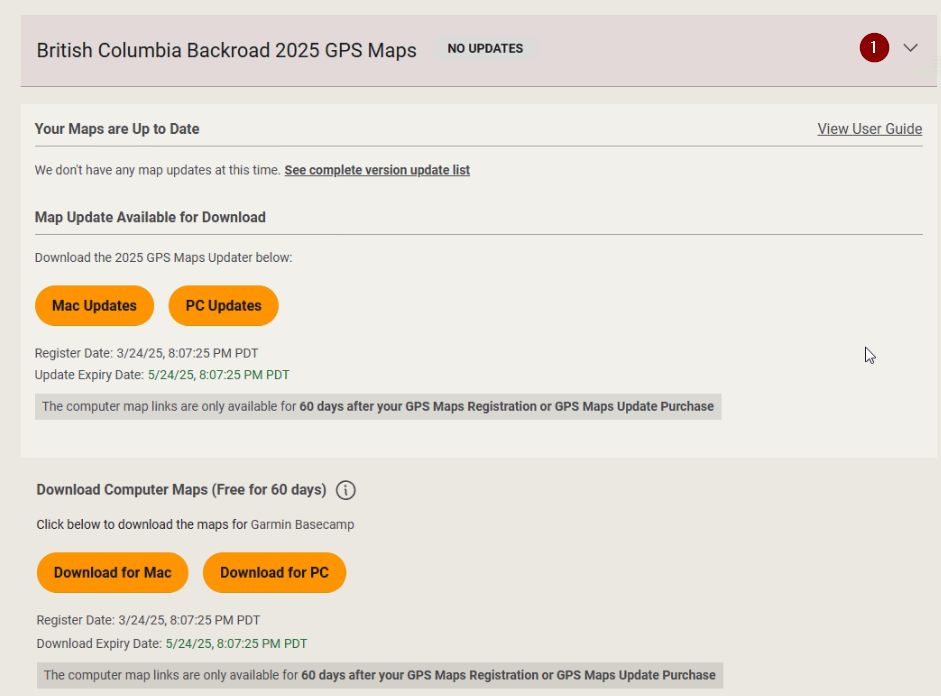
5.)Under Map Updates Available for Download Click Mac Updates to download the .zip archive to your computer.
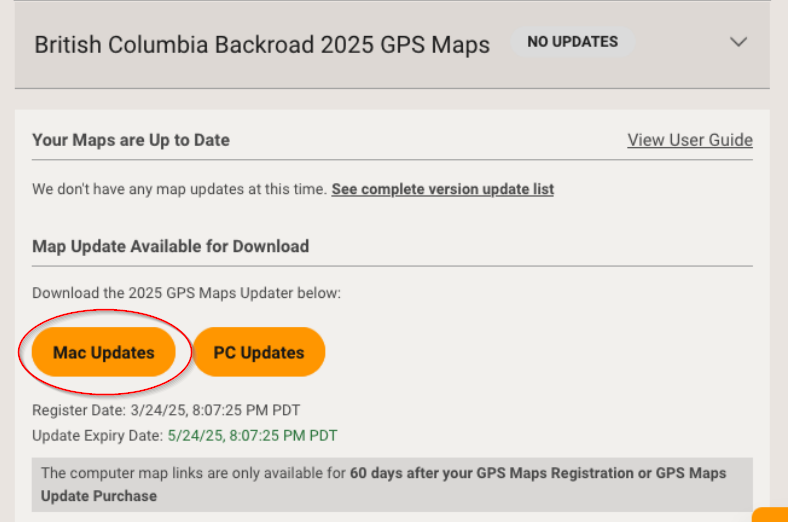
6.) Under Unlock Information Click to download your gma and unl files for the updated version.
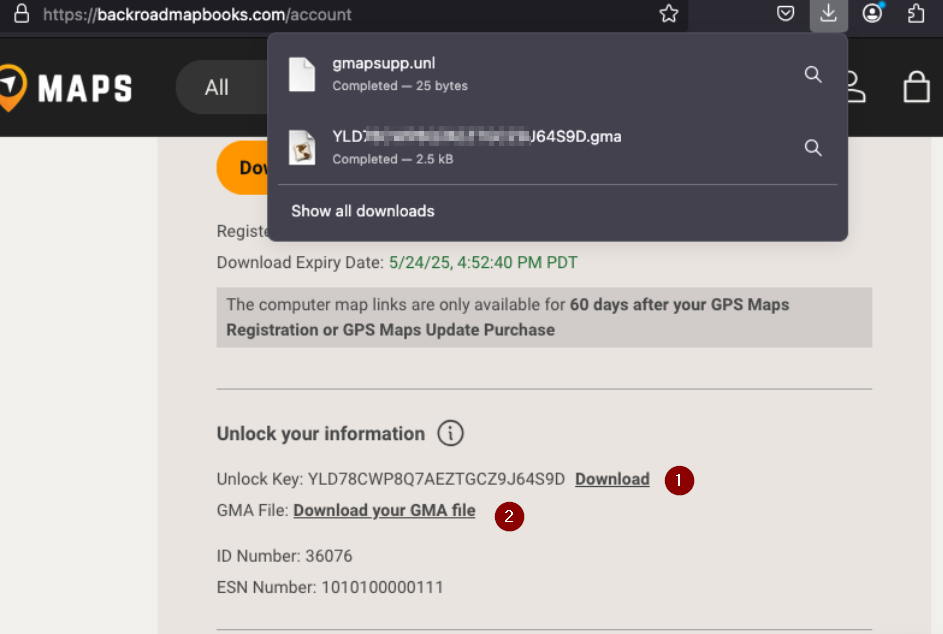
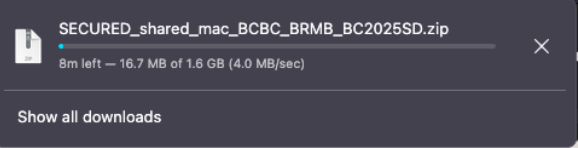
Navigate to the location of the downloaded .zip file.
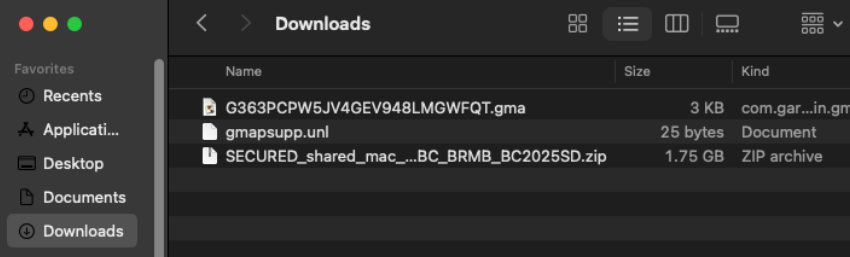
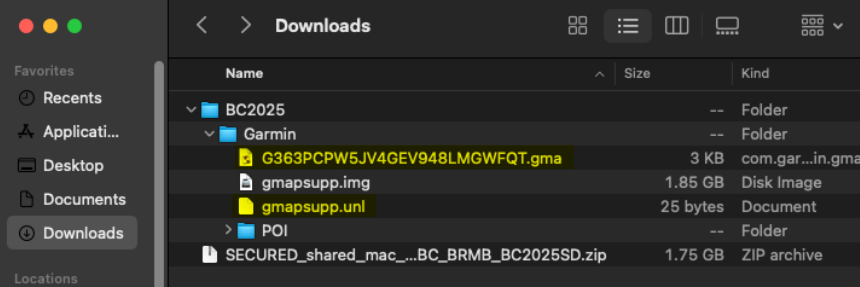
7.) Expand the .zip archive to show the update folder and files.
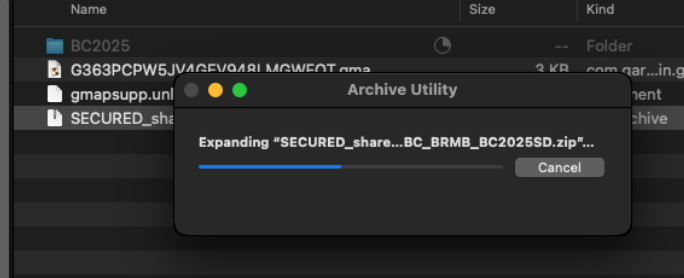
8.)The zip file will expand to a folder with the name of your Product.
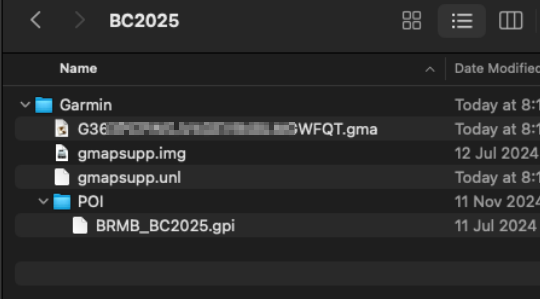
In this example BC2025 and contains the Garmin Folder and files to update your microSD card.
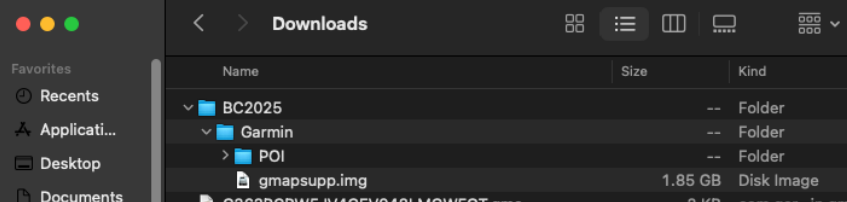
9.)Copy the .gma file and the .unl file into the Garmin folder containing the .img file and POI folder
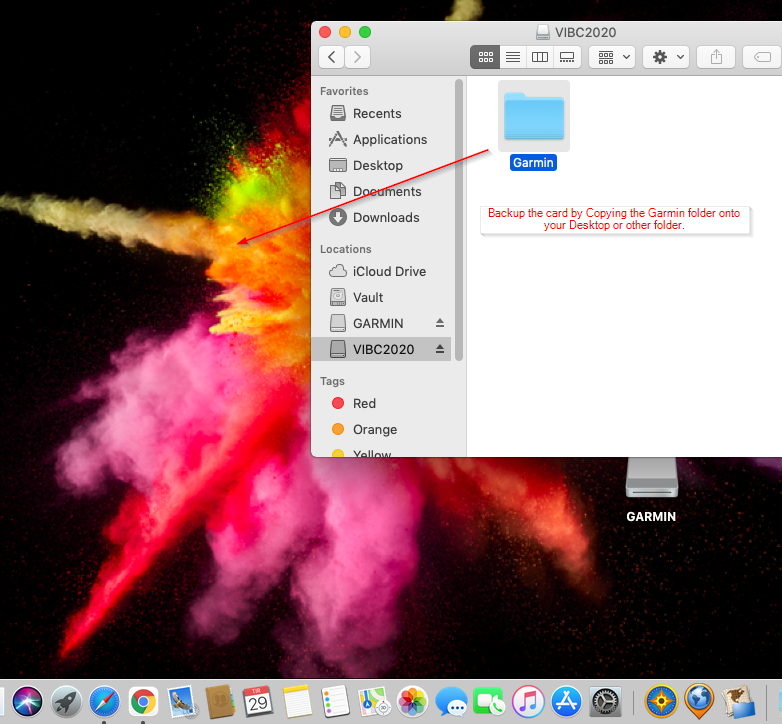
Backup your existing Card
Copy or drag the Garmin folder onto your Desktop or another location for backup purposes.
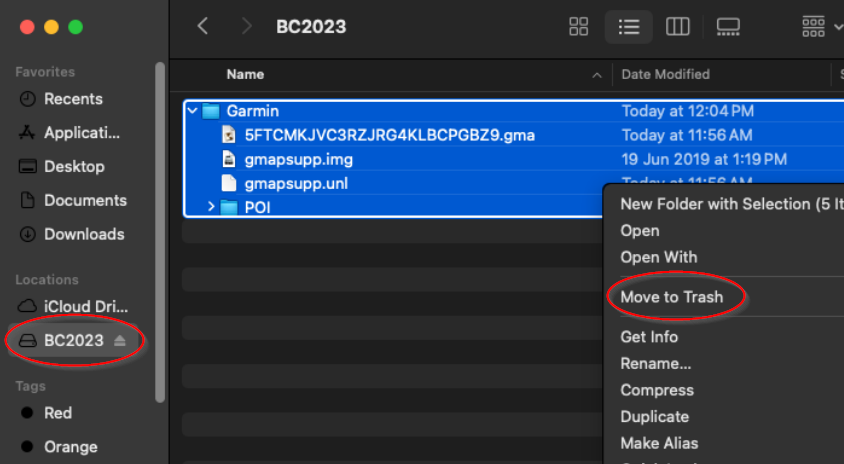
2.Once the backup is complete you can move the Garmin folder on the microSD card to Trash.
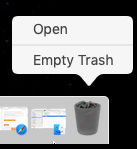
3. To free the space on the card you will need to empty the trash
Copy the new Garmin folder onto the card
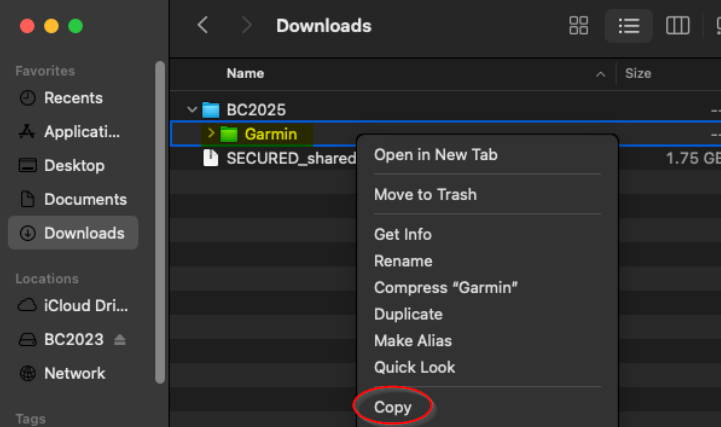
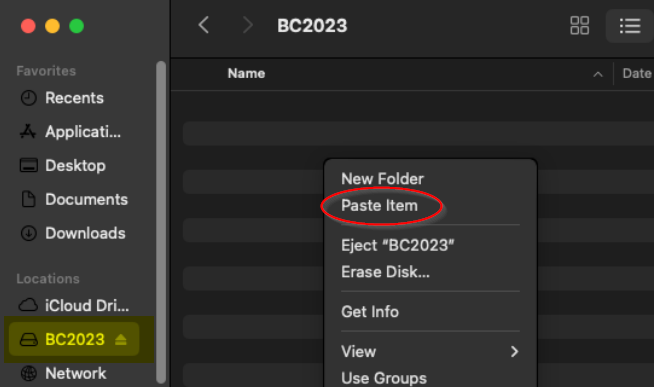
3. Wait for the files to copied to your microSD card.
Your microSD card should now be Updated with the latest map data and you can disconnect your GPS and test the maps.
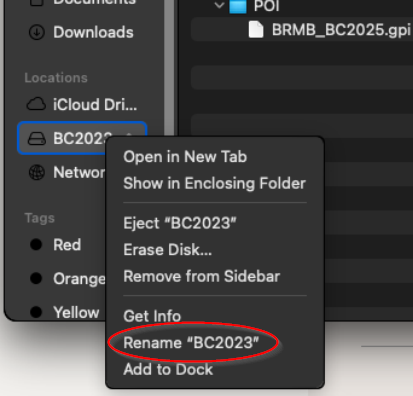
Rename the card *Optional
Your existing microSD card will still have the old version name so you will need to rename the drive.
Installing Backroad GPS Maps Digital [MAC]
Backroad Maps DIGITAL Maps are installed directly to your GPS unit memory, your own SD card or your Garmin Smart Watch
Building and installing your maps can be done using Garmin Basecamp and Mapinstall.
Connect your GPS to your computer
To Install your Backroad Maps Digital version you need Garmin Basecamp installed on your system and your Backroad GPS maps title installed and unlocked.
Install and unlock Maps in Basecamp
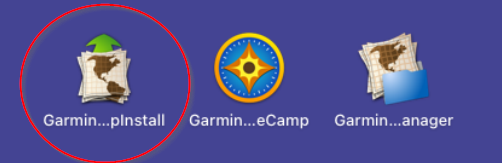
1.)Launch Garmin Mapinstall.
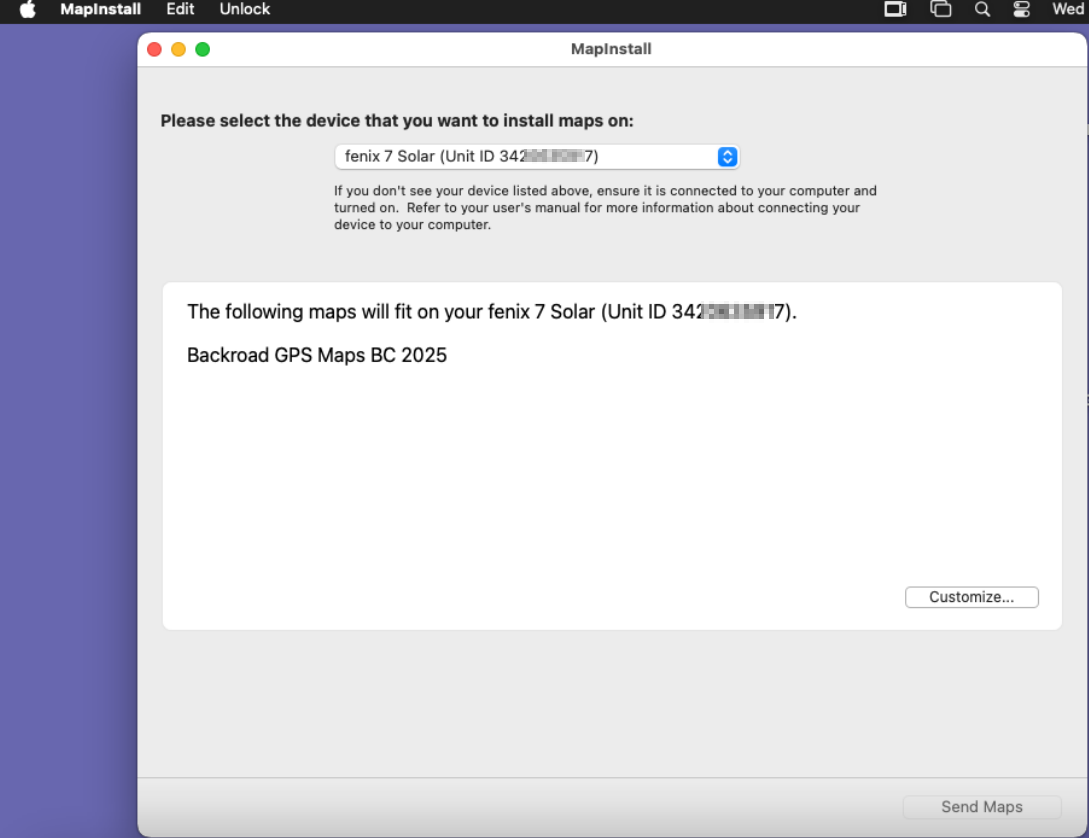
2.)Garmin Mapinstall will open and list any connected GPS device.
When you see your device in the list you can click Continue
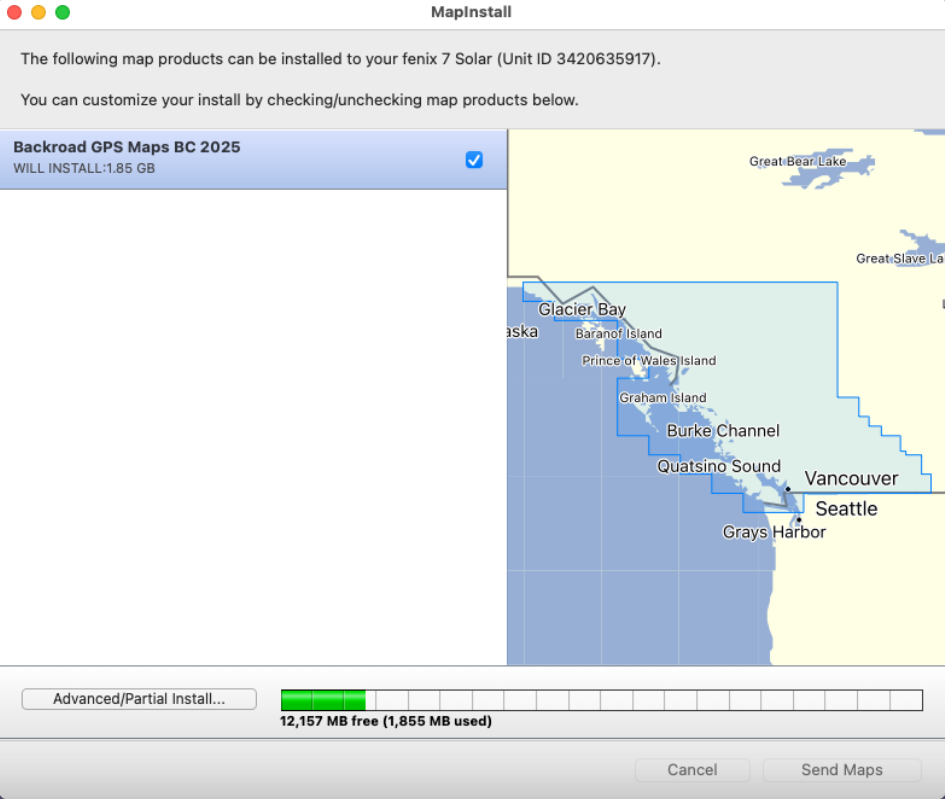
3.)You can click Customize if you want to select a custom area.
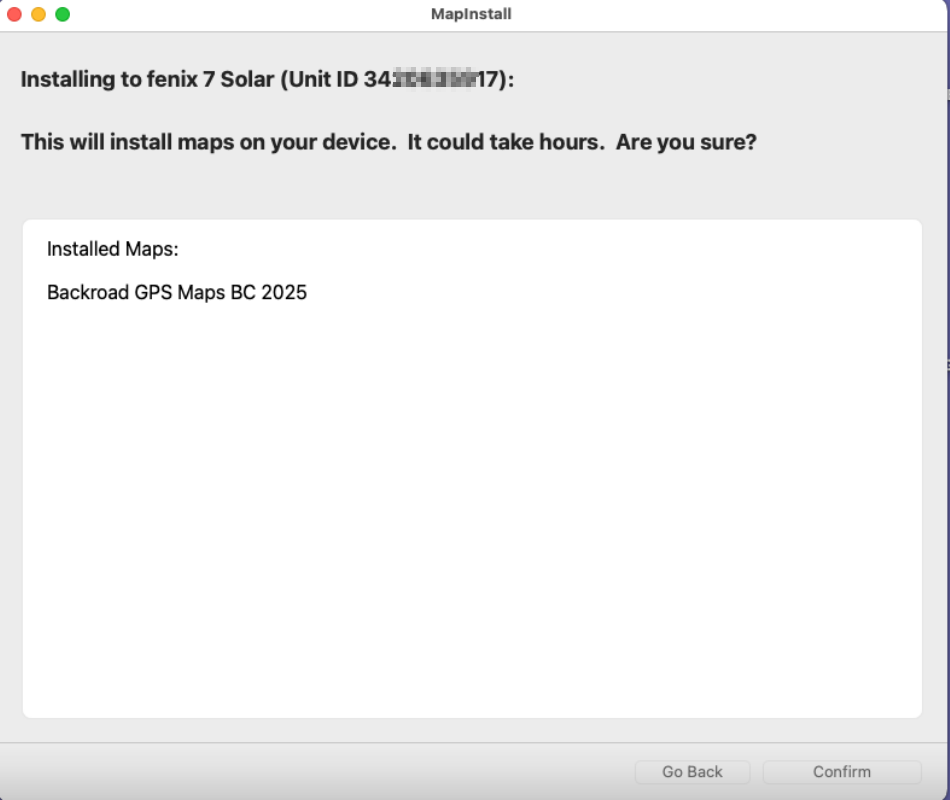
4.) Click on Send Maps to start transfer of the maps.
Click Confirm to begin the transfer
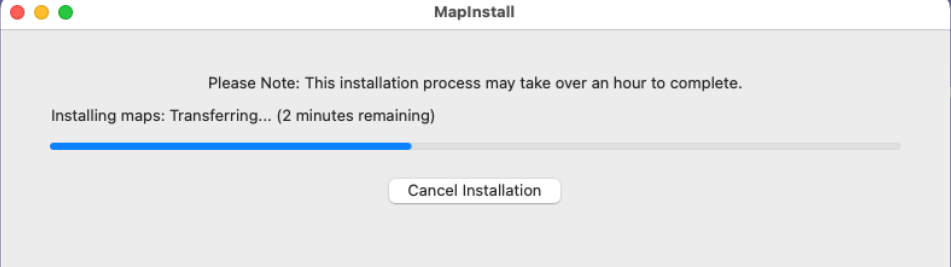
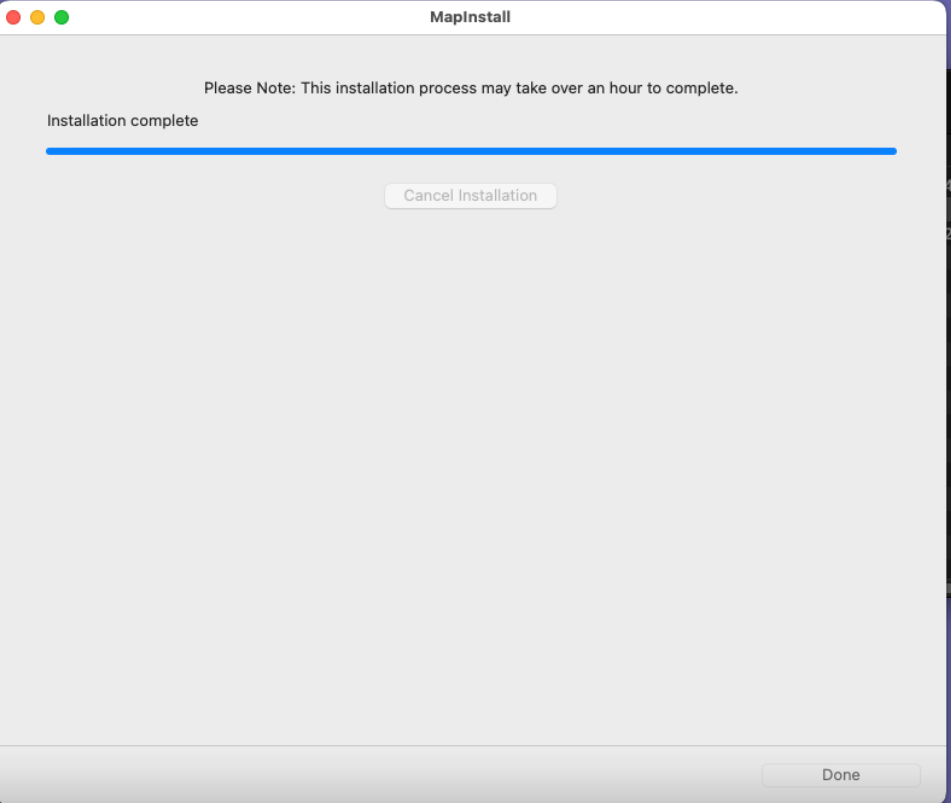
4.)Click Done to complete the Map transfer.
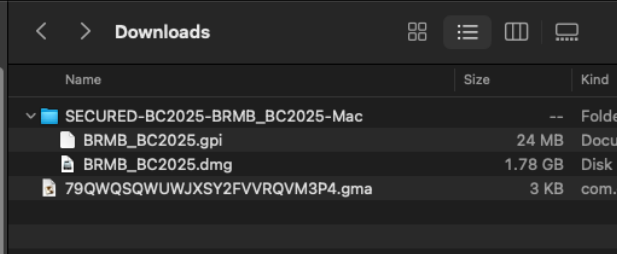
INSTALL the .gpi POI file
1.)Copy the .gpi file located in the map installer folder you downloaded.
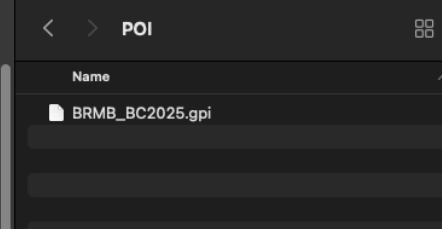
2.) Paste the .gpi file into the POI folder located inside the GARMIN folder on the GPS unit
If the POI folder does not exist in the Garmin folder you can create it.
3.)You can now unplug the GPS and test that the maps are loading.
Troubleshooting [MAC]
Connecting Your Garmin GPS to a Mac:
Macs with M1 and newer processors do not work well with the following GPS models:
If you connect the device directly to the Mac, it will not communicate.
Connect the device to a USB 2.0 hub and then connect it to the Mac (if necessary with an additional USB-A to USB-C adapter)
https://support.garmin.com/en-US/?faq=Pu8dqQaIFY5hq2dMWuDix7
More and more Garmin devices are released that only support the Media Transfer Protocol (MTP), like the Zũmo XT, and most recent Camper and Drive(Smart) models, but also various fitness and training watches. Apple does support MTP, but not optimal.
Only one program can simultaneously communicate with the device, to other programs the device is not discoverable while the first program is active. (*Always close Garmin Express)
MTP devices will also not show up in MAC's Finder.
To allow access to these devices you can try installing the FREE OPENMTP app:
https://openmtp.ganeshrvel.com