
Updating Maps on Windows
Updating BackroadMaps on Windows
Prerequisite: Your GPS Maps must be registered in the BackroadMaps account.
Important: Free update links are available only 60 days after registration.
Not registered yet? Create an account here.
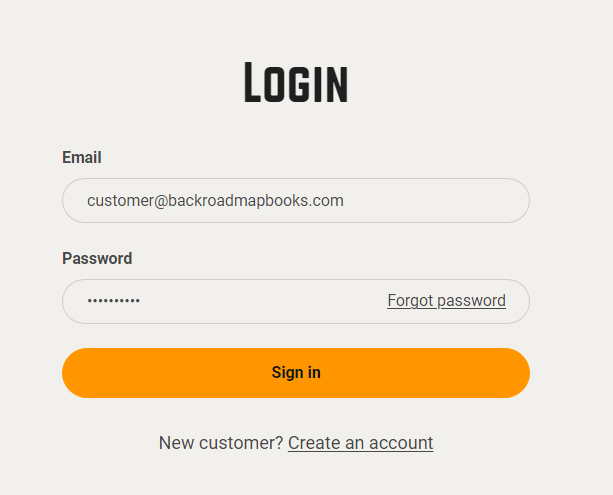
1. Log in to Your BackroadMaps Account
-
Open a browser and go to BackroadMaps.
-
Log in or create a new account.
-
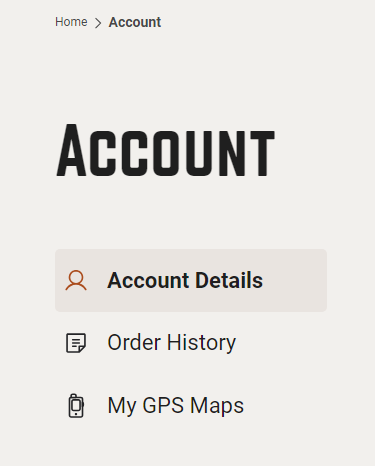
Click MY GPS Maps to reach the registration page.
2. Download the PC Updater
-
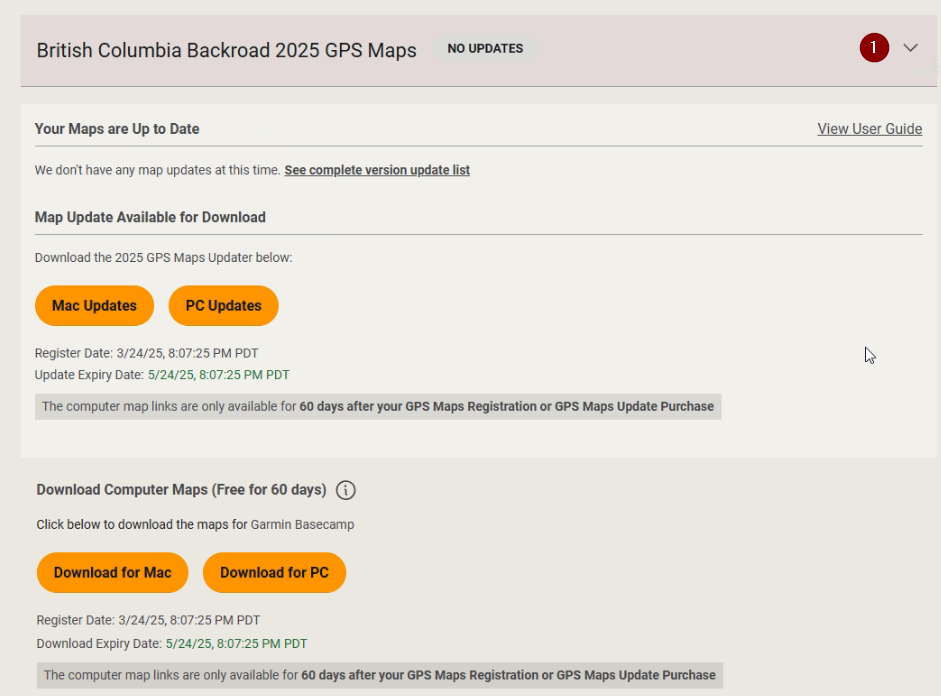
Expand the product details by clicking the down‑arrow.
-
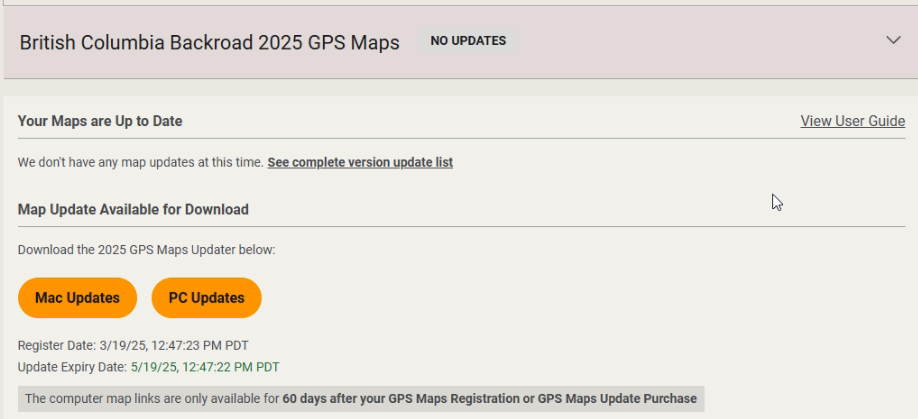
Under Map Updates Available for Download, click PC Updates.
-
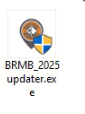
Once the download completes, open the downloaded file BRMB_updater2025.exe (located where you saved it).
-
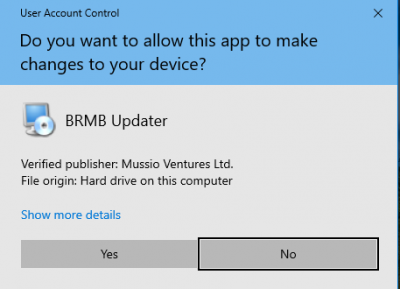
When prompted, click Yes to allow changes.
-
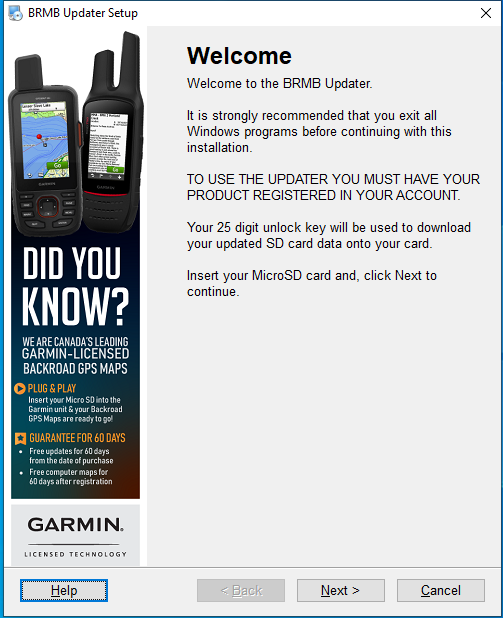
Follow the welcome wizard:
- Click Next.
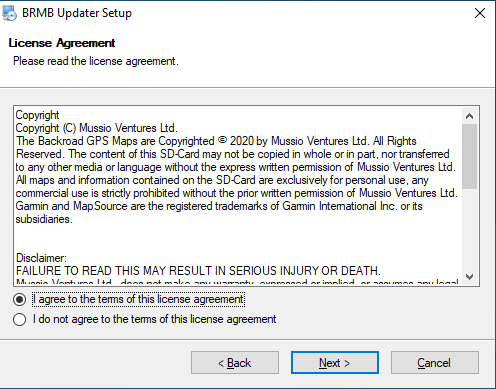
- Accept the license agreement.
3. (Optional) Create a Backup
Tip: Backups protect your data in case the update fails.
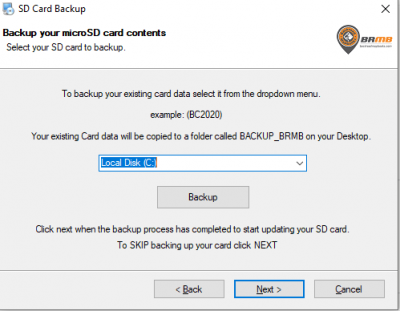
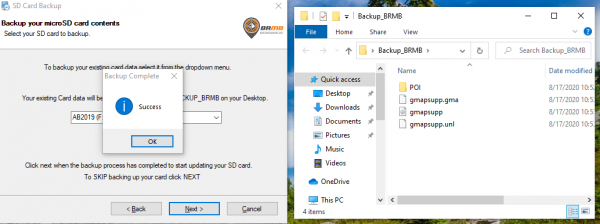
A folder namedBackup_BRMBwill appear on the Desktop and contain a copy of your current map data.
-
On the backup screen, choose your microSD card from the Drive drop‑down.
-
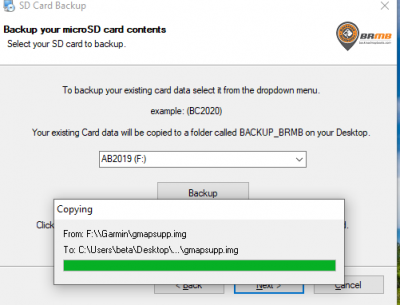
Click Backup.
-
Wait patiently while the data is copied. Verify the files exist in the backup folder before proceeding.
⚠️ Backup errors?
* The updater may take a while to copy large map files. * Do **not** interrupt the process.
4. Update the Maps
-
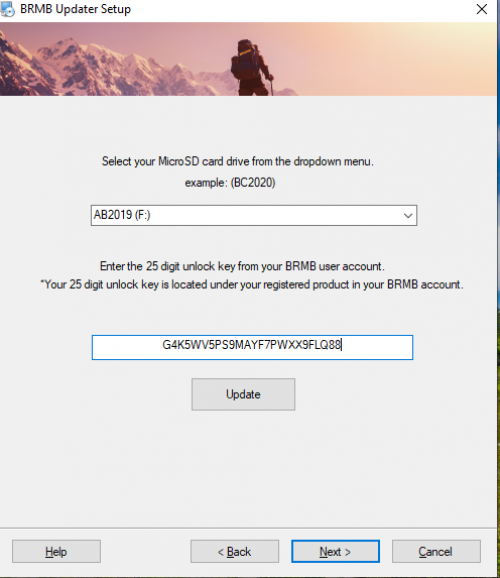
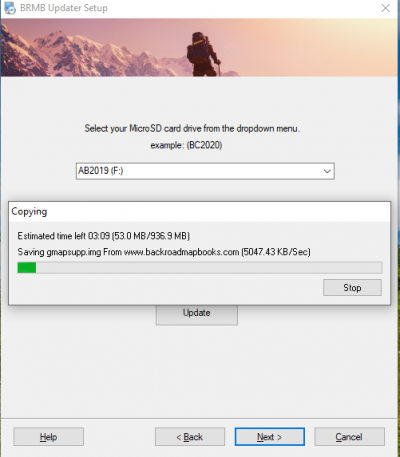
Select your microSD card again from the Drive drop‑down.
-
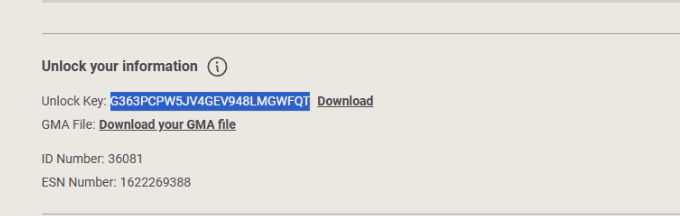
Copy the new 25‑digit unlock key displayed in the Unlock Information section.
-
Paste the key into the Unlock Key field.
-
Click Update.
5. Verify the Update
-
Insert the microSD card into the GPS or connect the GPS via USB so the card appears as a drive.
Need help connecting your GPS? Read our guide. -
After the update finishes, load the maps on your GPS.
-
Verify the map data by navigating on the device to SETUP > MAP.
6. Troubleshooting
If the update fails or maps don’t appear correctly:
Check the detailed Troubleshooting Steps for Windows GPS Maps.
Quick Reference
| Step | Action |
|---|---|
| 1 | Log in → MY GPS Maps |
| 2 | Download PC Updater |
| 3 | Backup (optional) |
| 4 | Copy unlock key |
| 5 | Run updater (BRMB_updater2025.exe) |
| 6 | Accept license, backup, then update |
| 7 | Verify maps on GPS |
Tip: Keep the updater and backup folder on a clean desktop to avoid confusion.
For additional help, refer to the BackroadMaps Windows Update Guide or contact support.