
Updating Maps on Windows
Map Updates
Map updates are released each year and older versions become discontinued.
To update your card it must be registered in your account. Updates are shown under your existing registered product.
Update links are available FREE for 60 days after registration. Not Registered Yet? Register Here
Updating Maps
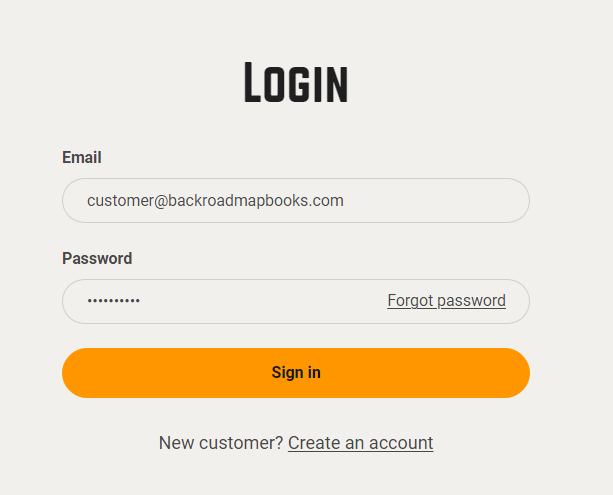
1. Go to the our website at Backroadmapbooks
Log into your account on our website, create a new account if you don't have one.
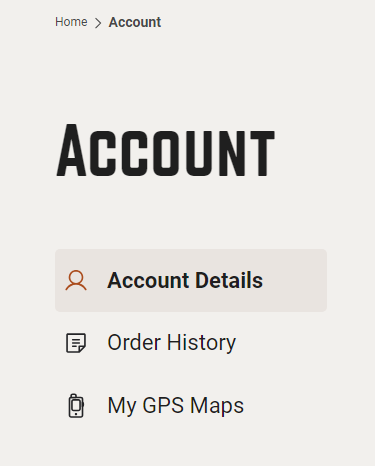
2. Click on the "MY GPS Maps" button to go to the registration page.
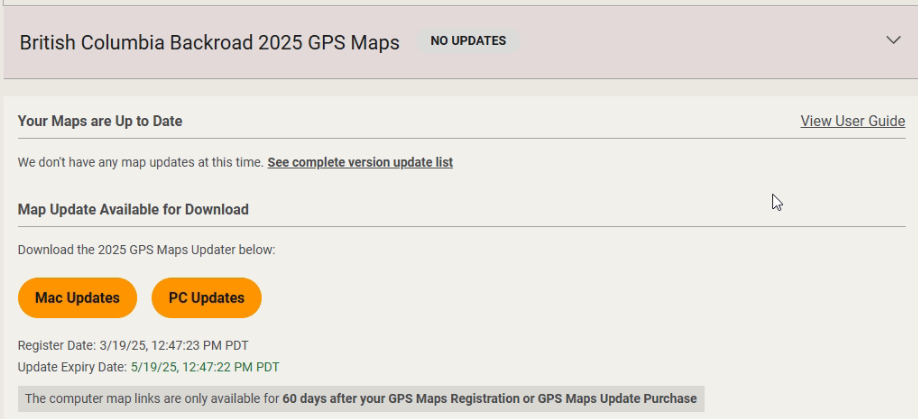
4.) Click the down arrow to expand the product information,
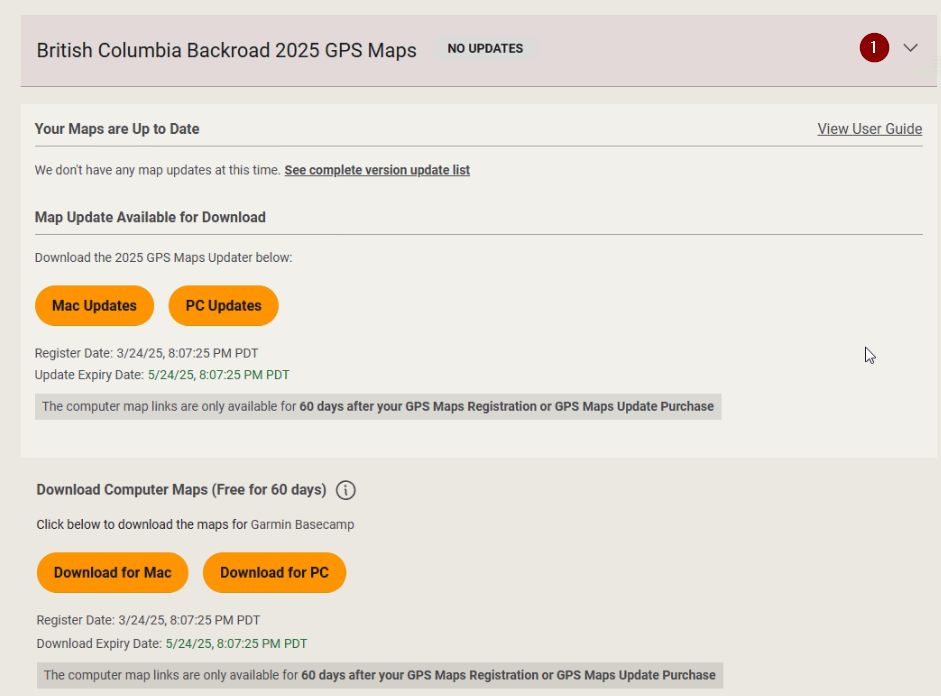
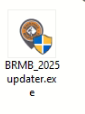
5.) Under Map Updates Available for Download Click PC Updates to download the updater application to your computer.
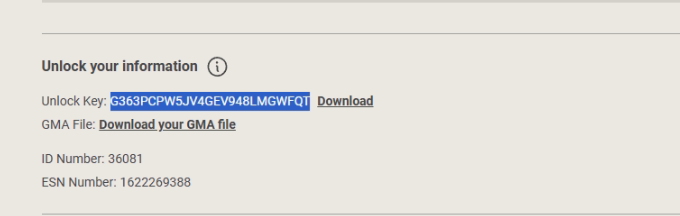
6. Scroll Down to the Unlock Information and copy your new 25 digit unlock key.
Insert your microSD card into the computer or place it in your GPS unit and plug it into your computer via a USB cable so the computer is able to see the microSD card as a drive. Click her for help Connecting your GPS
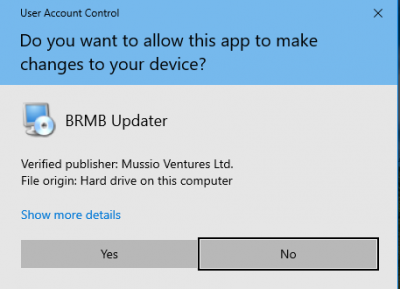
Click Yes if asked to Allow changes
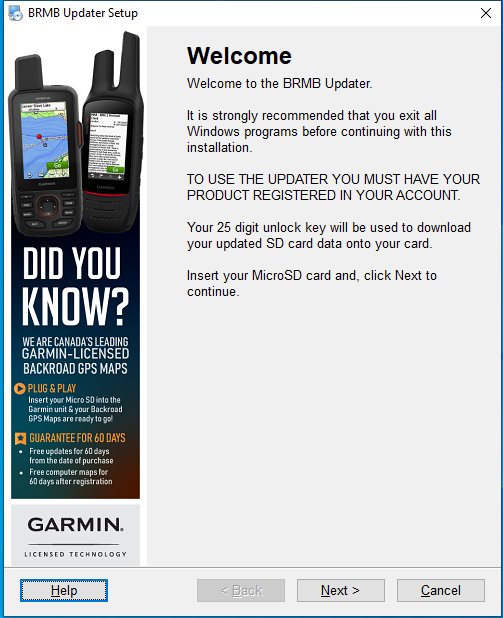
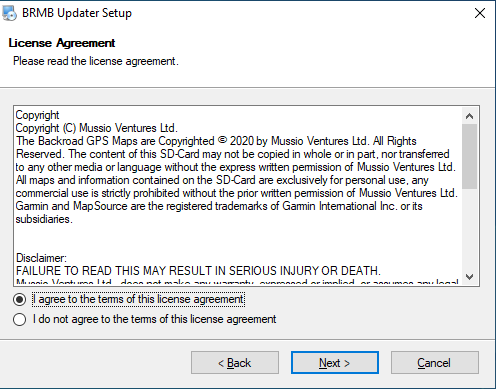
8. The updater application will start the Welcome screen, click Next and accept the license agreement.
Updater - Backups
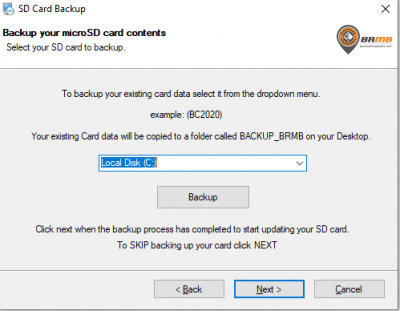
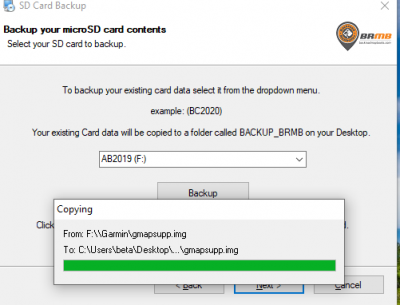
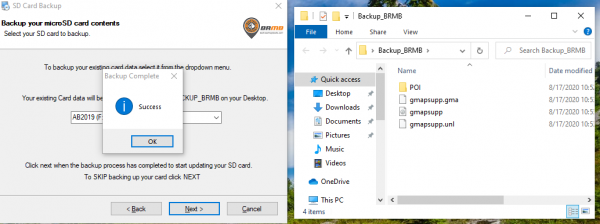
The Updater application can do a backup of the existing data on your microSD card in case of failure. A folder will be created on the Desktop called Backup_BRMB and your data will be copied into that folder.
When doing the backup you should be patient as it copies the data for you.
It is good practice to verify the data was copied into the backup folder before continuing.
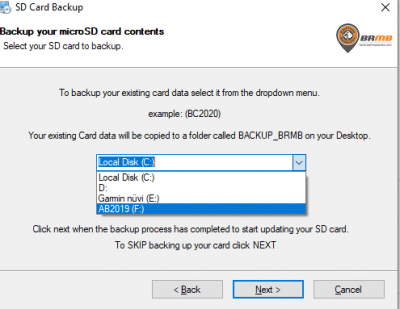
1. On the backup screen it will ask you to select a Drive from the drop down menu, Select your microSD card from the list and click the Backup button to start.
Updater - Updating Maps
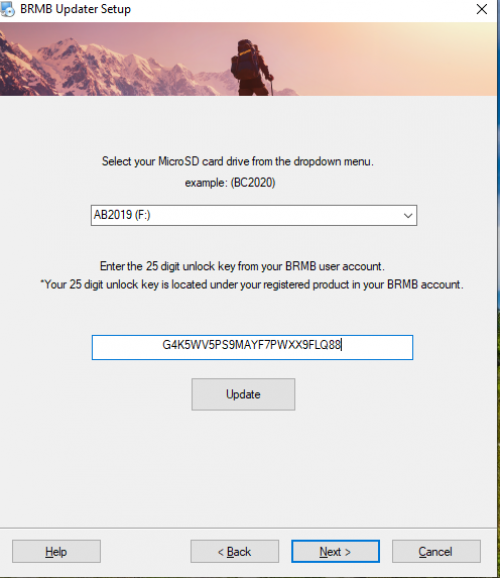
On the update screen you will again be asked to select your microSD card drive from the dropdown.
1. Select your MicroSD from the drop down menu.
2. Copy and paste your new 25 digit unlock key into the field.
3. Click Update to start the update process of downloading the maps.
Updater Error message?
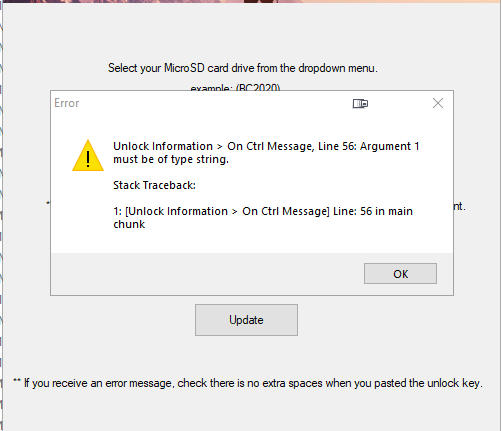
If you are getting and error message shown above, make sure you are entering 25 characters with no empty spaces.
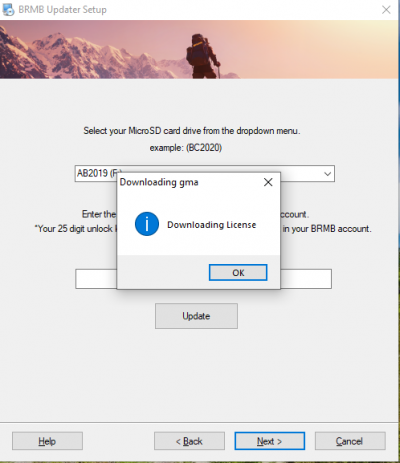
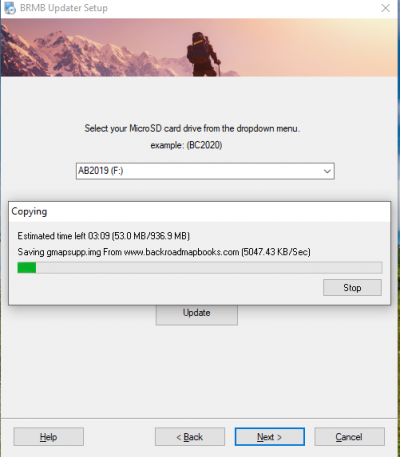
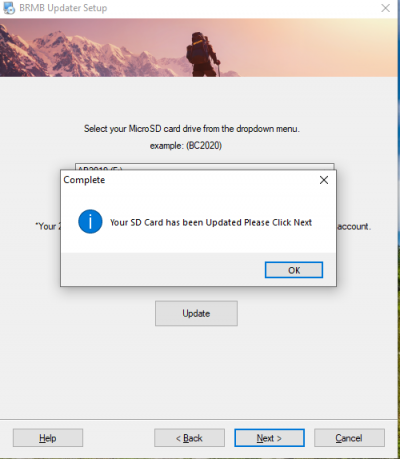
4. You can now try loading the maps on your GPS unit. You can verify the maps are showing by going to the menu options SETUP > MAP
Issues with updating your maps? Check the Troubleshooting Steps.