
Unlocking Maps in Garmin Basecamp [PC]
Unlocking Maps
Backroad MapBooks in Garmin Basecamp – PC
If you
didskippednottheselect your.gmafile during the initial mapinstallationinstallation, you can manually import it to activate the maps.
1. Download the .GMA Unlock Key
Garmin folder on the card → locate the .gma file (e.g., gmapsupp.gma).
From your account
Log in to your Backroad MapBooks portal → download the .gma file you received during purchase.
2. Launch Basecamp
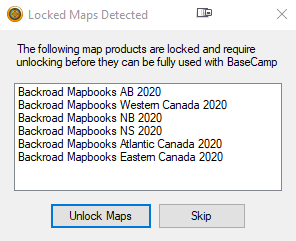
If the dialog does not appear:
Open the Map Manager manually:
Maps→Manage Map Productsin the menu.
3. Import the .gma toFile
In the maps.Map Product Manager window, click the Unlock Regions tab (top‑left).
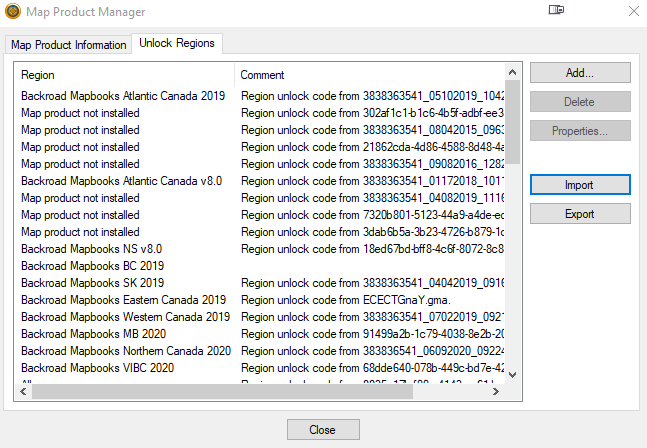
ToClick unlockImport.
.ucx to .gma.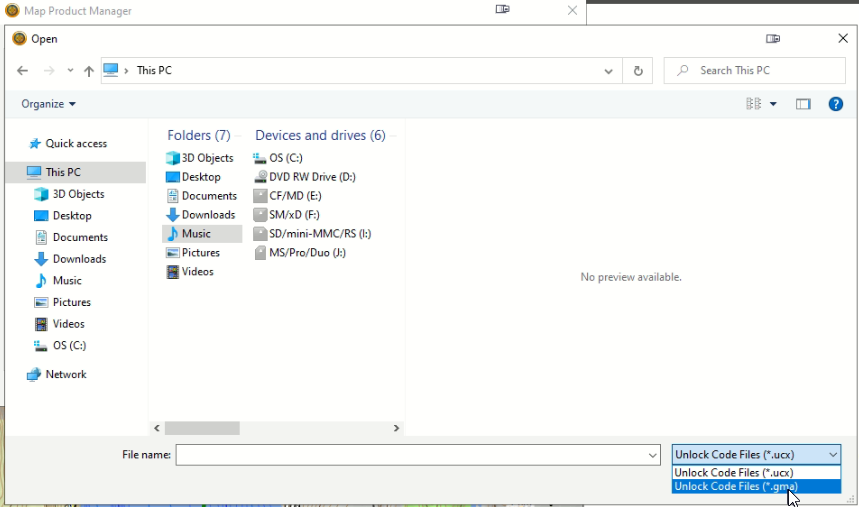
Navigate to the .gma file:
E:\Garmin\ 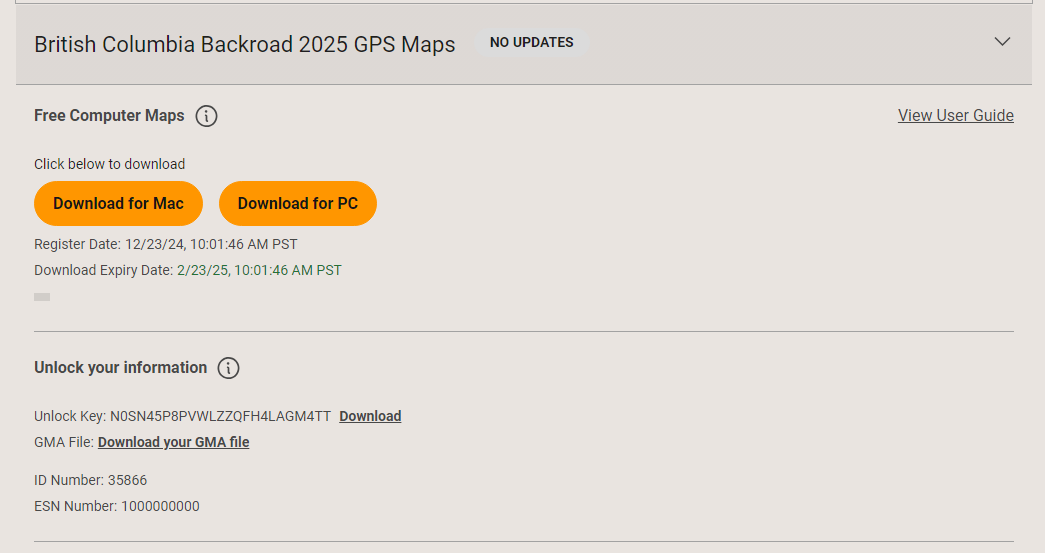
1. Open Garmin Basecamp.
2. A locked maps detected screen will open listing any locked maps, click the unlock maps button.
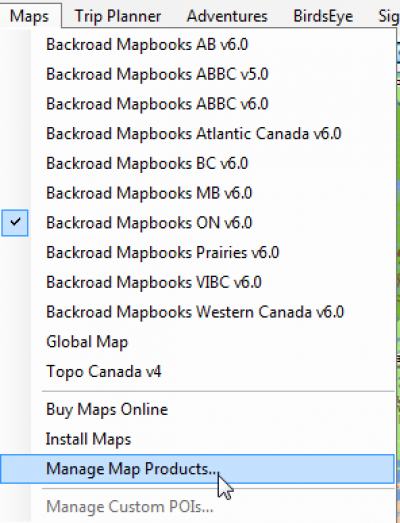
3. On the Map Product Manager screen click on the Unlock Regions Tab on the Top Left.
4. Click the Import button to Open a new window, at the bottom right click the drop down and change it from .ucx to .gma
5. In the same window that opened navigatego to the location of your MicroSD card's Garmin folder or the locationwhere you saved yourit.
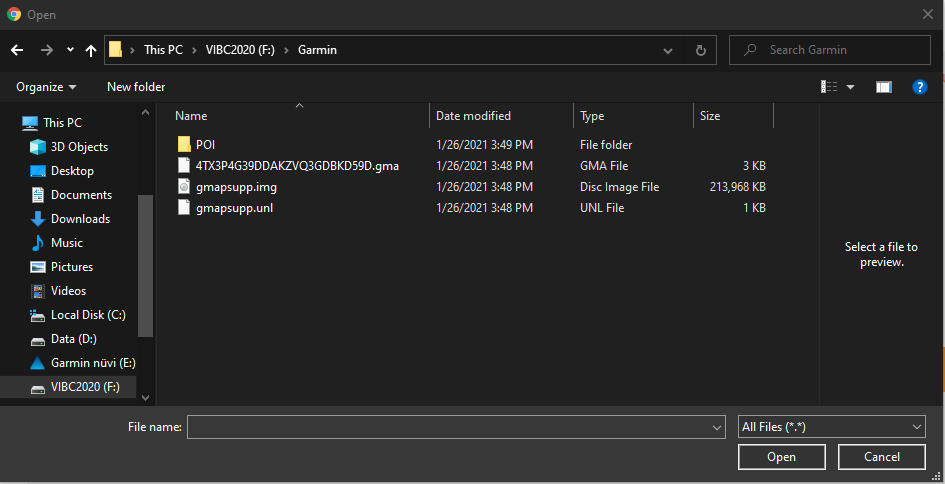
ClickSelect the .gma file to select it and thenclick clickOpen.
Verify success – the Openmap button.
Youentry should seenow "show something like “Region unlock code from ..."…” next to theits namename.
of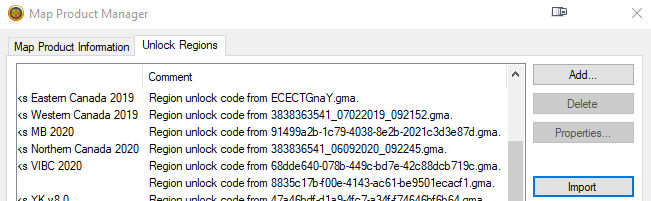
4. Refresh Basecamp
5. Need More Help?
We’re here to help you haveget installed. This will indicate theyour maps have been unlocked.
6. Restart Basecampup and selectrunning Backroadmapbooksas fromquickly theas Maps menu.possible!