
Unlocking Maps in Garmin Basecamp [PC]
Unlocking Maps
If you did not select your .gma during the map installation you can manually import the .gma to authenticate the maps.
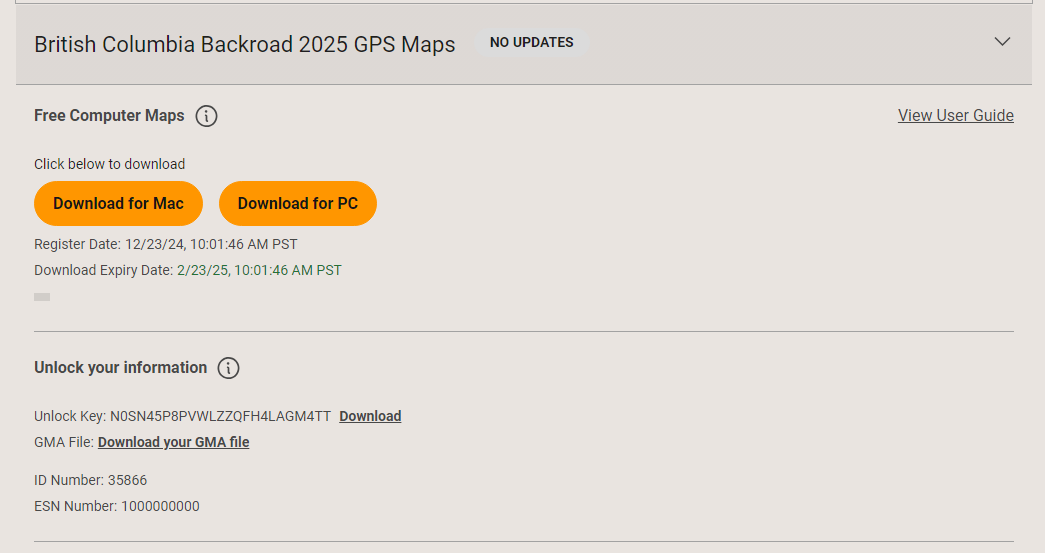
To unlock your maps you will need your .GMA file, this file can be found on your microSD card inside the Garmin folder or can be downloaded from your user account.
1. Open Garmin Basecamp.
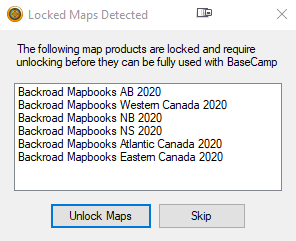
2. A locked maps detected screen will open listing any locked maps, click the unlock maps button.
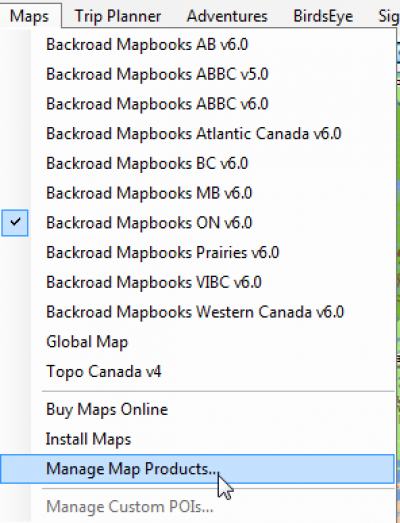
If you do not get a locked maps detected window you can open Map Manager by going to Maps > Manage Map Products from the Menu.
3. On the Map Product Manager screen click on the Unlock Regions Tab on the Top Left.
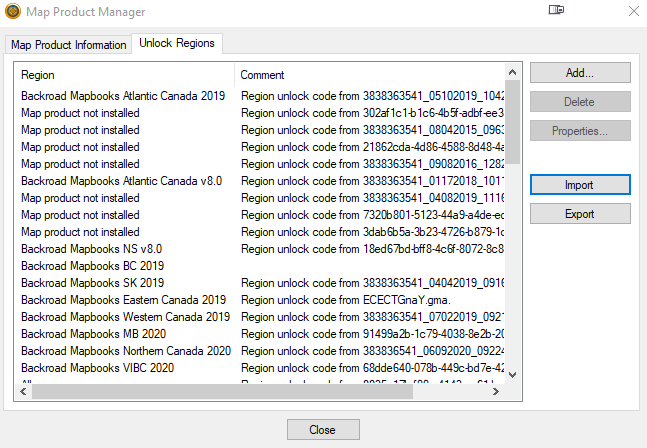
4. Click the Import button to Open a new window, at the bottom right click the drop down and change it from .ucx to .gma
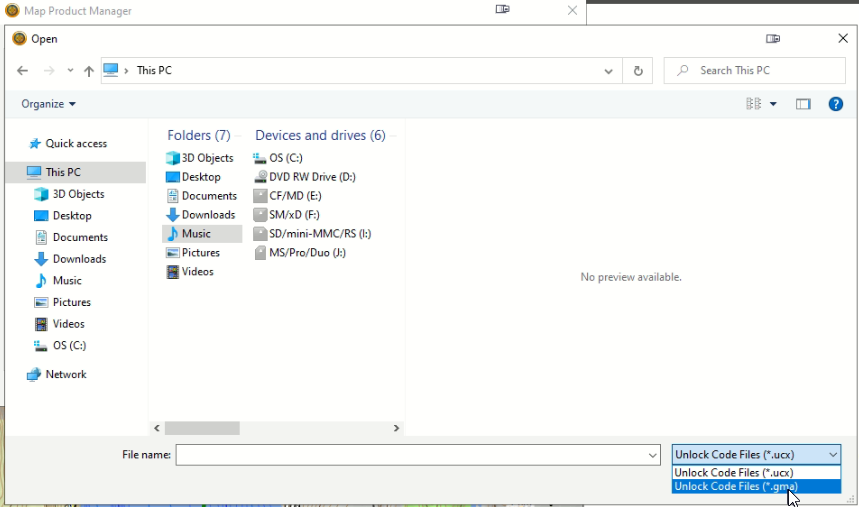
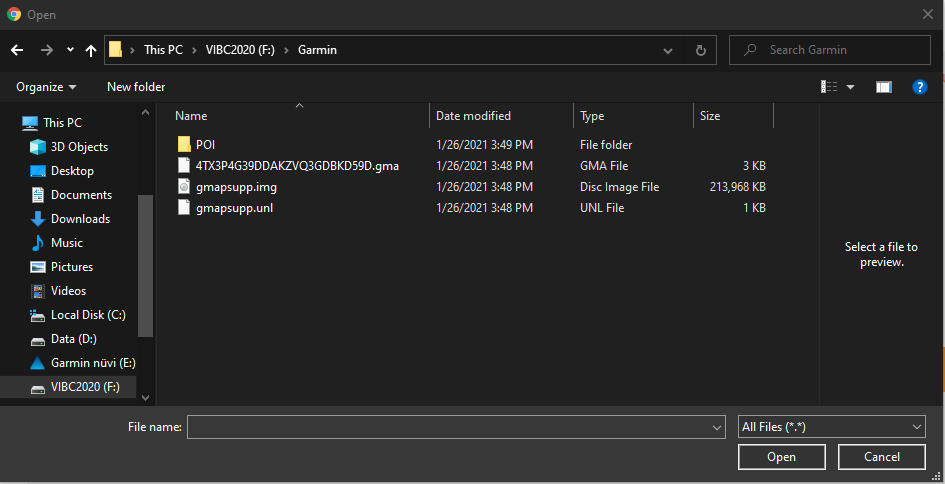
5. In the same window that opened navigate to the location of your MicroSD card's Garmin folder or the location you saved your .gma file.
Click the .gma file to select it and then click the Open button.
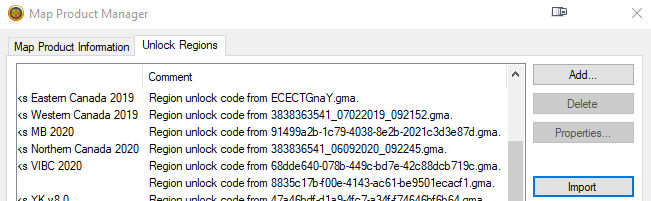
You should see "Region unlock code from ..." next to the name of the map you have installed. This will indicate the maps have been unlocked.
6. Restart Basecamp and select Backroadmapbooks from the Maps menu.