Basecamp Map Installation [ PC ]

To

Installing and Using Backroad MapBooks on a PC


1. Prerequisites

Item What to do Links Garmin Basecamp Install Basecamp to view and useload themaps. computer maps you will needDownload Garmin Basecamp installed on 7‑Zip (optional) If your computer.OS can’t Garminextract BasecampZIP Downloadfiles,

install

Downloading computer maps7‑Zip for free.

Download 7‑Zip Backroad MapBooks account Sign‑up or log in to access your map downloads. Backroad MapBooks Login MicroSD card Insert into the PC
 or GPS unit to access the unlock key (.gma file).

1.Note Go– All map files are delivered as a single .zip archive (e.g. SECURED_BC2025_BRMB_BC2025‑Win.zip).


2. Downloading the Map Archive

    Log in

      Navigate to the ourBackroad MapBooks website atand Backroadmapbookssign

      Login.

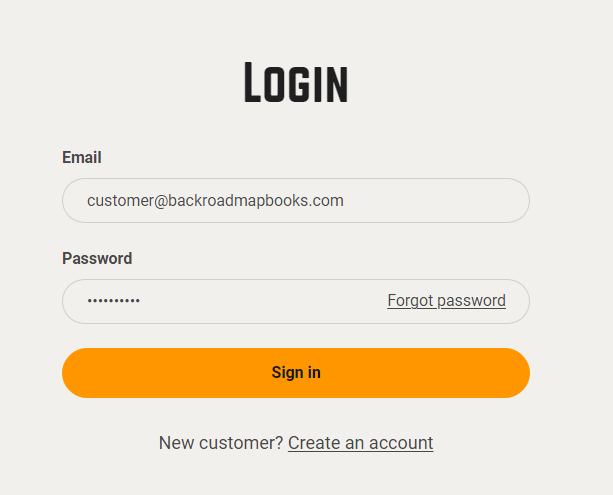
      into your account on our website, create a new account ifIf you don'don’t have one.an account, click Create New Account and follow the prompts. Login screen

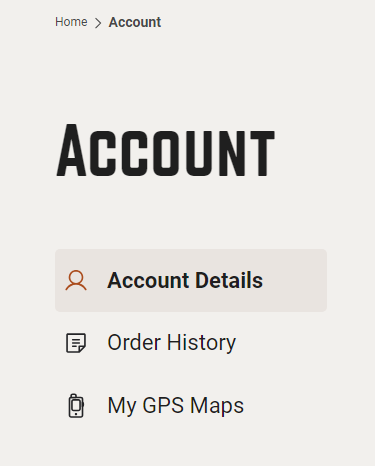
      Navigate to “MY GPS Maps”

      2024-11-26 16_20_05-Account – Backroad Maps - Opera.png

      2.Click Clickthe MY GPS Maps button on the "MY GPS Maps" buttonhomepage to go toreach the registration page.

      Locate your product
      2024-11-26 16_20_45-Account – Backroad Maps - Opera.png

      3. ClickFind the product title for your province (e.g., “BC2025”) and click the small arrow listed to the right of your product titleit to expand the product information.
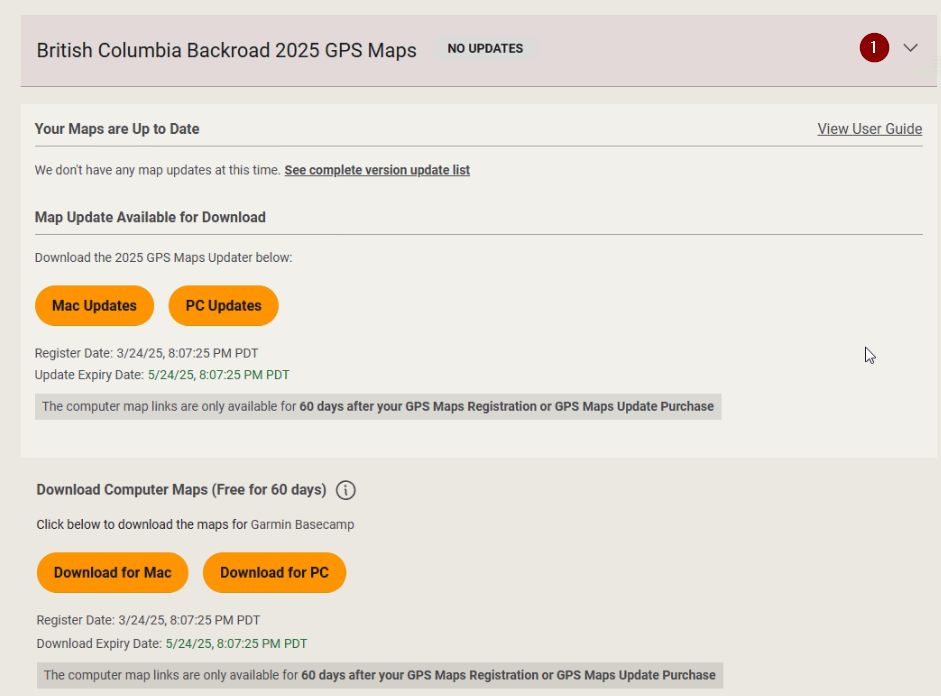
      details.
      Product row

      Download the ZIP

      download2.png

      4. Click the Download for PC button and choose a location to save the file (the default is usually the Downloads folder).zip
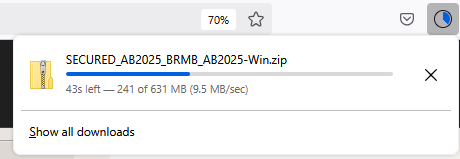
      fileThe download link will point to yoursomething computer.like:

      DigitalUpdatePC3.png

      SECURED_BC2025_BRMB_BC2025‑Win.zip.

      Installing


      3. Extracting the mapsZIP Archive

        Navigate toLocate the locationfile

          Open the folder where you saved the .ziparchive. archive. Default location is the Downloads folder.

          Extract

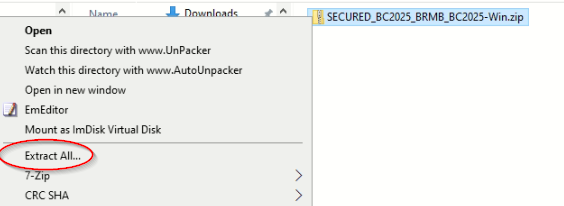
            Windows – Right‑click → Extract All… If you’re using 7‑Zip, right‑click → 7‑Zip → Extract Here.

            IfVerify extraction

              After extraction you needshould a .zip archive utility you can download 7zip FREE here

              The .zip file can be extracted by right clicking the archive and selecting " Extract all" from the menu, or double clicking on the file.
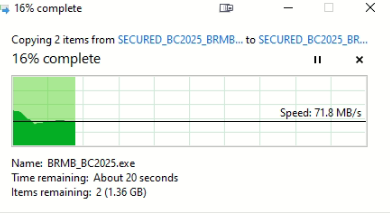
              download3.png

              downloads4.png

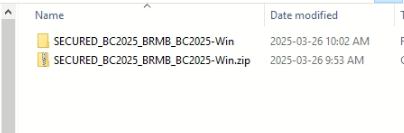
              The data will be extracted intosee a folder withnamed thesimilar sameto nameSECURED_BC2025_BRMB_BC2025‑Win ascontaining an installer executable and a copy of the .zipgpi archive.file:
              example:BRMBBC2025_2025.exe SECURED_BC2025_BRMB_BC2025-Win
              (replace

              download5.png

              BC

              Insertwith your MicroSDprovince tocode). accessBC2025.gpi (replace BC with your unlockprovince key.

              code).


              4. Installing and Unlocking maps in Basecamp.

                Insert yourthe MicroSD intocard your
                computerIf oryou plug in your GPS unit withhave the MicroSD card inserted usinginto athe USBPC cable.

                Make sureor your SDGarmin GPS and plugged into the computer.

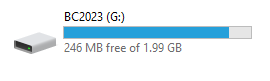
                The card iswill showingappear as a removable drive (example:e.g., BC2023)E:).

                Card.png

                Install the Maps

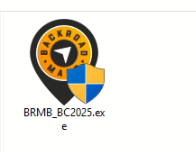
                  Double click on the Application file named BRMB####_2025.exe (#### represents your province)

                  installer.png

                  1b.

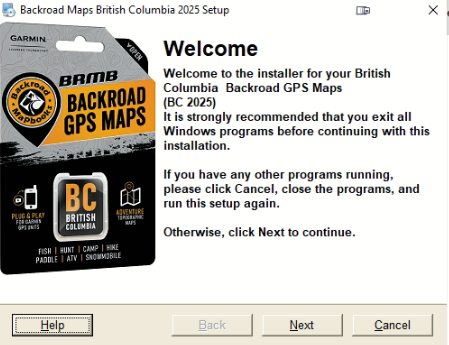
                  2. Click Next to start the installation and follow the on screen prompts of the installer to start the installation and copy the map data into Garmin Basecamp on your computer.
                  install1.png

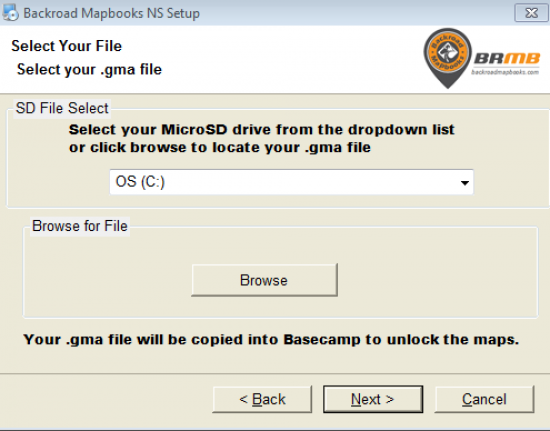
                  3. After the maps have been installed the Unlock Screen will ask forDownload your .gma file.

                  Select

                  yourIf you Downloaded the .gma file usingfrom your account. The file will be downloaded to "Downloads" or the followinglocation optionsyou choose.
                    Launch the installer:
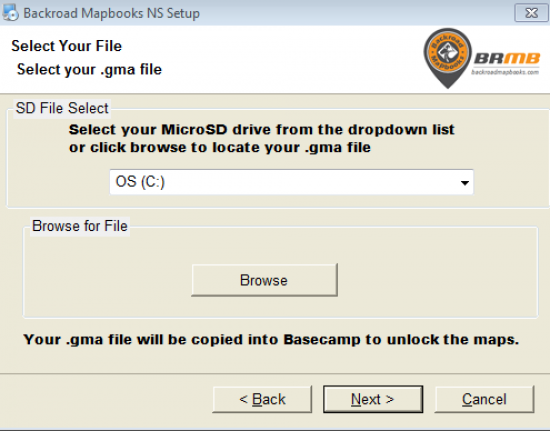
                      Double‑click the executable (BRMB####_2025.exe, where #### is your province code). A screen will appear guiding you through the installation, you can accept the default installation directory. A final screen will appear prompting you to provide a .gma file.
                      Updater

                        Select the .gma file

                          Option A – SD File Select: Select
                            Pick your MicroSD drive from the drop drop‑down menu,list. thisThe installer will copy the unlock key fromto yourBasecamp MicroSDautomatically. card into Basecamp.Option B

                            Browse for file:

                              If you do not see yourthe card isn’t shown as a drive letterletter, youclick canBrowse use the Browse button toand navigate to your MicroSDthe card or to the location ofwhere the .gma file was downloaded from your account. Select GMA
                              Complete the installation

                              unlock_screen.png

                              4.

                              Click Next and thenFinish. FinishBasecamp will now contain the new map data.

                              5. Post‑Installation

                                Launch Garmin Basecamp – Verify that the new maps are visible. Configure Basecamp – Use the following resource for detailed configuration options:
                                https://brmb.support/books/4configuring-garmin-basecamp

                                6. Frequently Asked Questions

                                Question Answer What if I can’t find my MicroSD as a drive? Use the Browse for file option on the finalunlock screen.screen

                                Theto installationnavigate to the card manually.

                                Can I use the map on a mobile device? This guide is completefor PC only. For mobile devices see the BRMBMaps App.

                                7. Contact & Further Assistance

                                Need More Help?

                                  Phone – 1-877-520-5670 Submit Support Request – > https://backroadmapshelp.zendesk.com/hc/en-us/requests/new

                                  We’re here to help you get your maps up and yourunning canas Launchquickly Garminas Basecamp to view the maps.possible!

                                  You can click this link for information on how Configure Garmin Basecamp