
Basecamp Map Installation [ PC ]
To view and use the computer maps you will need Garmin Basecamp installed on your computer. Garmin Basecamp Download
Downloading computer maps for PC
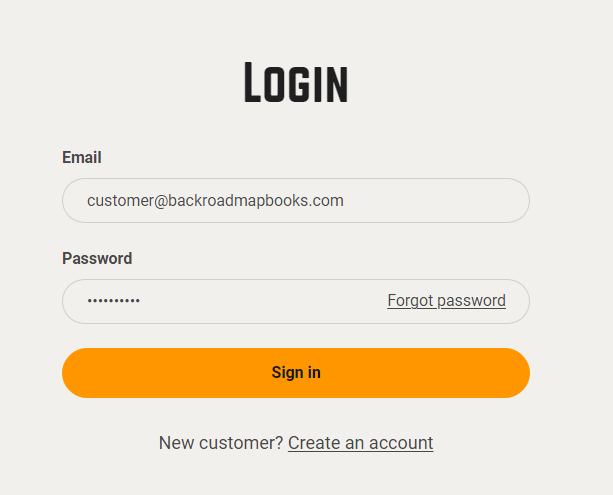
1. Go to the our website at Backroadmapbooks
Log into your account on our website, create a new account if you don't have one.
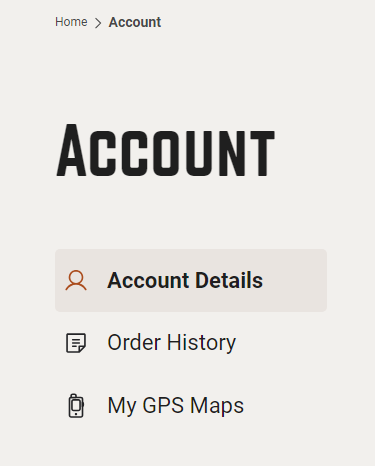
2. Click on the "MY GPS Maps" button to go to the registration page.
3. Click the small arrow listed to the right of your product title to expand the product information.
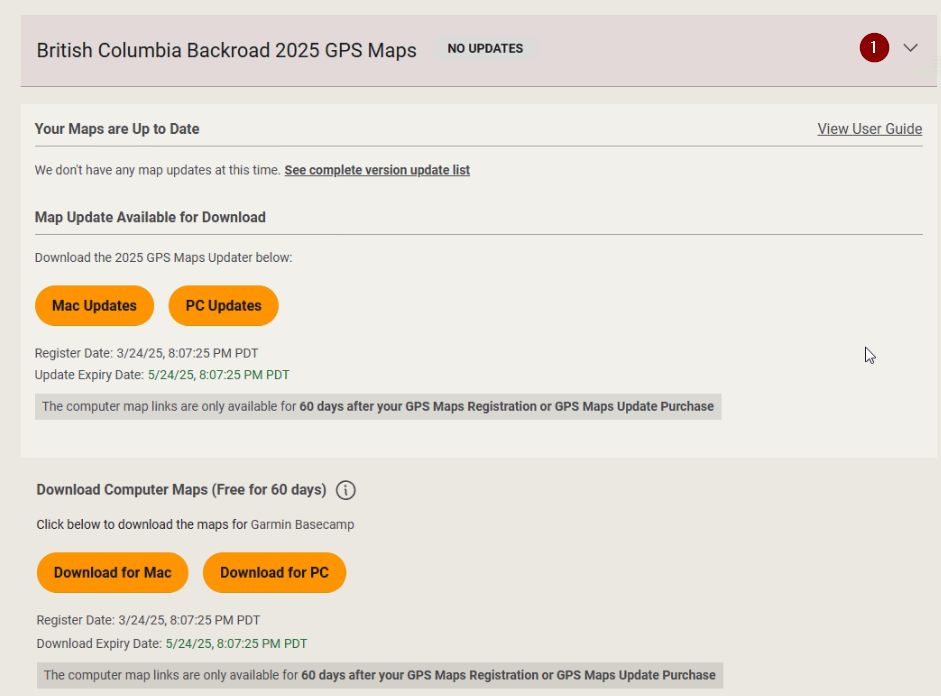
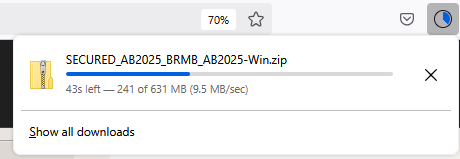
4. Click the Download for PC button and save the .zip file to your computer.
Installing the maps
If you need a .zip archive utility you can download 7zip FREE here
The .zip file can be extracted by right clicking the archive and selecting " Extract all" from the menu, or double clicking on the file.
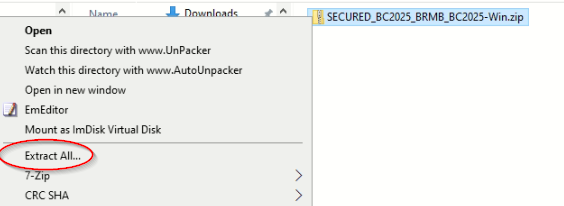
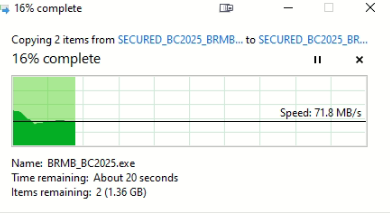
The data will be extracted into a folder with the same name as the .zip archive. example: SECURED_BC2025_BRMB_BC2025-Win
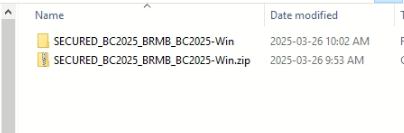
Insert your MicroSD to access your unlock key.
Insert your MicroSD into your computer or plug in your GPS unit with the card inserted using a USB cable.
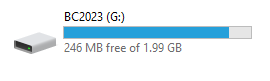
Make sure your SD card is showing as a removable drive (example: BC2023)
Install the Maps
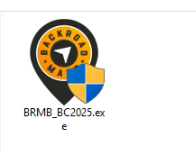
- Double click on the Application file named BRMB####_2025.exe (#### represents your province)
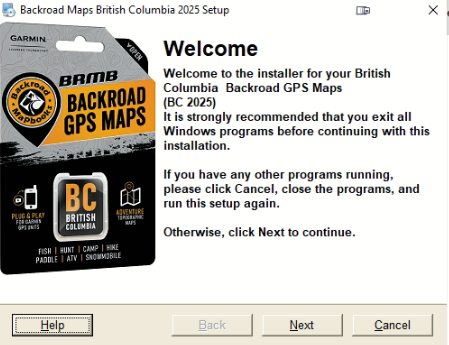
2. Click Next to start the installation and follow the on screen prompts of the installer to start the installation and copy the map data into Garmin Basecamp on your computer.
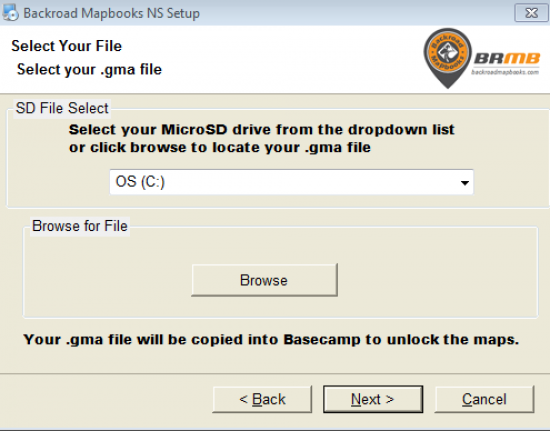
3. After the maps have been installed the Unlock Screen will ask for your .gma file.
Select your .gma file using the following options:
SD File Select: Select your drive from the drop down menu, this will copy the unlock key from your MicroSD card into Basecamp.
Browse for file: If you do not see your card as a drive letter you can use the Browse button to navigate to your MicroSD card or the location of the .gma downloaded from your account.
4. Click Next and then Finish on the final screen.
The installation is complete and you can Launch Garmin Basecamp to view the maps.
You can click this link for information on how Configure Garmin Basecamp