
Managing tracks in Basecamp
Waypoints tracks and routes are a major part of Basecamp.
By creating your own database and organizing a folder structure you can keep an up to date archive of all the trips you have recorded and even edit them where needed.
Waypoints
- A Waypoint is a favorite location that you mark on the map. It can consist of a Symbol or a Geo Tagged Photo.
- Waypoints can be used to mark the beginning or final destination of your journey within the Map
- Waypoints can be created on your handheld but can be cumbersome due to the small screen, Using desktop software such as basecamp allows you to see a broader area of the map and has alot more tools for use.
Managing waypoints
To manage your waypoints you can create a new DB in Basecamp, Add folders for your temp working dir and completed tracks.
/Temp/
/ATV/
/Trailheads/
Use a prefix – Consider adding a two or three letter prefix to each waypoint for a given park or area.
ATV-Trailhead
SNO-mytrail-hut
Tracks
A track consists of connected points that contain time, elevation, and position information
Tracks can be imported from your unit and edited within basecamp to clean up and re calculate the route.
After your track is complete you can view a simulation of the track using the playback feature in basecamp.
Tracks will generally record where you have been on the map.
Routes
Routes being imported into basecamp will need to be re calculated to match the settings you set in basecamp.
After sending a route to your unit you will also want to re calculate the route to ensure it is calculated using your GPS unit settings.
Backcountry maps usually wont have routing on trails, (Garmins Topo 24k does trail routing) and will sometimes give you a route "As the crow flies" making a straight line to the waypoint.
This is due to trails and some backcountry roads not having data to build a route, Creating your own routes in basecamp makes it easier to just load the route and follow it without having to rely on the unit to calculate it.
Import tracks from your GPS unit
When you plug your GPS into your computer via USB cable and launch Garmin Basecamp it will load your GPS and any maps on the device for you. Your GPS and map info will be shown Under My Garmin Devices.
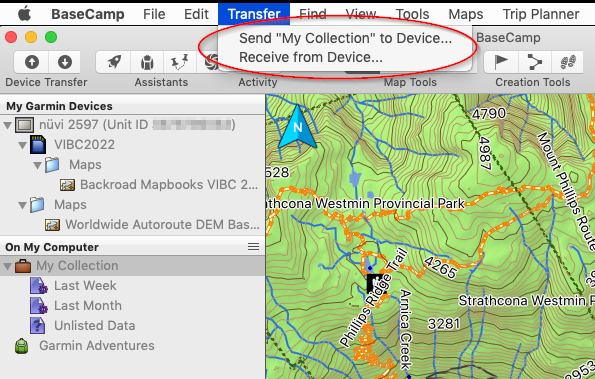
Click on the Transfer Menu option and select Receive from Device
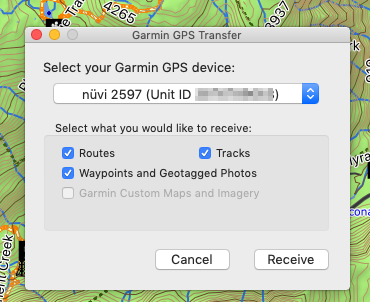
You will see a screen to select your Target Device GPS and boxes to check for what you would like to import into Basecamp.
Click on Receive to start the import of your track data to your My Collection folder.
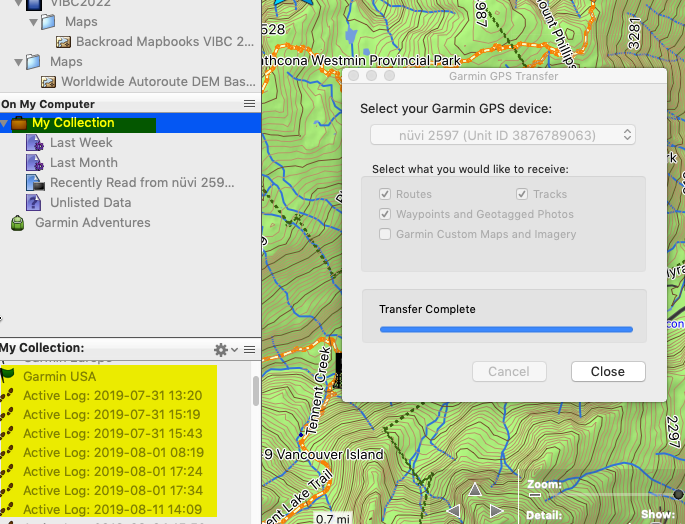
Clicking on any of the track names under My Collection will display them in the map pane of Basecamp.
Exporting Tracks from Basecamp
To export tracks from Basecamp Select your track from the My Collection menu, right click to view the pop up menu and select "Send to Device". This will pop up a window to allow you to Target your destination MicroSD or GPS Unit. Either location will allow you to load and select the track from your device.