
Managing tracks in Basecamp
Import tracks from your GPS unit
When you plug your GPS into your computer via USB cable and launch Garmin Basecamp it will load your GPS and any maps on the device for you. Your GPS and map info will be shown Under My Garmin Devices.
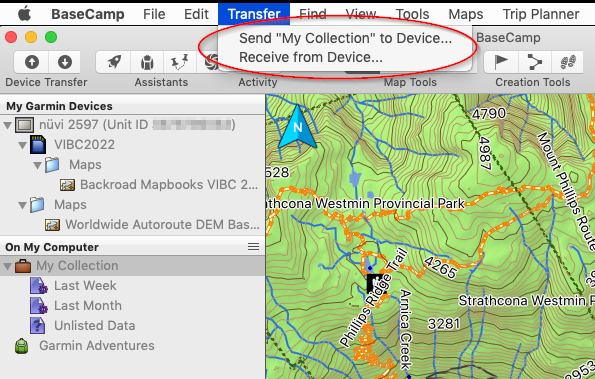
Click on the Transfer Menu option and select Receive from Device
You will see a screen to select your Target Device GPS and boxes to check for what you would like to import into Basecamp.
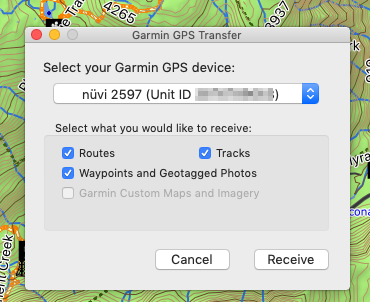
Click on Receive to start the import of your track data to your My Collection folder.
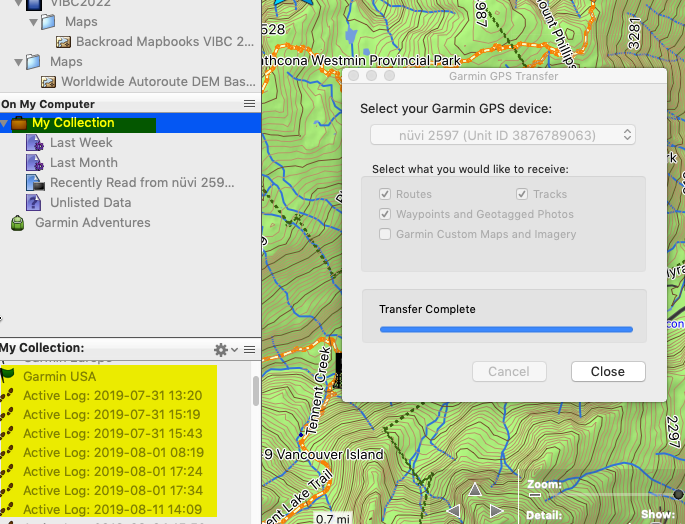
Clicking on any of the track names under My Collection will display them in the map pane of Basecamp.
Exporting Tracks from Basecamp
To export tracks from Basecamp Select your track from the My Collection menu, right click to view the pop up menu and select "Send to Device". This will pop up a window to allow you to Target your destination MicroSD or GPS Unit. Either location will allow you to load and select the track from your device.