Updating Maps Mac

Map Updates
Map updates are released each year and older versions become discontinued.
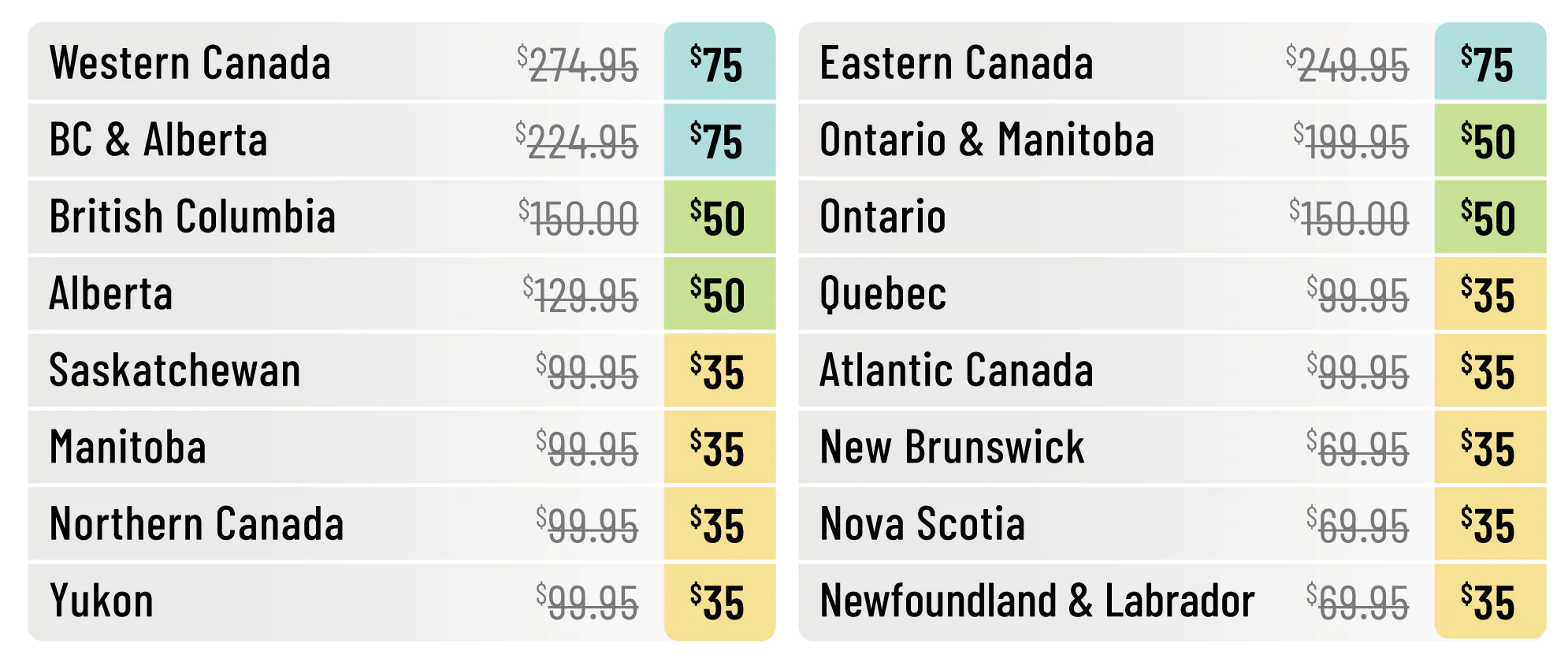
Map updates are a tier system based off your version and allow you to get a discount of up to 80% off the retail price.
To update your card it must be registered in your account. Updates are shown under your existing registered product.
Update links are available FREE for 60 days after registration. Not Registered Yet? Register Here
PurchasingConnecting Mapyour UpdatesGPS
UpdatesSome units may need to be placed into:
Mass storage mode - Viewing Files Using USB Mass Storage Mode
MTP mode
Spanner Mode - Garmin Spanner Mode on an Outdoor Product
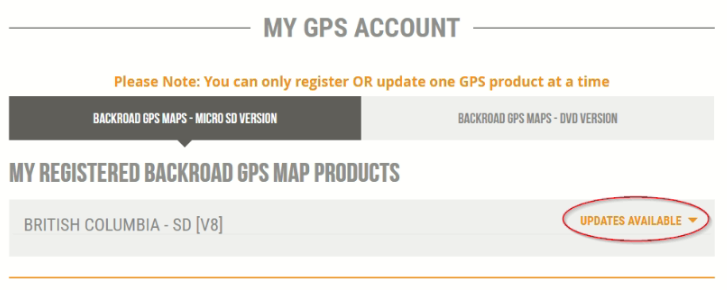
These settings can be accessed in your MY BRMB GPS ACCOUNT by clicking the "Updates Available." button for your product.
Under your existing registered product info you will see the "Buy Update" button that will take you through the checkout page.
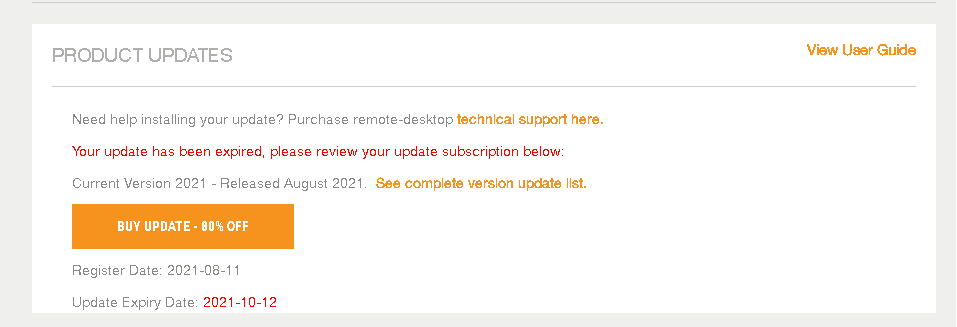
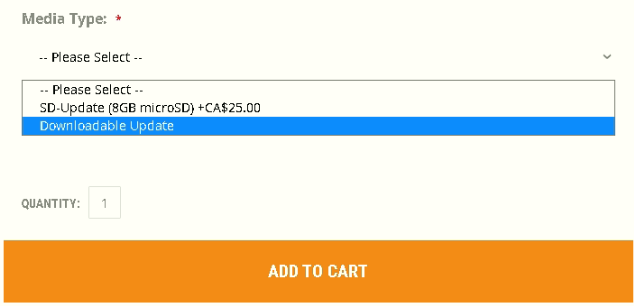
Updates can be purchased as a Downloadable Option or a new pre programmed microSD.
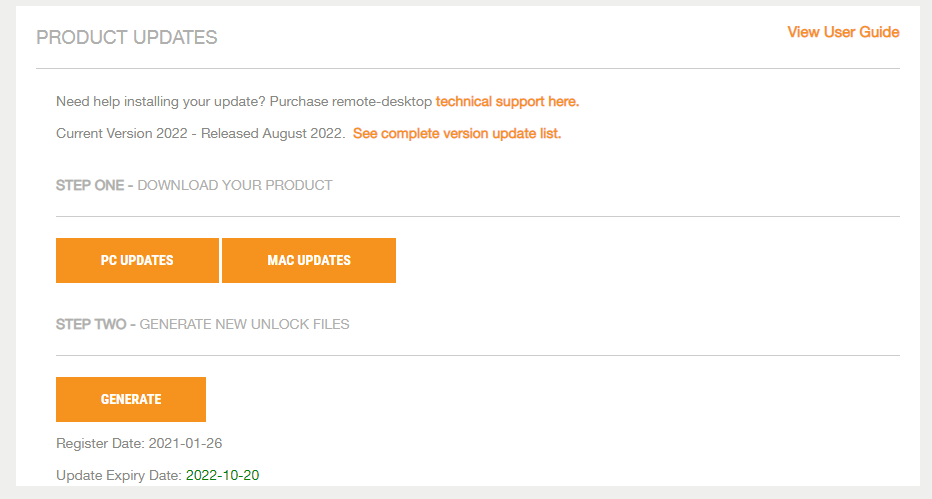
After purchasing your update it will be enabled under the "PRODUCT UPDATES" section of your product.
1. Login or click "My Account" and go to the MY BRMB GPS ACCOUNT page.
2. Click Updates availablechanged on your registeredunit productbefore to see your update information.

Updating Maps
Download and Generate your new license files for the updated map data
1.Plug your microSD into your GPS andyou plug it into your computer using a USB cable.
computer.
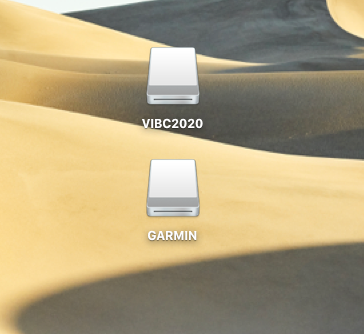
This will give you a drive for the Garmin unit and one for our microSD card.
Updating Maps
1. Go to the our website at Backroadmapbooks
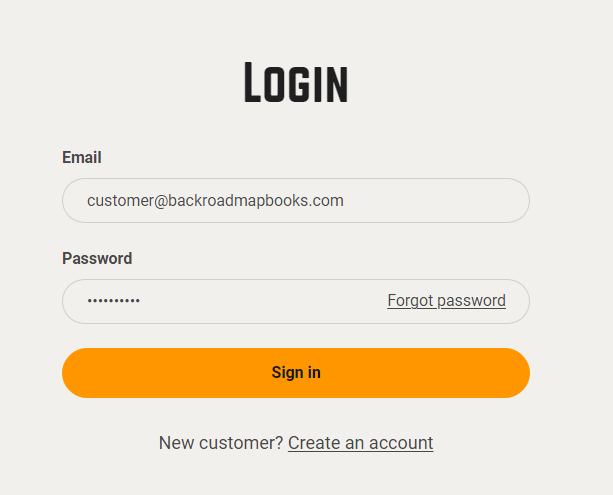
Log into your account on our website, create a new account if you don't have one.
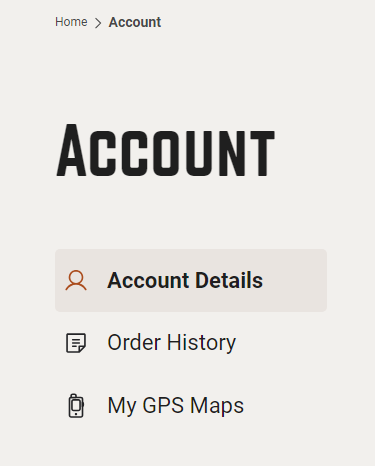
2. Click on the "MY GPS Maps" button to go to the registration page.
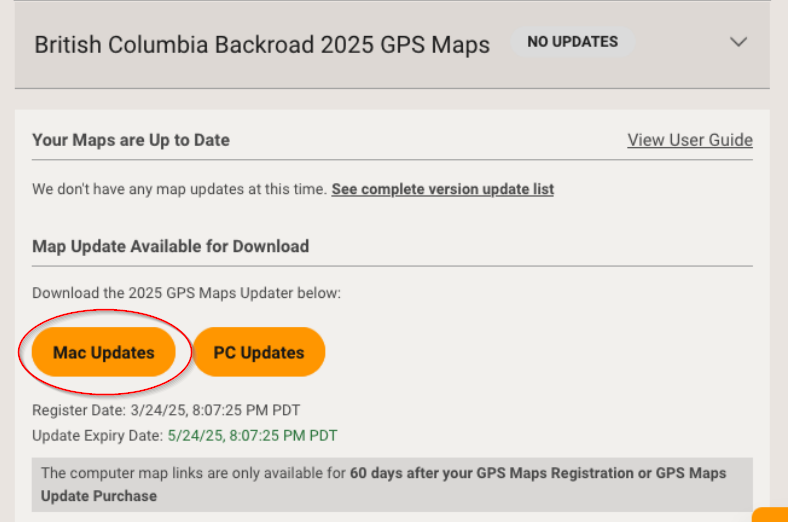
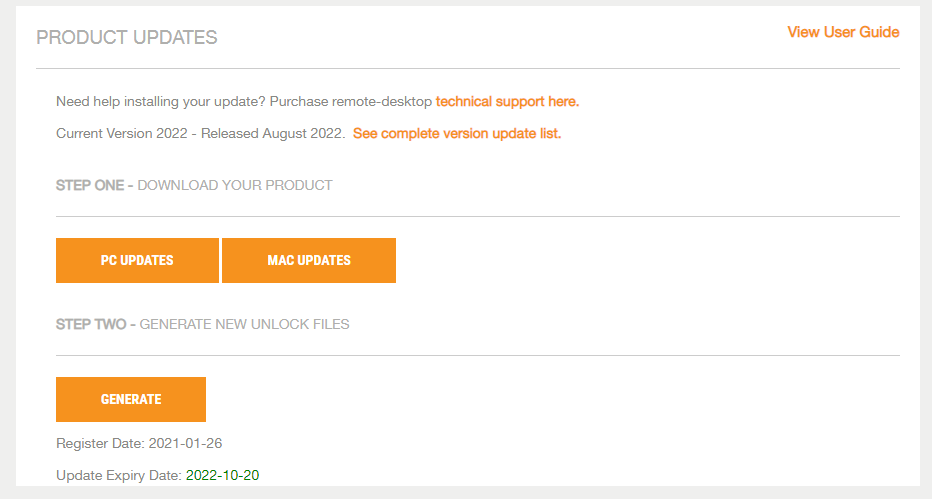
4.) Under Map Updates Available for Download Click Mac Updates to Downloaddownload the .zip archive to your computer.
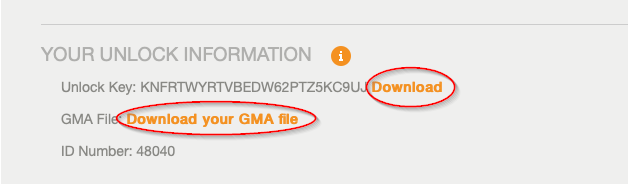
5.) Under Unlock Information Click to download your gma and unl files for the updated Mapversion.
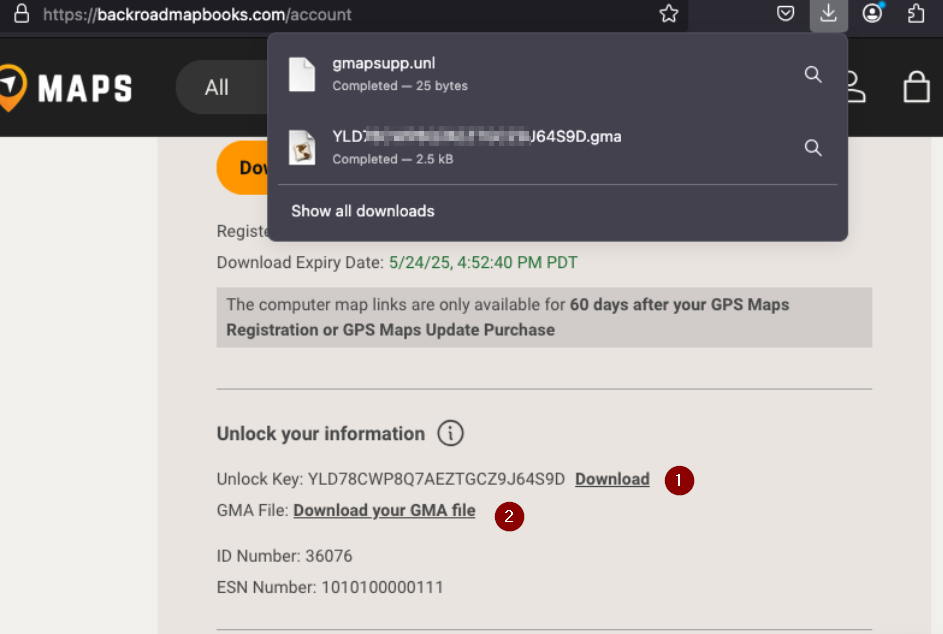
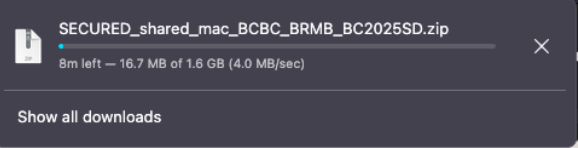
The .zip file will be saved with the name of your userprovince accountand in Step 1year.
Make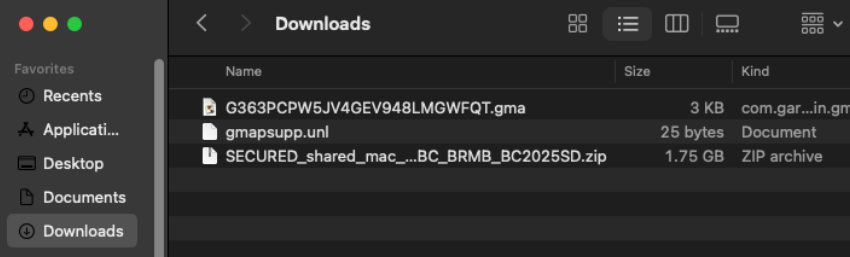
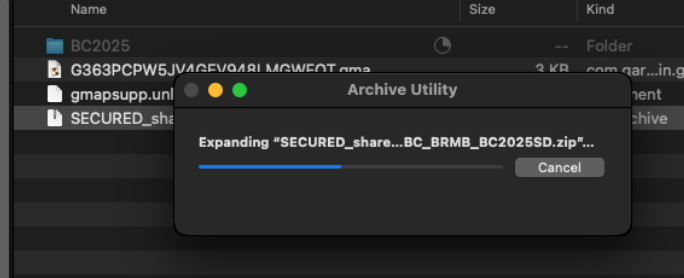
6.) you have downloadedExpand the BRMB_XX2023SD..zip filearchive containingto yourshow the update files before moving to Step2files.
3.Under Step 2 Click Generate to generate your new license files.
Building your updated Garmin folder
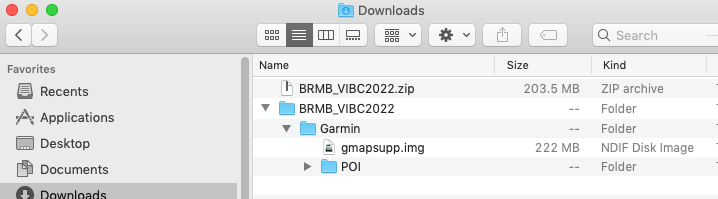
7.)The zip archivefile will expand to a folder calledwith BRMB_the withname of your provinceProduct.
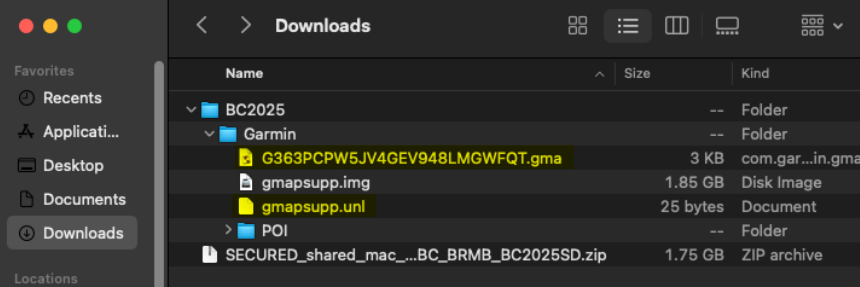
In this example BC2025 and versioncontains numberthe example:files BRMB_VIBC2023to update your microSD card.
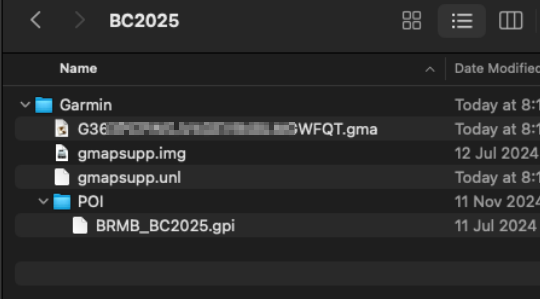
Inside you will find a Garmin folder with your updated Map data and POI folder.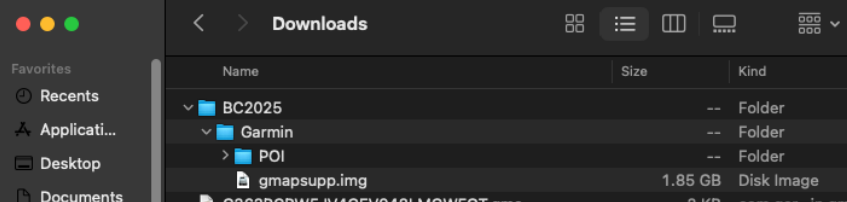
1.the Login.gma to your accountfile and click on "MY BRMB GPS ACCOUNT" to view your new 2023 product.
Click Open/Download to view your products new license information.
2. Download your unl and gma license files.
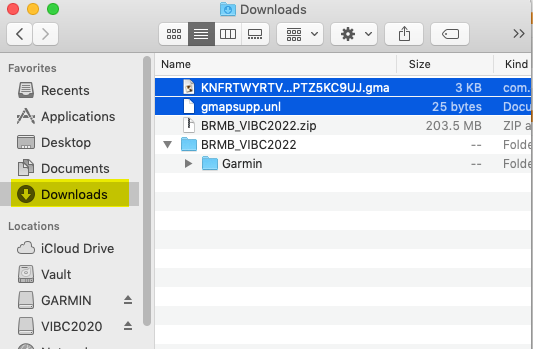
4. You should now have an updated Garmin folder containing the needed.img filesfile and itPOI will look similar to the image below.folder
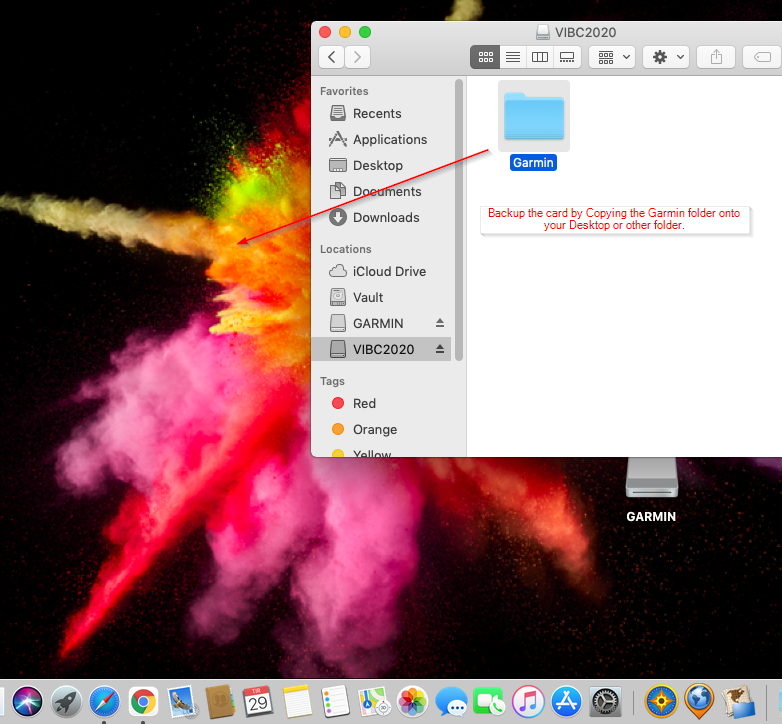
Backup your existing Card
Copy or drag the Garmin folder onto your Desktop or another location for backup purposes.
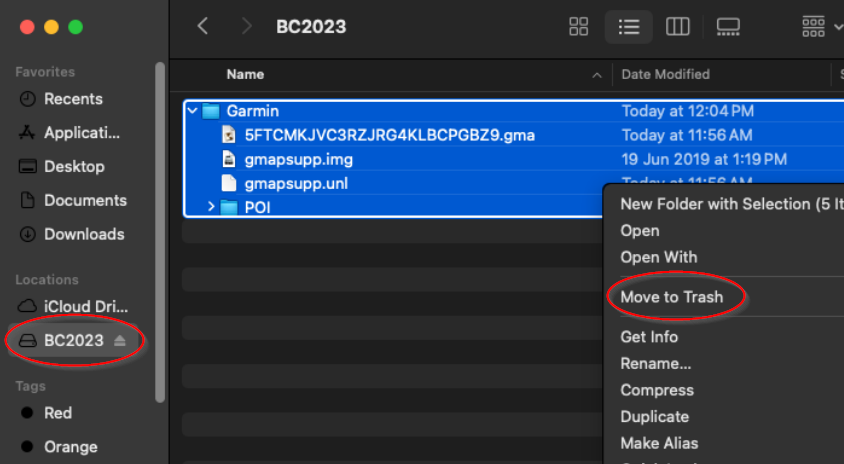
2.Once the backup is complete you can move the Garmin folder on the microSD card to Trash.
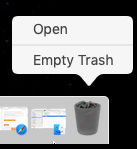
3. To free the space on the card you will need to empty the trash
Copy the new Garmin folder onto the card
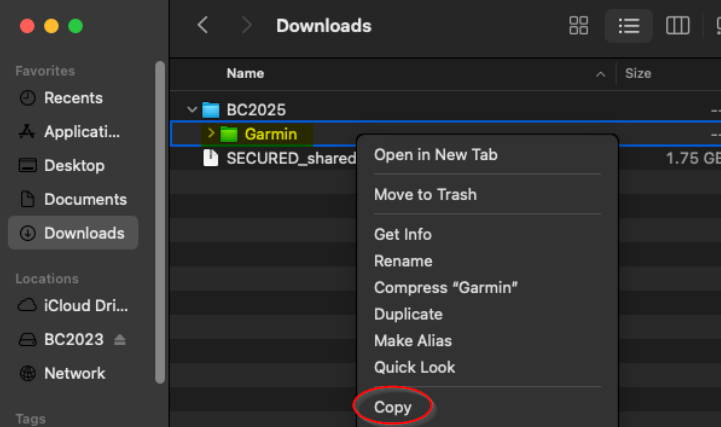
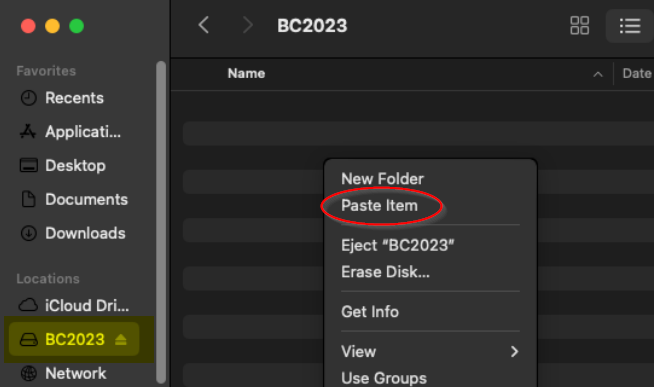
3. Wait for the files to copied to your microSD card.
Your microSD card should now be Updated with the latest map data and you can disconnect your GPS and test the maps.
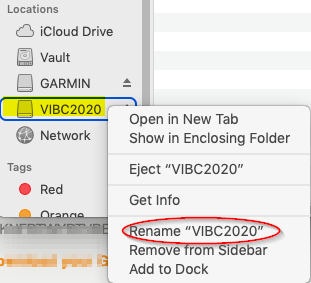
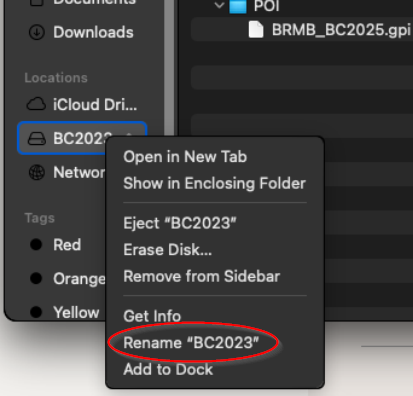
Rename the card *Optional
Your existing microSD card will still have the old version name so you will need to rename the drive.