
Registering your GPS maps MicroSD
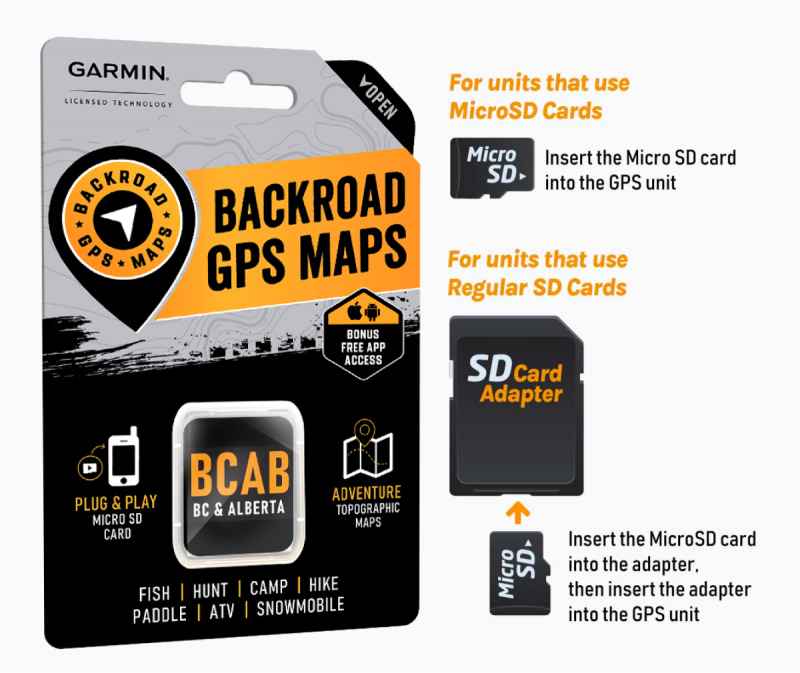
Technical guide – Backroad Map Books
1. Why Register Your MicroSD?
| Feature | Description |
|---|---|
| Computer‑based map downloads | Access to the latest Computer Maps for macOS & Windows. |
| Secure license storage | Keeps your gmapsupp.unl and gmapsupp.gma files safe in your account. |
| Discounted updates | Receive future map releases at a reduced price. |
| Priority technical support | Faster response for any Garmin‑map‑related issue. |
Free Updates – After registration you can download map updates for 60 days at no charge.
If you bought an older version from a retailer, you may upgrade to the latest map release within that 60‑day window.
Important:
• A card that has already been registered cannot be registered again.
• If your card is “used” or already updated, the registration will fail.
2. Prerequisites
| Step | Action | Notes |
|---|---|---|
| 1 | Insert the MicroSD card | • If your computer has an SD‑card slot, insert the card directly. • If not, plug the card into your Garmin GPS and connect the GPS to your computer via USB. |
| 2 | Log in to Backroad Map Books | URL: https://backroadmapbooks.com/account/login Create an account if you do not already have one. |
| 3 | Locate the license files | The required files (gmapsupp.unl and gmapsupp.gma) are in the Garmin folder on your MicroSD. |
3. Registration Workflow
All steps are performed on the My GPS Maps registration page.
3.1 Navigate to the Registration Page
-
After login, click the “MY GPS MAPS” button (top‑right).
-
On the resulting page, select “Register SD”.
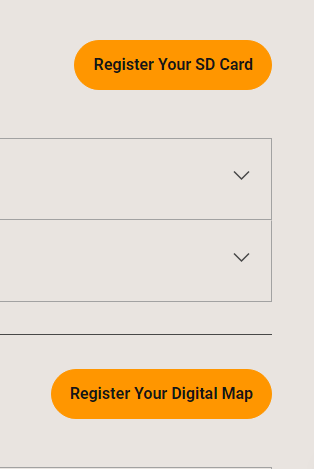
3.2 Upload the Unlock Code & Map File
| Field | File | How to select |
|---|---|---|
Unlock Code (gmapsupp.unl) |
gmapsupp.unl |
Use the Choose File button to pick this file from the Garmin folder. |
Gma File (gmapsupp.gma) |
gmapsupp.gma |
Use the Choose File button for the second field. |
Tip:
Double‑check that the files you pick are exactly the.unland.gmafiles from the Garmin folder. Any mismatch will trigger an error.
3.3 Submit
-
Once both files appear in the form, click SUBMIT.
-
A green confirmation box will appear, and your product will be listed under “My Products”.

Result: The MicroSD card is now registered to your Backroad Map Books account.
4. Post‑Registration
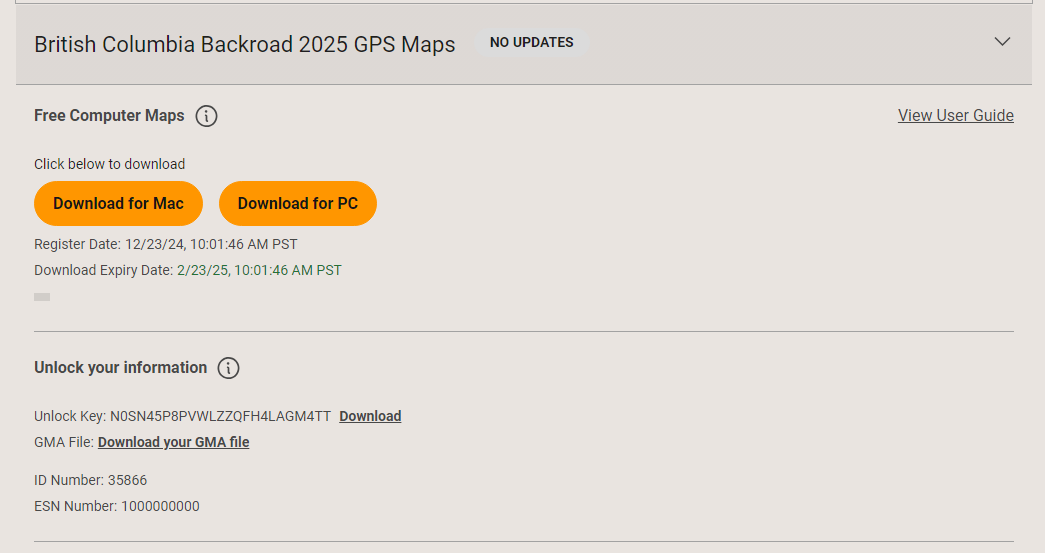
- Access the “Computer Maps” – Log in, go to “My Products” and download the latest PC‑compatible maps.
- Update within 60 days – Download updates for free.
- Backup your files – Although the unlock codes are stored in the cloud, keep local copies of the
.unland.gmafiles on your computer for future reference.
4. Common Error Messages & Fixes
| Error | Cause | Remedy |
|---|---|---|
| “No ESN data found with unlockCode” | ESN (Electronic Serial Number) missing or corrupted. | Contact Backroad Map Books support (email: [email protected]). |
| “Invalid File Uploaded” | Wrong file type chosen (e.g., a .zip instead of .gma or .unl). |
Re‑select the exact .gma and .unl files from the Garmin folder. |
| “This card has already been registered” | Card was previously registered on another account or already updated. | Not recoverable – you must purchase a new card or contact support for advice. |
5. Quick Reference
| Action | Shortcut |
|---|---|
| Log in | Ctrl+L (Chrome) |
| Open registration | MY GPS MAPS → Register SD |
| File picker | gmapsupp.unl → Choose File; gmapsupp.gma → Choose File |
| Submit | SUBMIT button |
Prepared by the Backroad Map Books Technical Support Team