
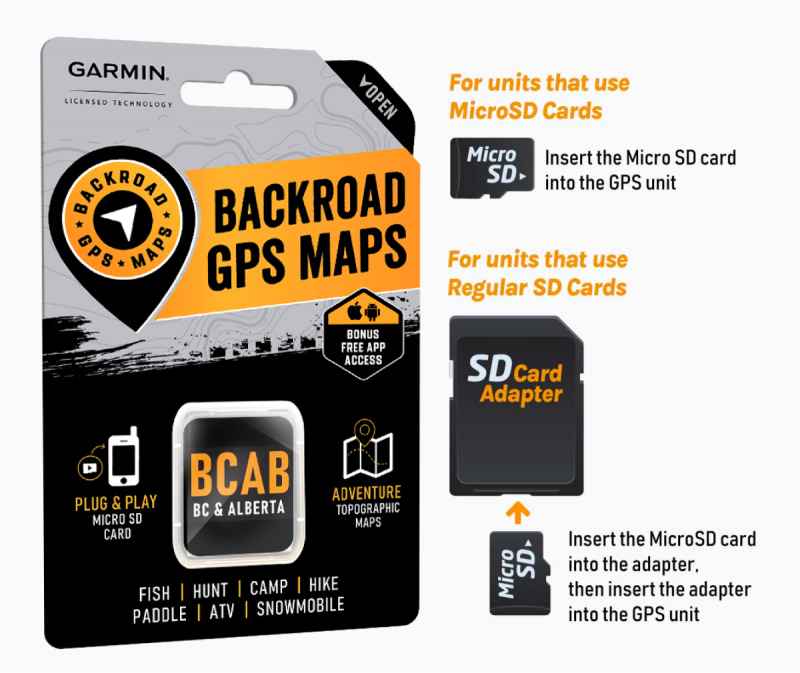
Registering your GPS maps MicroSD
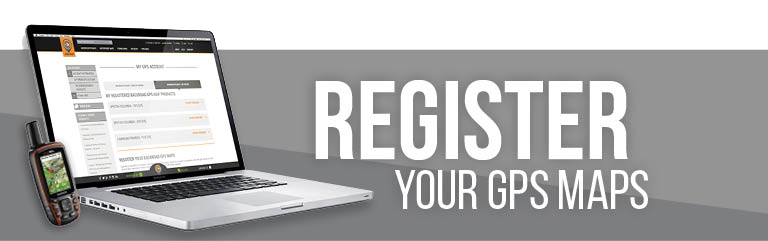
Technical guide – Backroad Map Books
Here's1. aWhy fewRegister benefitsYour you get from Registering:MicroSD?
gmapsupp.unl gmapsupp.gma files safe in your account.
Discounted updates
Receive future map releases at a reduced price.
Priority technical support
Faster response for any Garmin‑map‑related issue.
Free Updates – After registration you can download map updates for 60 days at no charge.
If youpurchasebought an older version from aretailerretailer, youcanmayupdateupgrade to the latestversionmapofreleasethewithinmapsthatfor60‑day60 days after registration.window.
UsedImportant:
• A card that has already been registered cannot be registered again.
• If your card is “used” or alreadyupdatedupdated,cardsthe registration willnot be able to be registered.
fail.
Registration
2. Prerequisites
If you don't havehas an SD SD‑card slot, you'll have to insert the microSDcard directly.
• If not, plug the card into your Garmin GPS unit and then connect the GPS unit to your computer via aUSB.
1.
Log
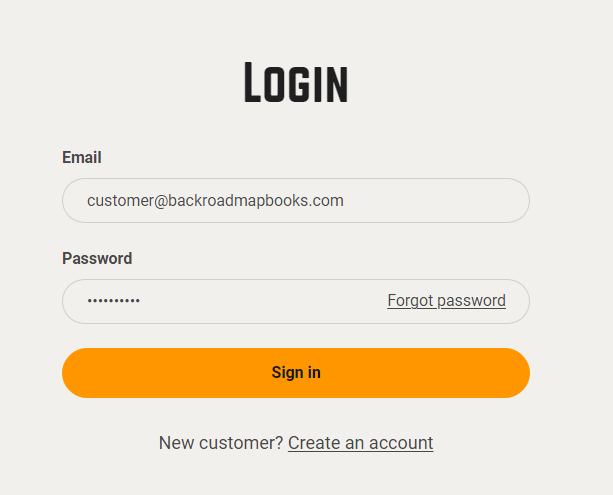
Create into your account on our website, create a newan account if you don'tdo not already have one.
2.
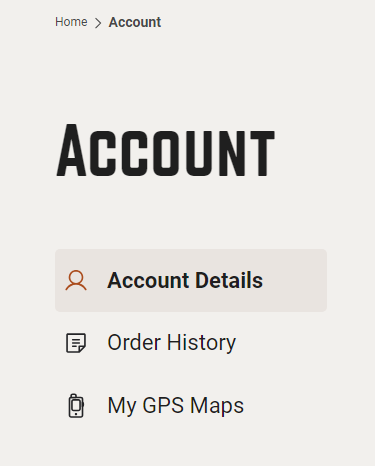
Click3
onLocate the "MYlicense GPSfiles
Maps"The buttonrequired tofiles go(gmapsupp.unl toand the registration page.
3.gmapsupp.gma) Click on the Register button for SD
4.) Use the Choose File buttons to select your gmapsupp.unlare in the first field and gmapsupp.gmaGarmin in the bottom field.
*These files can be found in the Garmin folder on your card.MicroSD.
3. Registration Workflow
All steps are performed on the My GPS Maps registration page.
3.1 Navigate to the Registration Page
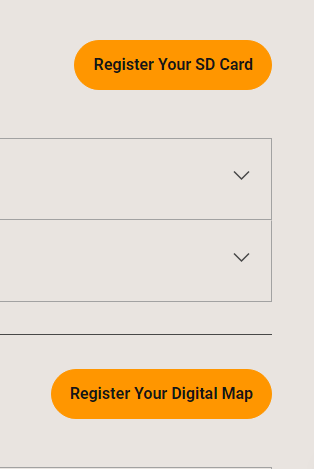
After login, click the “MY GPS MAPS” button (top‑right).
On the resulting page, select “Register SD”.
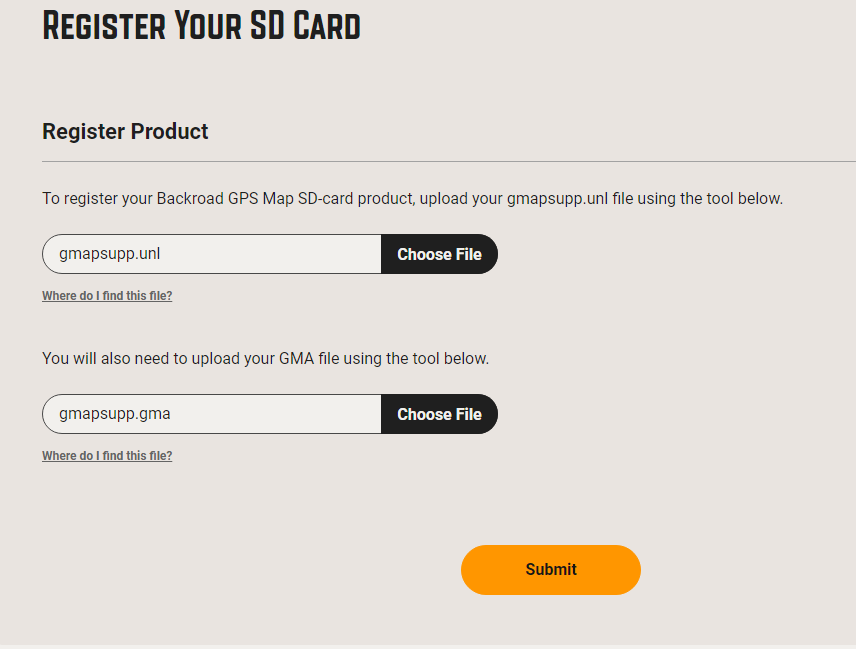
3.2 Upload the Unlock Code & Map File
gmapsupp.unl)
gmapsupp.unl
Use the Choose File button to pick this file from the Garmin folder.
Map File (gmapsupp.gma)
gmapsupp.gma
Use the Choose File button for the second field.
5.)Tip:
Double‑checkWhenthatyourthe files you pick areloaded intoexactly theregistration.unlformandyou.gmacanfilesnowfrom the Garmin folder. Any mismatch will trigger an error.
3.3 Submit
Once both files appear in the form, click SUBMIT.SUBMIT.
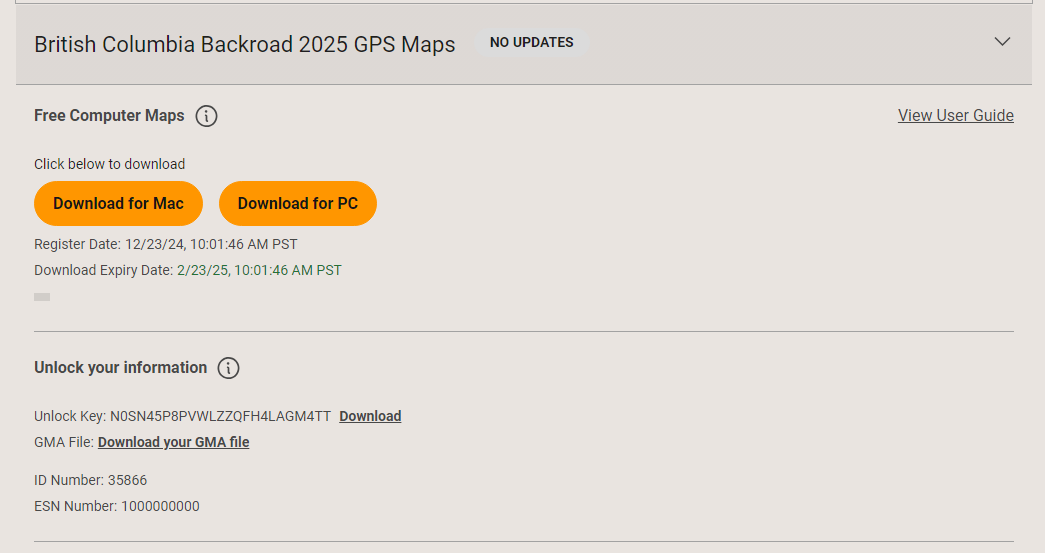
IfA yourgreen registrationconfirmation is successful youbox will see a green boxappear, and your newproduct productwill be listed forunder you.“My Products”.

Result: The MicroSD card is now registered to your Backroad Map Books account.
4. Post‑Registration
.unl and .gma files on your computer for future reference.
Your
4. cardCommon has now been registered.
Error Messages
& Fixes
(email: [email protected]).
“Invalid File.zip instead of .gma or .unl).
Re‑select the exact .gma and .unl files from the Garmin folder.
“This card has already been registered”
Card was previously registered on another account or already updated.
Not recoverable – you must purchase a new card or contact support for advice.
5. Troubleshooting Checklist
6. Quick Reference
Ctrl+L (Chrome)
Open registration
MY GPS MAPS → Register SD
File picker
gmapsupp.unl → Choose File; gmapsupp.gma → Choose File
Submit
SUBMIT button
Prepared by the Backroad Map Books Technical Support Team