
Registering your GPS maps MicroSD
Here's a few benefits you get from Registering:
- - Download Computer Maps for Mac or PC
- - Store a secure copy of your Garmin License and Unlock Files
- - Access to Future Updates at a Discount
- - Additional Technical Support
Updates are FREE for 60 days after registration of your microSD card in your account.
If you purchase an older version from a retailer you can update to the latest version of the maps for 60 days after registration.
Used or already updated cards will not be able to be registered.Version 1 - 2019 are Legacy versions and have been discontinued.
Registration
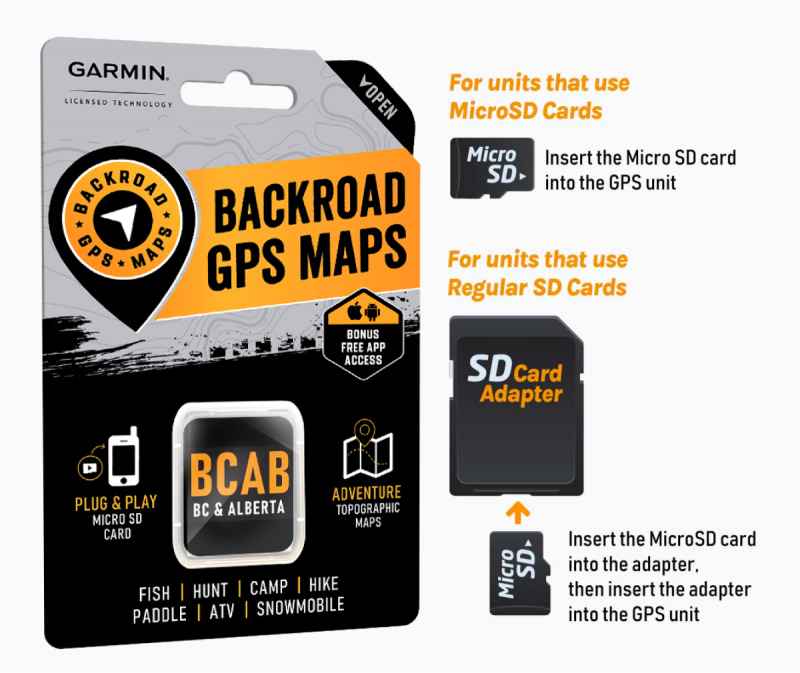
We recommend that you insert your SD card directly into the SD card slot on your computer, if available.
If you don't have an SD card slot, you'll have to insert the microSD card into your GPS unit and then connect the GPS unit to your computer via a USB cable. see Troubleshooting
1. Go to the our website at Backroadmapbooks
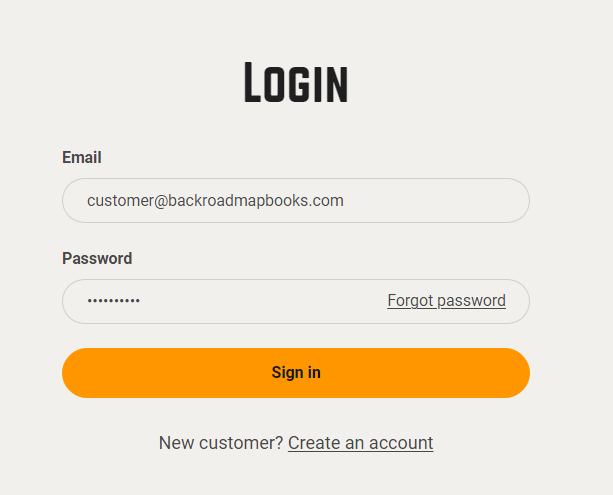
Log into your account on our website, create a new account if you don't have one.
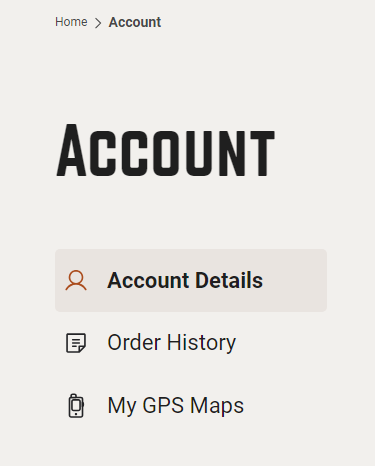
2. Click on the "MY GPS Maps" button to go to the registration page.
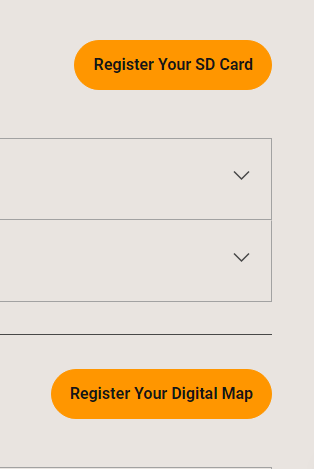
3.) Click on the Register button for SD
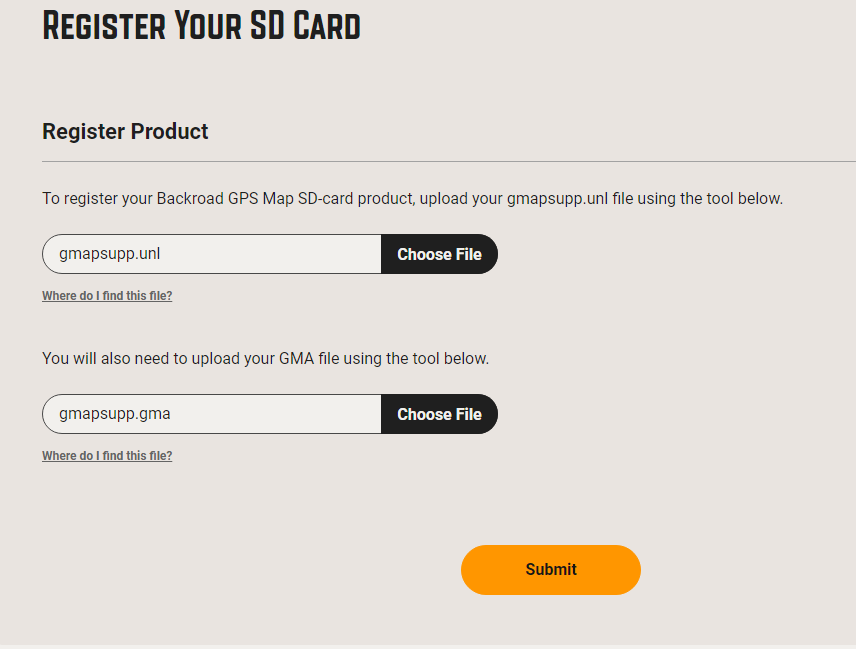
4.) Use the Choose File buttons to select your gmapsupp.unl in the first field and gmapsupp.gma in the bottom field.
*These files can be found in the Garmin folder on your card.
5.) When your files are loaded into the registration form you can now click SUBMIT.
If your registration is successful you will see a green box and your new product listed for you.

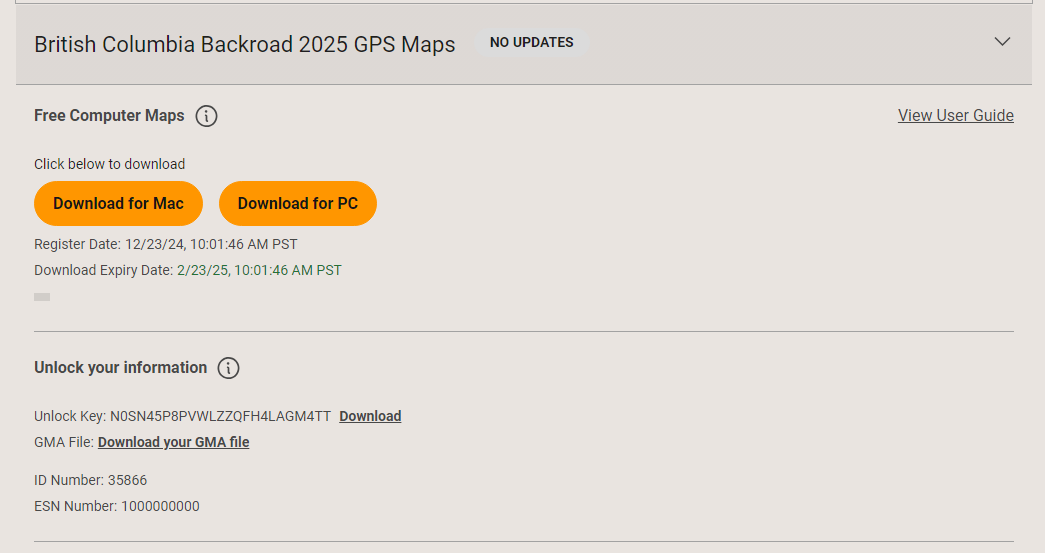
Your SD card has now been registered.
Error Messages
No ESN data found with unlockCode - Contact support
Invalid File Uploaded - Wrong file chosen during selection of .gma or .unl files