Registering your GPS Maps Digital
2columns-titles-gps-register.png

1. Overview

This

Here'sguide explains how to register the digital map content that ships on a fewMicroSD benefitscard so you getcan: from Registering:


  • - Download Computercomputer‑compatible Mapsmaps for MacmacOS or PCWindows.
  • - Store a secure copy of your Garmin Licenselicense/unlock and Unlock Filesfiles.
  • -Receive Accessfuture to Future Updatesupdates at a Discountdiscounted price.
  • -Access Additionalpriority Technicaltechnical Supportsupport.

NOTE: UpdatesAfter areregistration, FREEyou receive free map updates for 60 days.
Older afterversions registration of your microSD card in your account.

If you purchase an older versionpurchased from a retailer you can updatebe upgraded to the latest versionmaps within that 60‑day window.


2. Registration Benefits

Benefit Description Computer‑based map downloads Get the latest map files for macOS and Windows. Secure license storage Your Garmin license/unlock files are safely stored in the cloud. Discounted future updates Pay less for subsequent map releases.

Free Updates:
You can download map updates free of the mapscharge for 60 days after registration.the first registration of the MicroSD card.

Used

or

already

3. updatedUpdate cards& willUpgrade notPolicy

be
able
to be registered.
VersionItem 1Policy - 2019 are LegacyFirst‑time versionsregistration and60‑day havefree beenupdate discontinued.
period

Registration

begins

1.on Gothe day you click Submit.

Subsequent upgrades If you purchased a previous map edition from a retailer, you may upgrade to the ournewest websiteedition atwithin Backroadmapbooks60 days of the first registration. After 60 days Updates become paid and must be purchased through the Backroad Map Books website.

4. Important Warnings

⚠️ Unit ID & Access Code
The 10‑digit UnitID is required for digital‑map registration. It can be found under Settings → About on your GPS device.


3. Prerequisites

Item Requirement How to Obtain

MicroSD Card

(Optional)

If you choose to use a microSD card (not the physical memory).  Insert into a GPS or computer with an SD reader. ACCESS CODE A unique alphanumeric code printed on the MicroSD packaging. Look for the “ACCESS CODE” sticker on the card’s label. UnitID A 10‑digit number that identifies your Garmin GPS. Open the GPS → Settings → About (or Device Info) to view the UnitID. Internet Connection Required to submit the registration form and download computer maps. Any reliable broadband or Wi‑Fi connection.

4. Step‑by‑Step Registration

The following steps assume you have already plugged in your GPS so it is available and ready.

4.1 Log intoIn to the Backroad Map Books Portal

    Open a web browser and navigate to
    https://backrockodmapbooks.com Click Sign In (top‑right) and enter your account oncredentials.
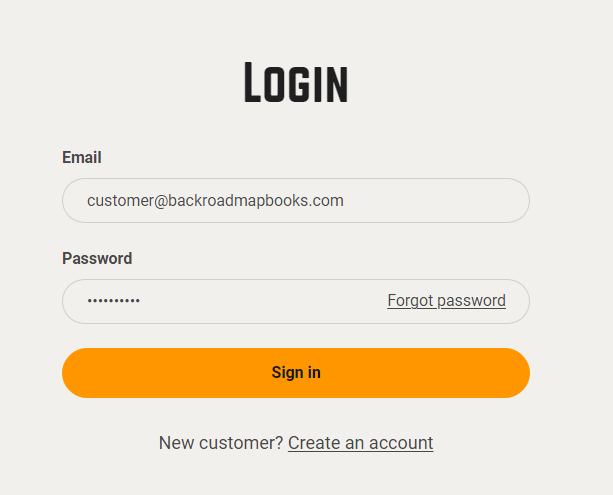
    2024-11-26 16_20_05-Account – Backroad Maps - Opera.png
    our website,
    create

    4.2 a new account if you don't have one.

    2024-11-26 16_20_05-Account – Backroad Maps - Opera.png

    2. Click on the "MY GPS Maps" button to goNavigate to the registrationDigital page.
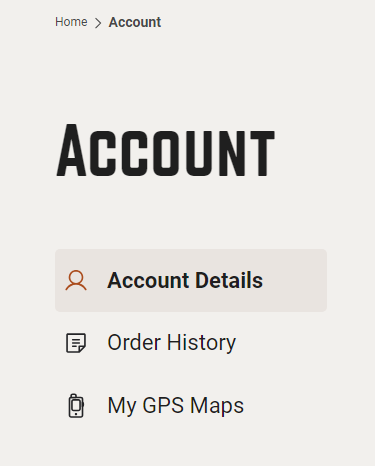
    Map

    2024-11-26 16_20_45-Account – Backroad Maps - Opera.png

    Registration

    3.)Page Click

    on
    theOnce logged in, click My Account → Digital Maps → Register Your Digital Map.
     

    Reg.png


    ![Navigate to Digital Maps](https://brmb.support/uploads/images/gallery/2025-03/scaled-1680-/reg.png)

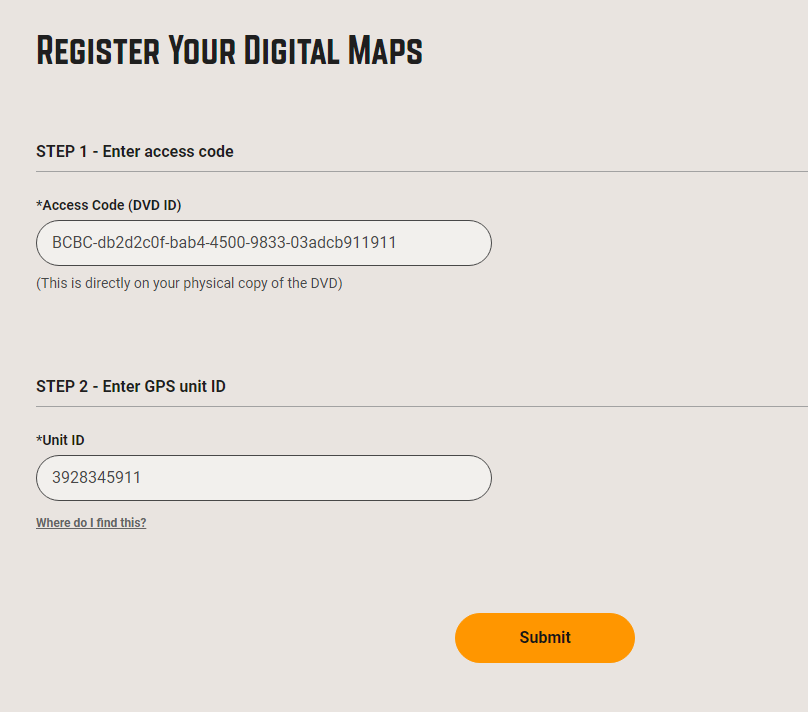
    4.)3 Enter yourthe Registration Data

    Field Input Example ACCESSAccess CODECode andThe yourcode 10printed on the MicroSD card label. BCBC-7r3325caa-8cec-483d-97db-059d88f78f29 UnitID 10‑digit GPS UnitIDunit intoidentifier. the1234567890 fields.

    *GPSThe UnitID can be found under theSettings → About Menuon your GPS.


    Access Code:  BCBC-7r3325caa-8cec-483d-97db-059d88f78f29
    UnitID:       1234567890

    entercodesDVD.png

    4.4 Submit the Form

      Review the values you entered. Click SUBMIT. If registration succeeds, a green success message will appear and the new product will be listed under your account.

      regsuccess.png


      5. After Registration

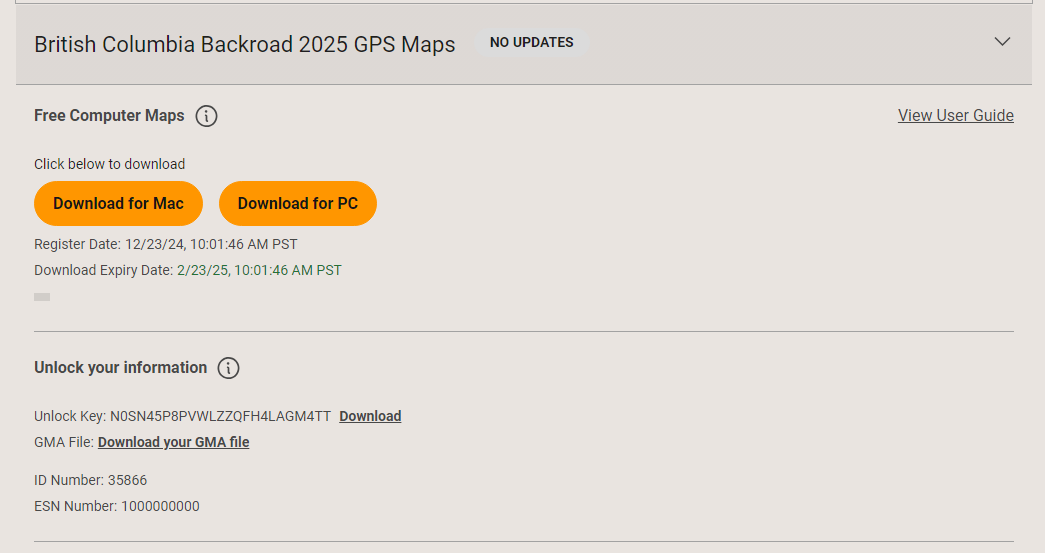
        Your digital maps are now registered and available for download. The new product appears in the GPSMy Settings.Gps Maps

        entercodesDVD.png

        section

        5.) Whenof your Codesaccount.

        areYou can immediately start downloading the computer‑ready map files.

        product.png


        6. Post‑Registration Tasks

          Download the computer‑map files:

            From your account, click Download next to the registered product. Choose macOS or Windows as required. Follow the on‑screen prompts to install.

            Backup your license files:

              You can also download a copy of your Garmin license/unlock files from the portal for local backup.

              Schedule future updates:

                Within the 60‑day free window, simply click Get Updates in the portal.

                7. Troubleshooting

                Symptom Likely Cause Fix Registration fails with “Invalid Access Code” Wrong Access Code or UnitID entered intoRe‑check the GPS UnitID. Registration fails with “UnitID already registered” The same UnitID was registered previously Contact support; you may have a duplicate product or need to unlink the old registration. Unable to download updates after 60 days The free update window has expired Purchase the latest map edition through the portal. Green success box never appears Browser security block (e.g., pop‑up blocker) Disable pop‑up blockers or try a different browser.

                8. FAQ

                Q1. Can I use the Digital maps on multiple GPS devices?
                A1. No – the registration formis tied to your GPS UnitID,  You can only load the maps on the registered GPS.

                Q2. Do I need to install the Digital maps to a  MicroSD card ?
                A2. No, the Digital maps allow you canto nowinstall clickthe SUBMIT.

                maps

                Ifon the internal memory or your registrationown ismicroSD successfulcard.

                you

                will

                9. seeContact a& greenSupport

                box
                Channel Availability Notes Email Mon‑Fri 9:00‑17:00 PST [email protected] Phone Mon‑Fri 9:00‑17:00 PST (877)-520-5670 

                For urgent issues, reference the UnitID and Access Code in your newsupport product listed for you.request.

                regsuccess.png

                product.png

                Your Digital Maps have now been registered.