# Installing Backroad GPS Maps Digital [MAC]
Backroad Maps DIGITAL Maps are installed directly to your GPS unit memory, your own SD card or your Garmin Smart Watch
Building and installing your maps can be done using Garmin Basecamp and Mapinstall.
#### Connect your GPS to your computer
[Connect GPS to computer](https://brmb.support/books/2windows-gps-support/page/troubleshooting-gps-maps)
***To Install your Backroad Maps Digital version you need Garmin Basecamp installed on your system and your Backroad GPS maps title installed and unlocked.***
[Install and unlock Maps in Basecamp](https://brmb.support/books/3mac-gps-support/page/basecamp-map-installation-mac)
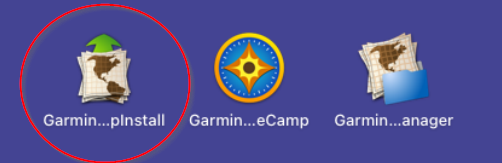
1.)Launch Garmin Mapinstall.
[](https://brmb.support/uploads/images/gallery/2025-03/digitalupdate14.png)
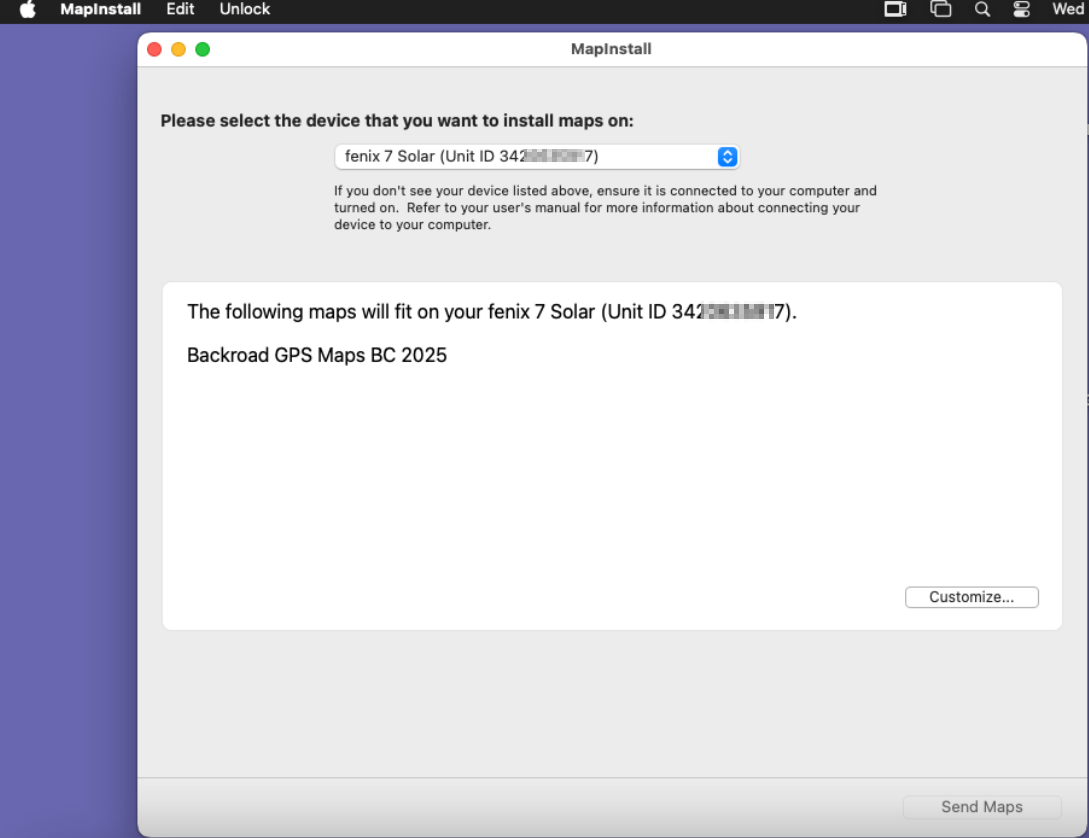
2.)Garmin Mapinstall will open and list any connected GPS device.
When you see your device in the list you can click Continue
[](https://brmb.support/uploads/images/gallery/2025-03/digi-watch1.png)
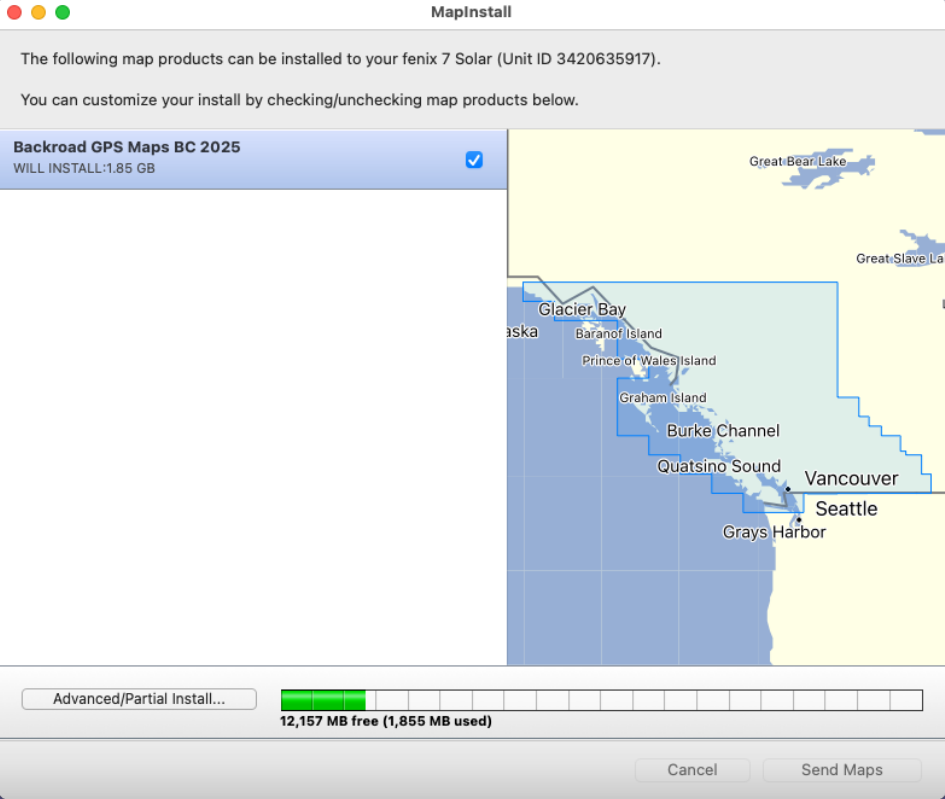
3.)You can click Customize if you want to select a custom area.
[](https://brmb.support/uploads/images/gallery/2025-03/digi-watch3.png)
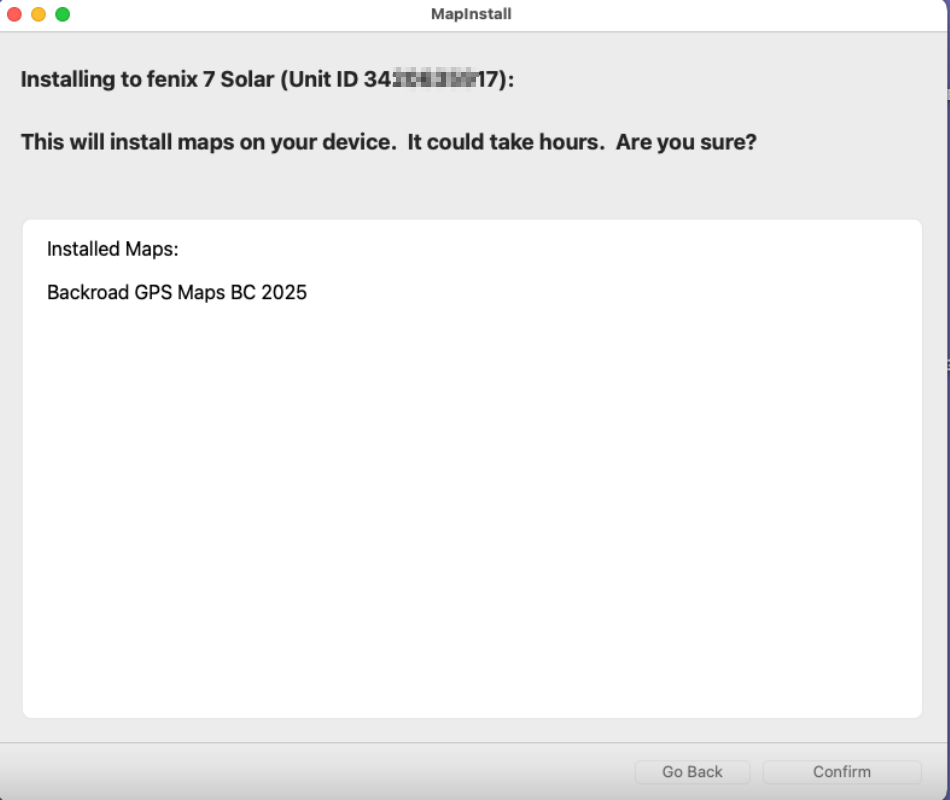
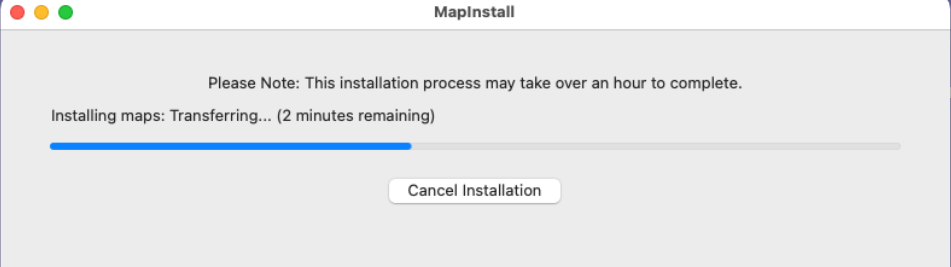
4.) Click on Send Maps to start transfer of the maps.
Click Confirm to begin the transfer
[](https://brmb.support/uploads/images/gallery/2025-03/digi-watch4.png)
[](https://brmb.support/uploads/images/gallery/2025-03/digi-watch6.png)
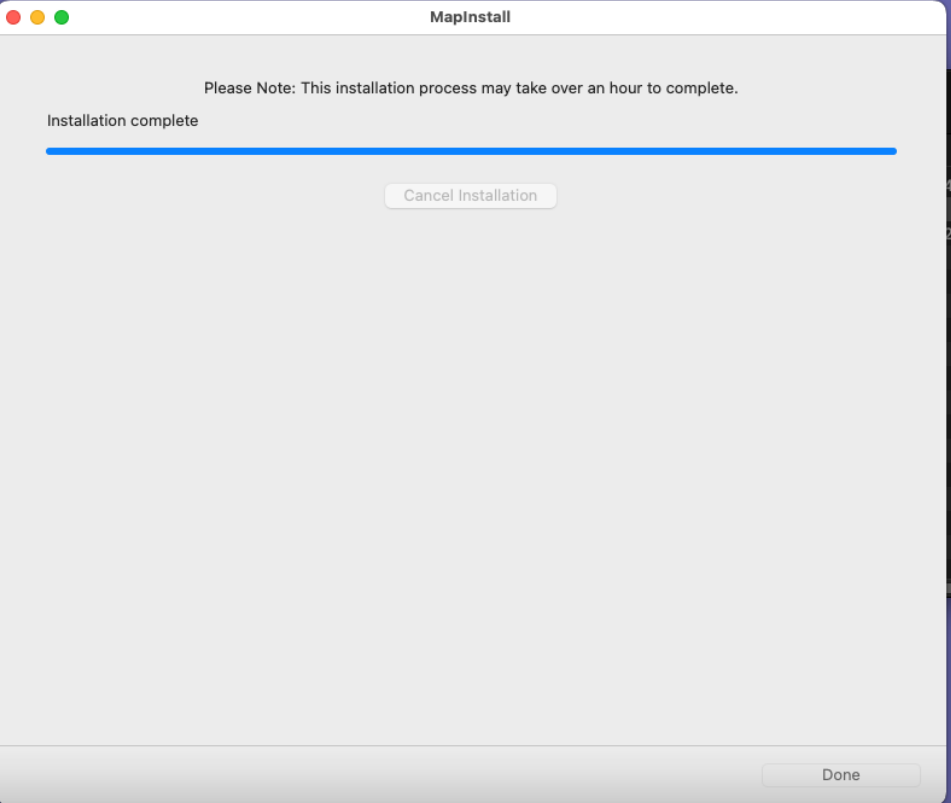
4.)Click Done to complete the Map transfer.
[](https://brmb.support/uploads/images/gallery/2025-03/digi-watch7.png)
### ***INSTALL the .gpi POI file***
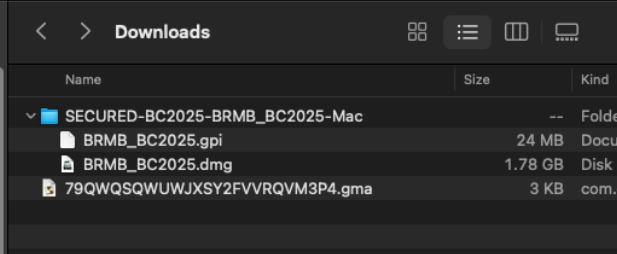
1.)Copy the **.gpi** file located in the map installer folder you downloaded.
[](https://brmb.support/uploads/images/gallery/2025-03/digitalupdate11.png)
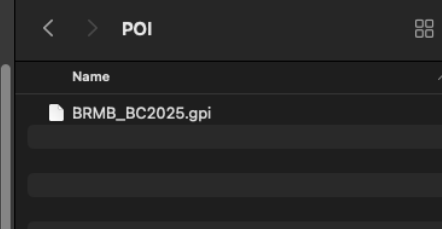
2.) Paste the .gpi file into the POI folder located inside the GARMIN folder on the GPS unit
***If the POI folder does not exist in the Garmin folder you can create it.***
***[](https://brmb.support/uploads/images/gallery/2025-03/digitalupdate23.png)***
***3.)You can now unplug the GPS and test that the maps are loading.***